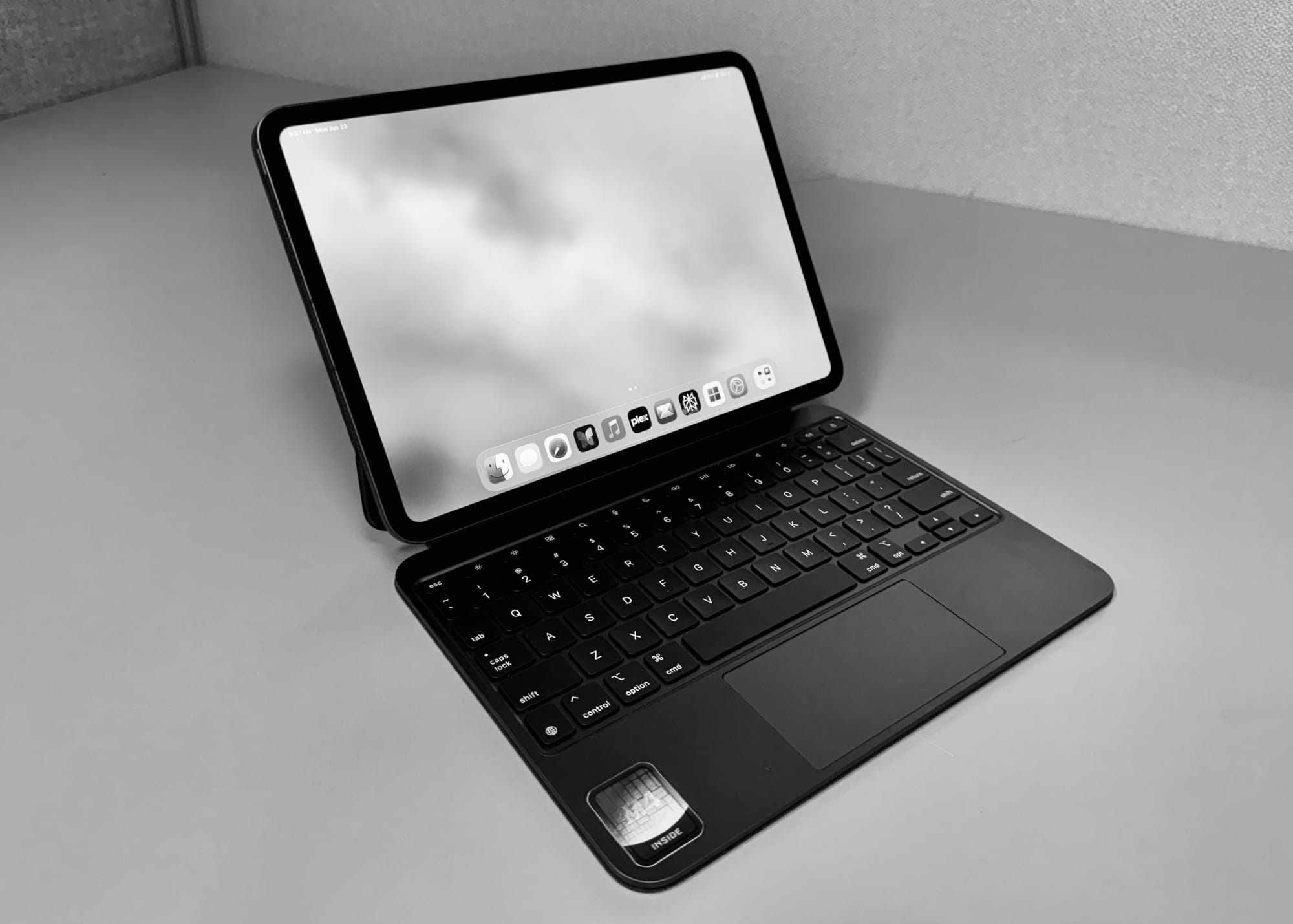
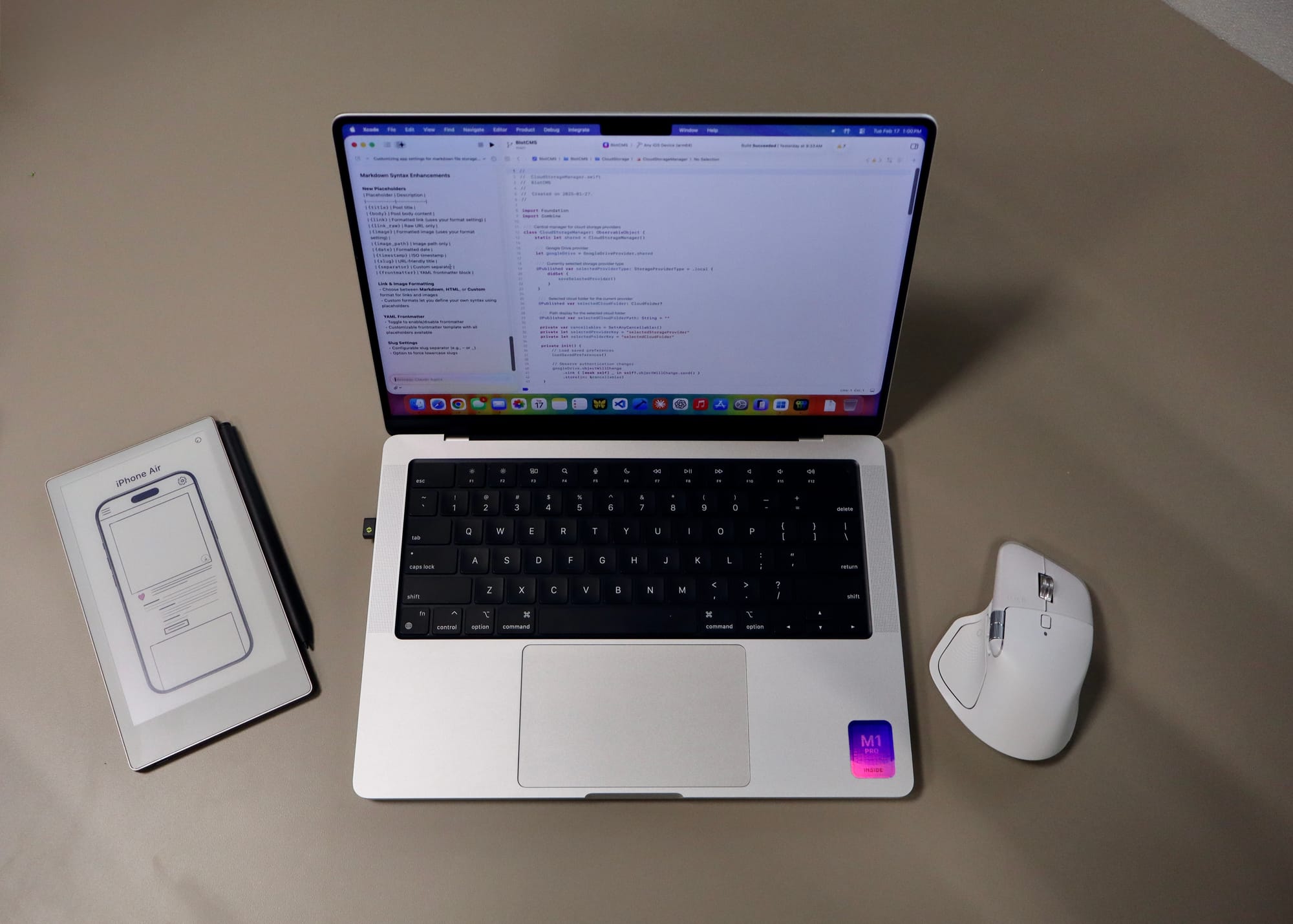
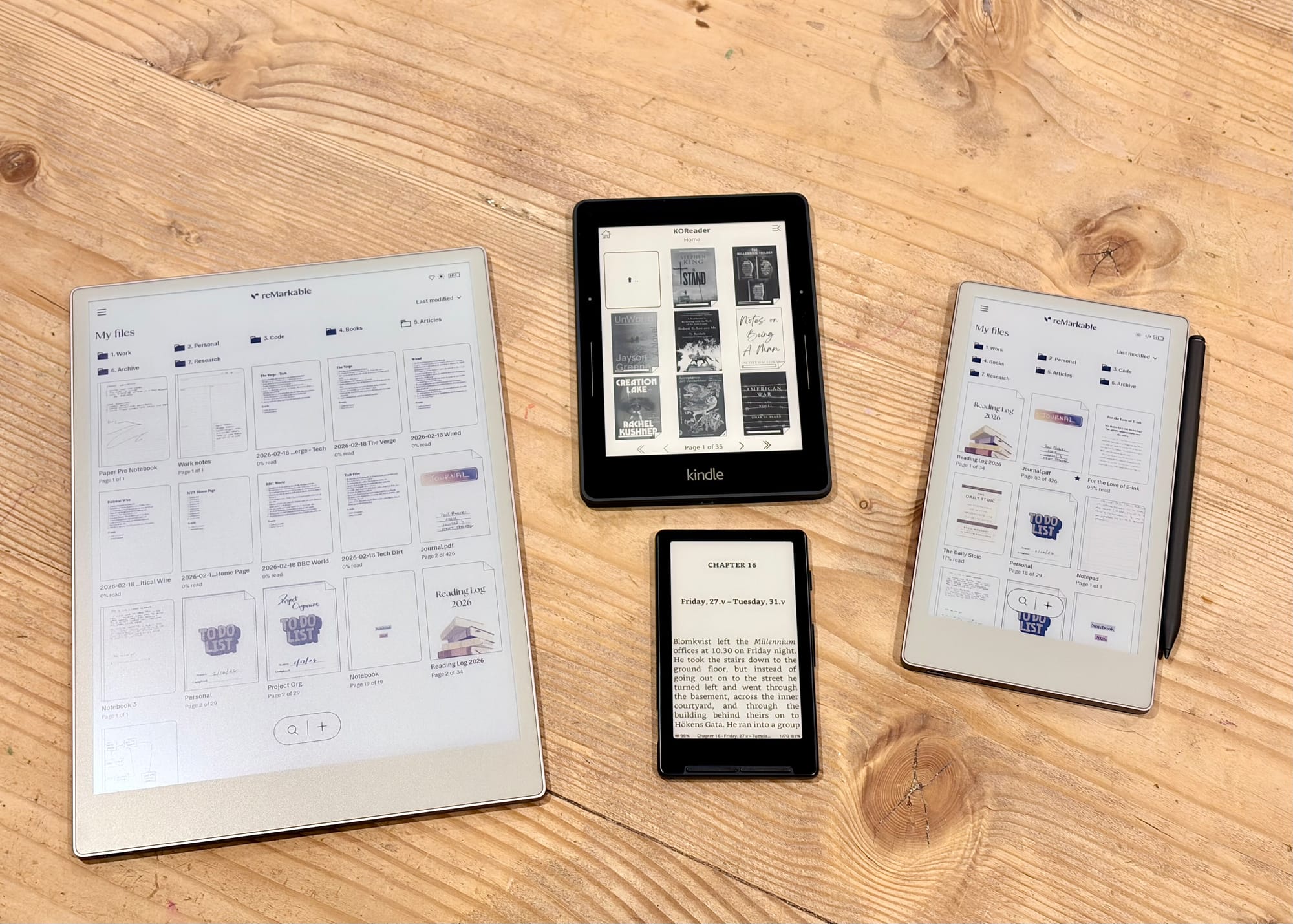
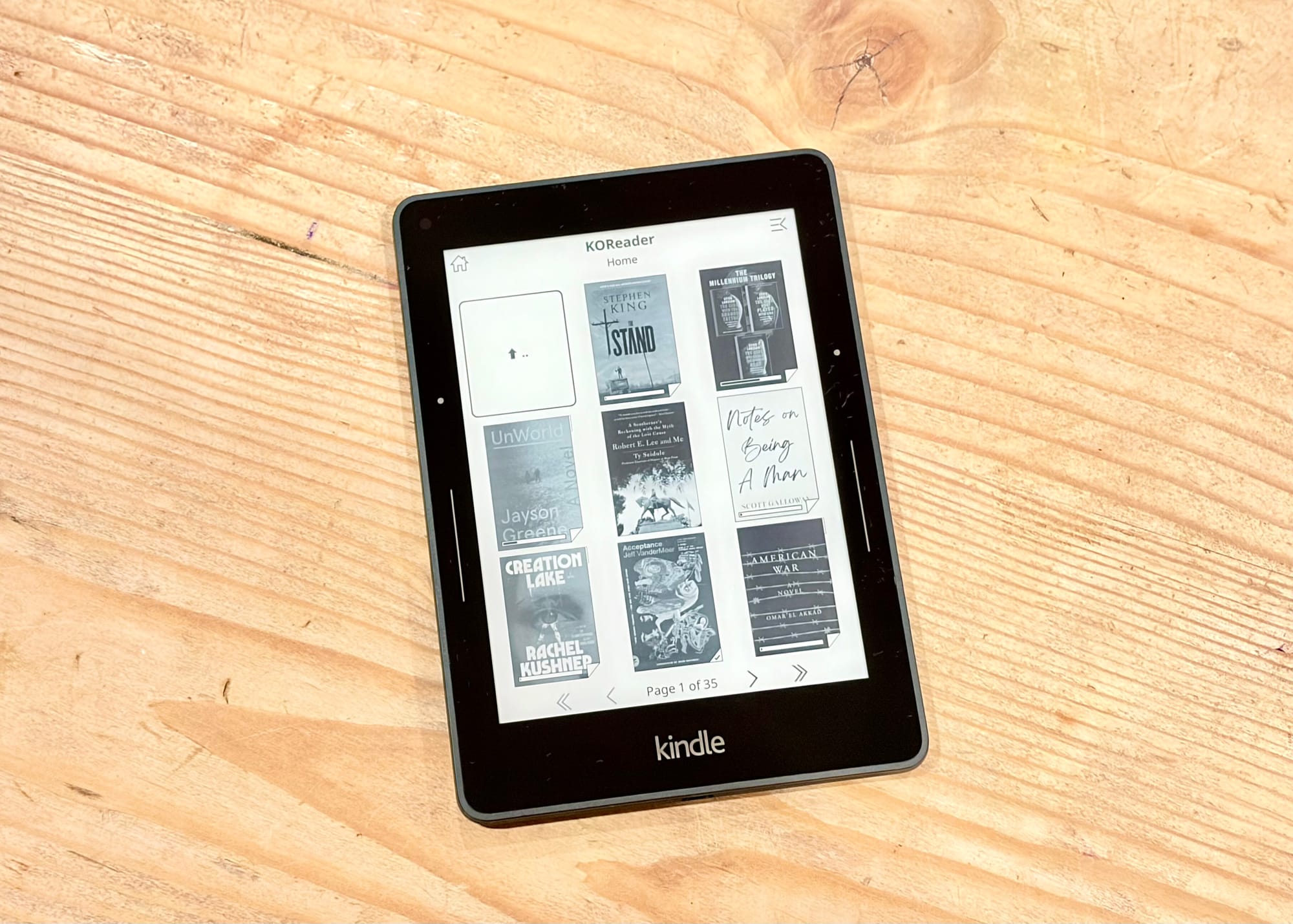
I have always had a fondness for the iPad Mini. I remember when the first one launched in 2012, it was one the first devices I instantly bought even though at the time $329 still seemed like a lot of money.
The great thing about the 1st iPad mini that I remember is that it was literally the same as the current iPad Air at the time just smaller. Same overall specs you just got it in a more compact and smaller package.
Since then the iPad mini has always felt like the best “iPad”. It wasn’t being pressured to do more than what many wanted an iPad Pro to do, be a Mac ugh, and it was so light and slim you could take it everywhere with you.
Overtime the iPad mini has gotten better features and more expensive. It didn’t update as often and was no longer just a smaller version of another iPad available but came with its own specs and features. Some of them were similar, yes, but because it didn’t have the same cadence of releases like other iPads it usually stood on its own.
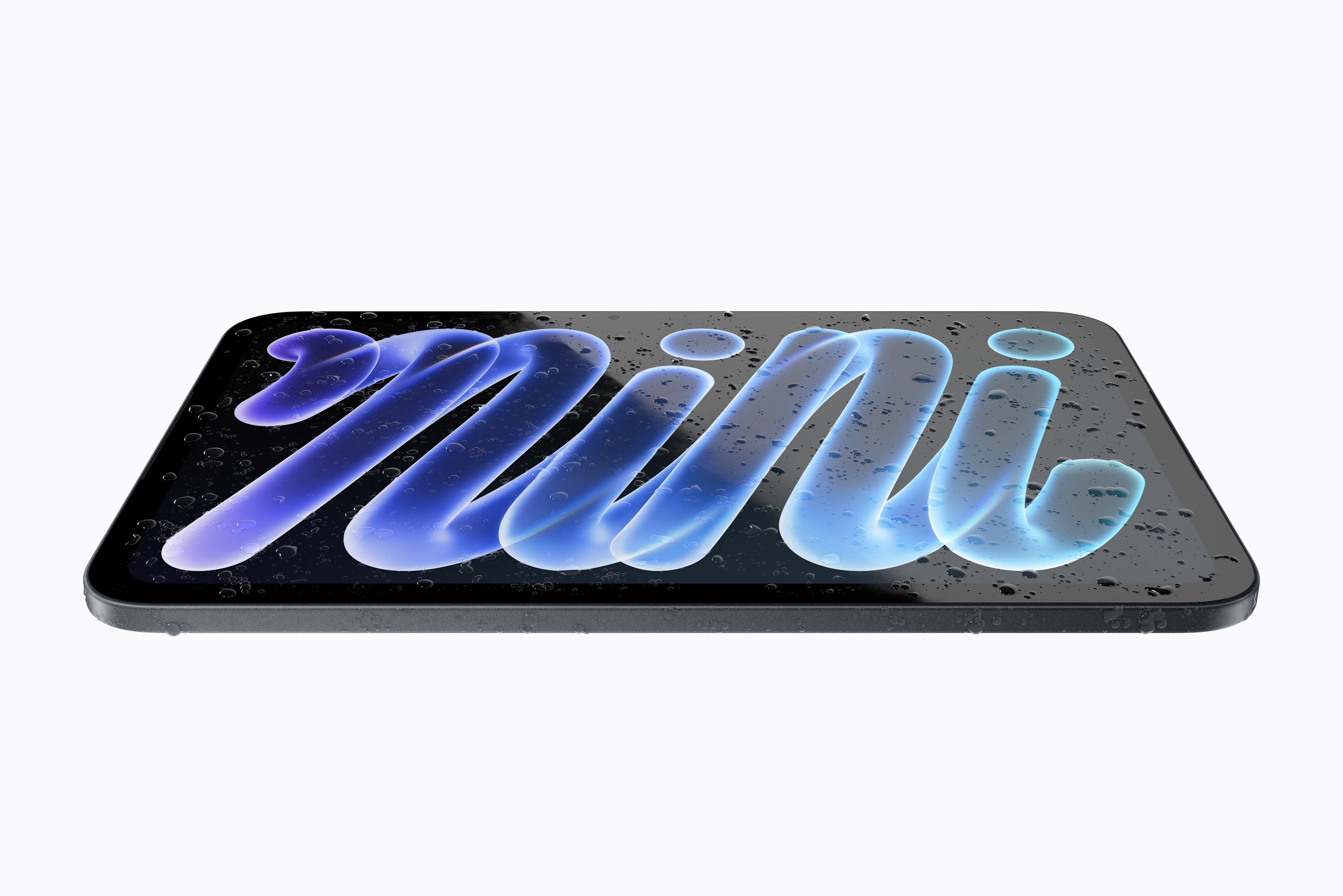
This couldn’t be more true today with the announcement of the new iPad mini with an OLED display and nano-texture option which is currently only available on the iPad Pro models. It also has a new under-the-display speaker system that no other iPad has.
Look, the tandem OLED display on my iPad Pro is amazing and an extra $100 (extra $200 if you include the $100 jump Apple recently did to the previous model) is worth it to have on the iPad mini. But $699 for a miniature iPad just seems crazy to me, especially with only 128 GB of storage.
Not only that but if you want that awesome nano-texture, you are looking at another $200 price bump since you have to pay the $100 for that option plus it’s only available if you got up to 256 GB. Apple has to charge for these additional features I get that, but if you wanted a nano-texture iPad mini you are looking at a minimum $899 for it.
$900! That’s almost $1000 if you include tax for an iPad mini with 256 GB of storage. It looks like a fantastic device don’t get me wrong. But I remember when the 11-inch iPad Pro used to sell for $799.
I understand this isn’t all Apple’s, or the innocent like mini iPads, fault. The industry for these parts are crazy right now and I get that Apple has to make money on these devices but my sudden disappointment after being super excited about the new iPad mini was tough.
I don’t need an iPad mini, my nano-texture iPad Pro is great. And spending the enormous amount of money on the iPad Pro could probably be argued pretty similarly to what I have been arguing against with the iPad mini. The difference is that my iPad Pro is my everything computer, the iPad mini I would argue is more of a secondary device for me, or consumption device for many.
My main disappointment is that we are now entering into a world where everything is so expensive. What used to be a reasonably priced option for a smaller version of something is now ridiculously expensive and it really sucks.
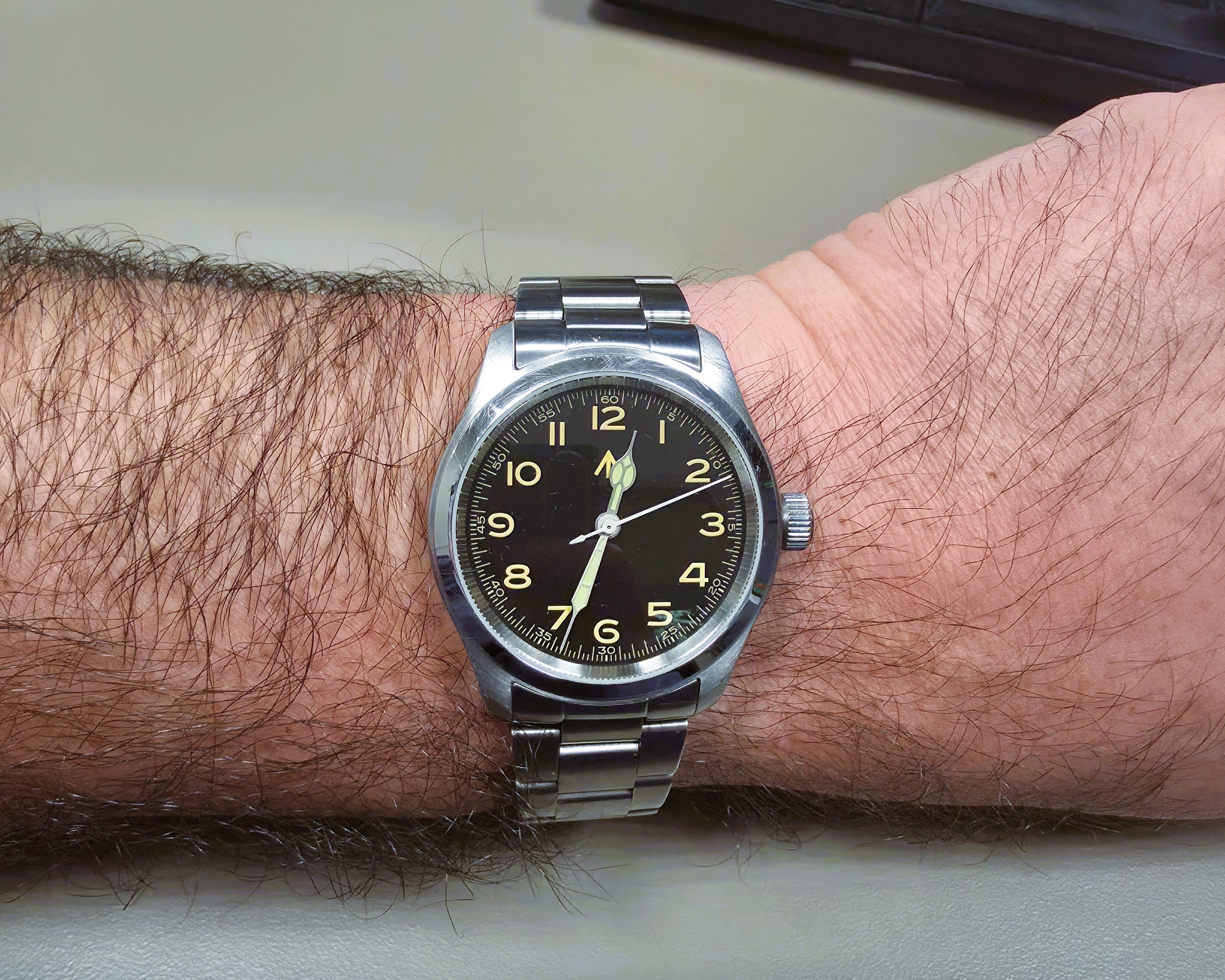
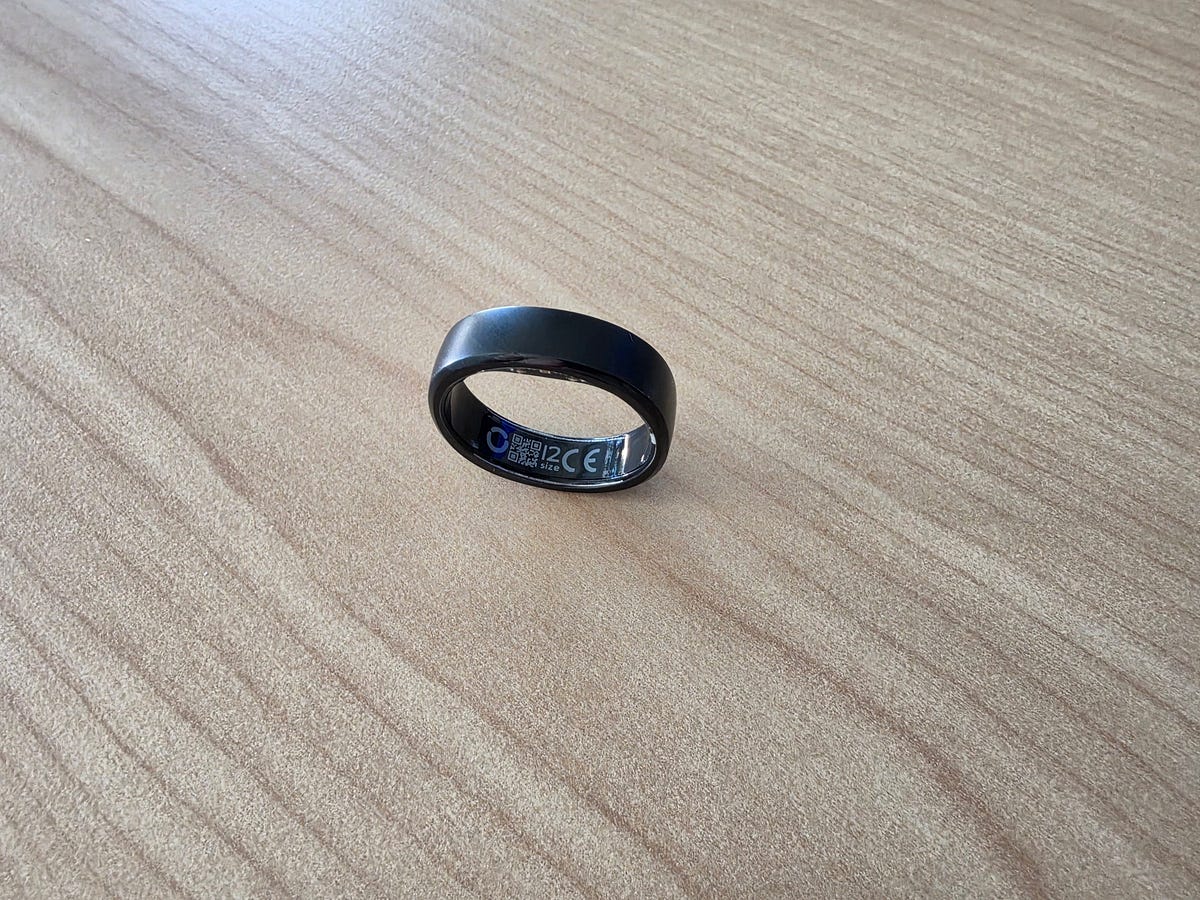
I wrote my review about the RingConn Smart Ring after moving away from the Apple Watch. I have officially been wearing a traditional analog watch for months now and don’t miss the smart features at all. The Apple Watch is great for many things, but not things I find important.
I plan to review the watch in the image above in a future everyday carry post coming soon, so keep an eye out for that.
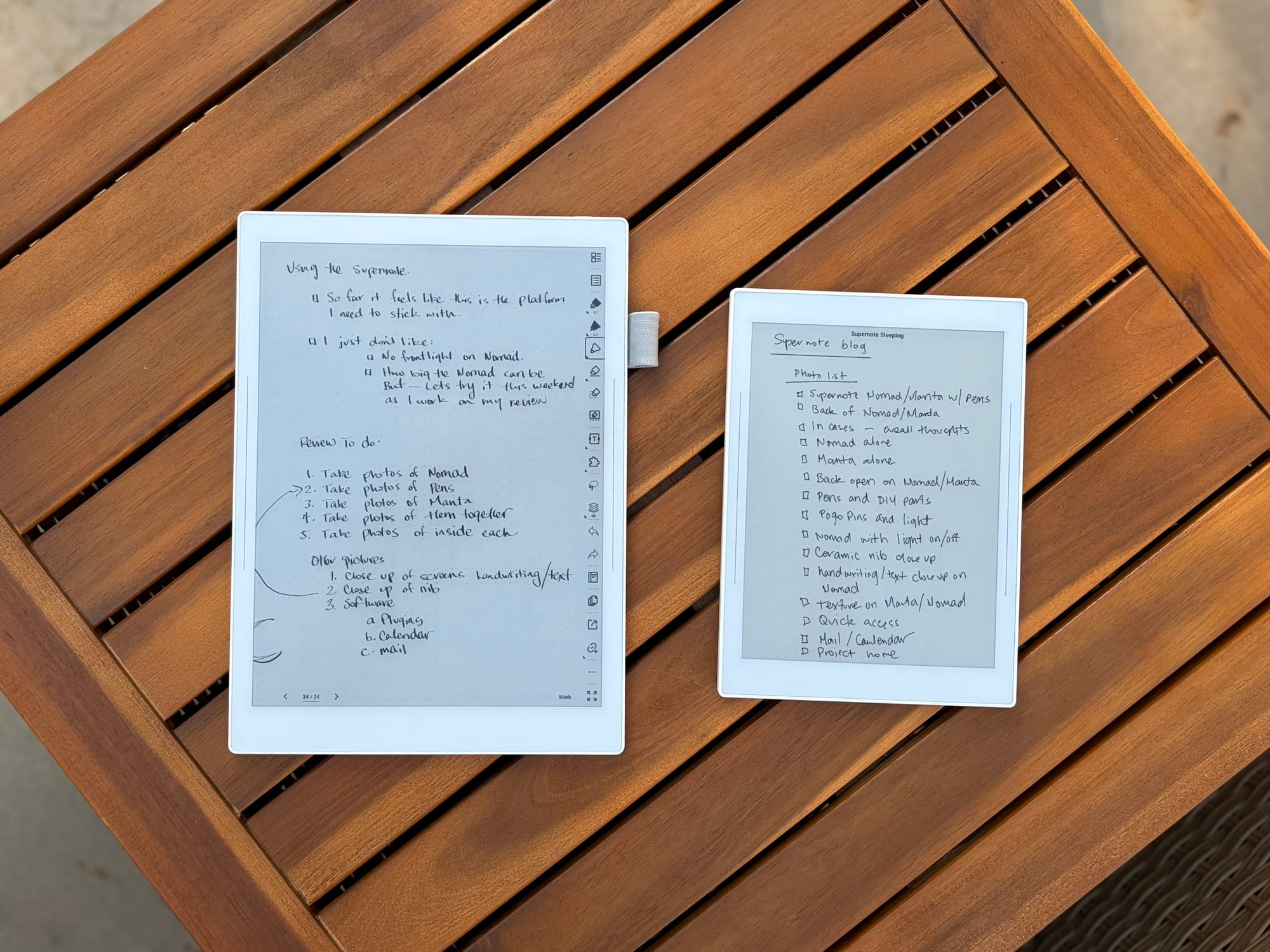
After trying out the Nomad and then the Manta, I have some thoughts.
After dipping my toes into the world of epaper by embracing reMarkable tablets, it is hard not to notice another player in the epaper tablet world: Supernote. I remember seeing a video by Matt Gemmel years ago talking about his Supernote Nomad, but because I wasn’t bought into digital notebooks back then, the price and usability didn’t really make sense to me.
Fast forward to today, and after really loving the reMarkable Paper Pro Move, I thought it made sense that I also check out what Supernote had to offer. Since Supernote’s approach to productivity is completely different than reMarkable, except of course handwriting notes but even that is very different from one another, I felt it would be useful to try out.
In this post I will be talking about the Nomad and Manta at the same time unless I specifically mention on or the other. The software and gestures are identical, but the size and writing feel are a bit different comparatively so I will be talking about those difference too. But just for clarity when I talk about a gesture for one, it is the same gesture for the other.
Hardware
Because the Move has been such a great device for me, I felt it made sense to start with the smaller version of the Nomad so most of my experiences are on the smaller device. I got a used white edition Nomad that came with the blue case and a black Heart of Metal pen. The quality of the device is good, no where near as premium feeling as the Paper Pro Move, but still good for what it is after.
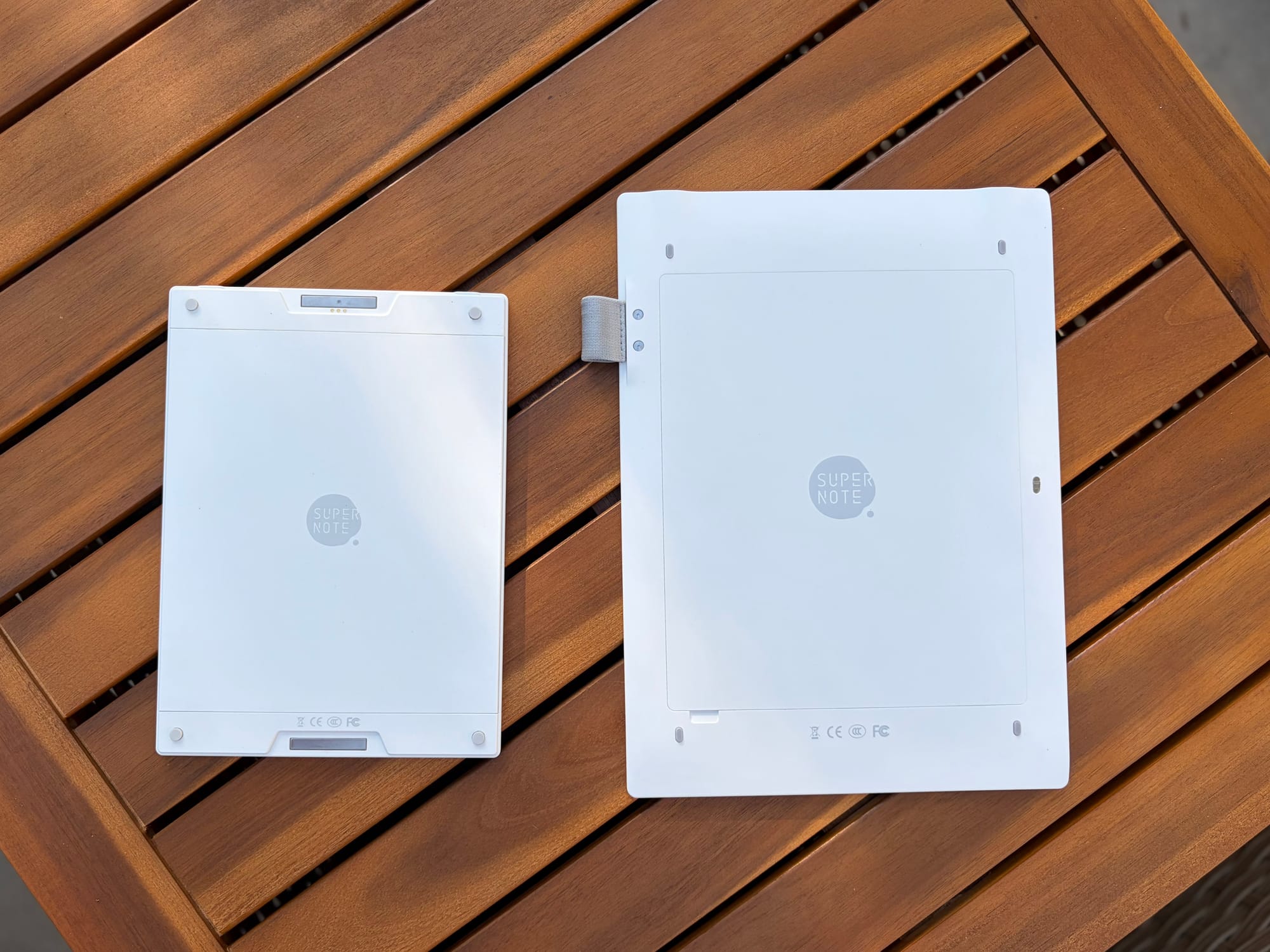
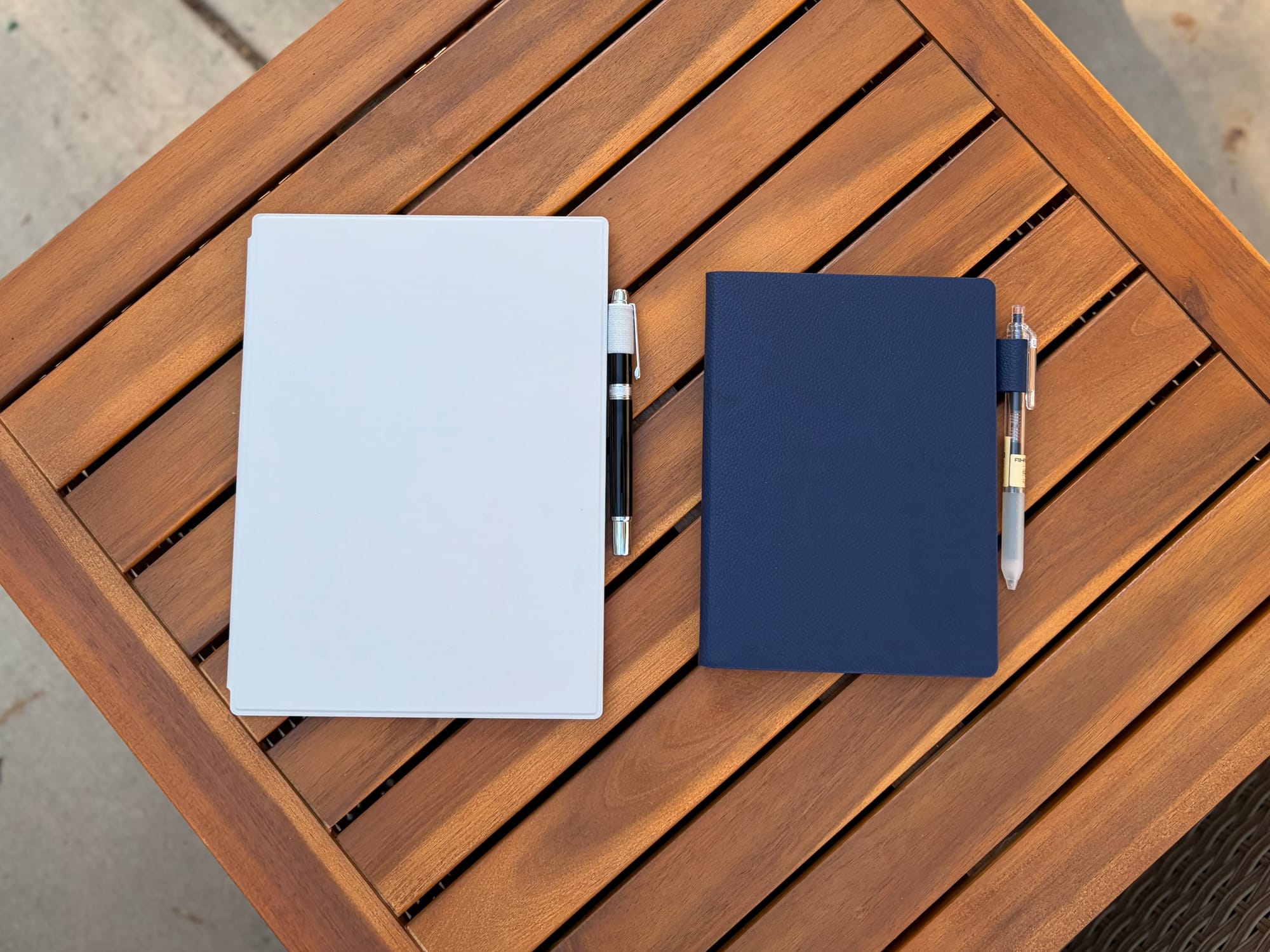
Backs of Supernote Nomad and Manta
The white edition Nomad, and the only version you can get on the Manta, are unabashedly plastic-y. They both feel like plastic tablets and there is no denying that smooth plastic does feel cheap in comparison to other tablets. That being said, it doesn’t mean that it is bad. The casing on both the Nomad and Manta feel solid, and sometimes I do feel or hear a creaking or flexing when grabbing the device.
For me it isn’t a showstopper, plus I think the benefits of having a plastic case are well worth it. For example the back panel of the device can come off allowing you to replace parts either when they are broken or an upgrade is available. So if a new SOC comes out or you want to replace the battery, Supernote offers this option and actually encourages it by putting a screwdriver in the box with the device.
Another reason are that the devices feel very light. Not that aluminum is necessarily heavy like say on a reMarkable or iPad, but plastic does make it so these devices don’t weigh a ton. That being said, I have seen some people complain about discoloration and some cracking in the corners after years of use. Maybe this is rare or not really an issue but I know that the risk is there.
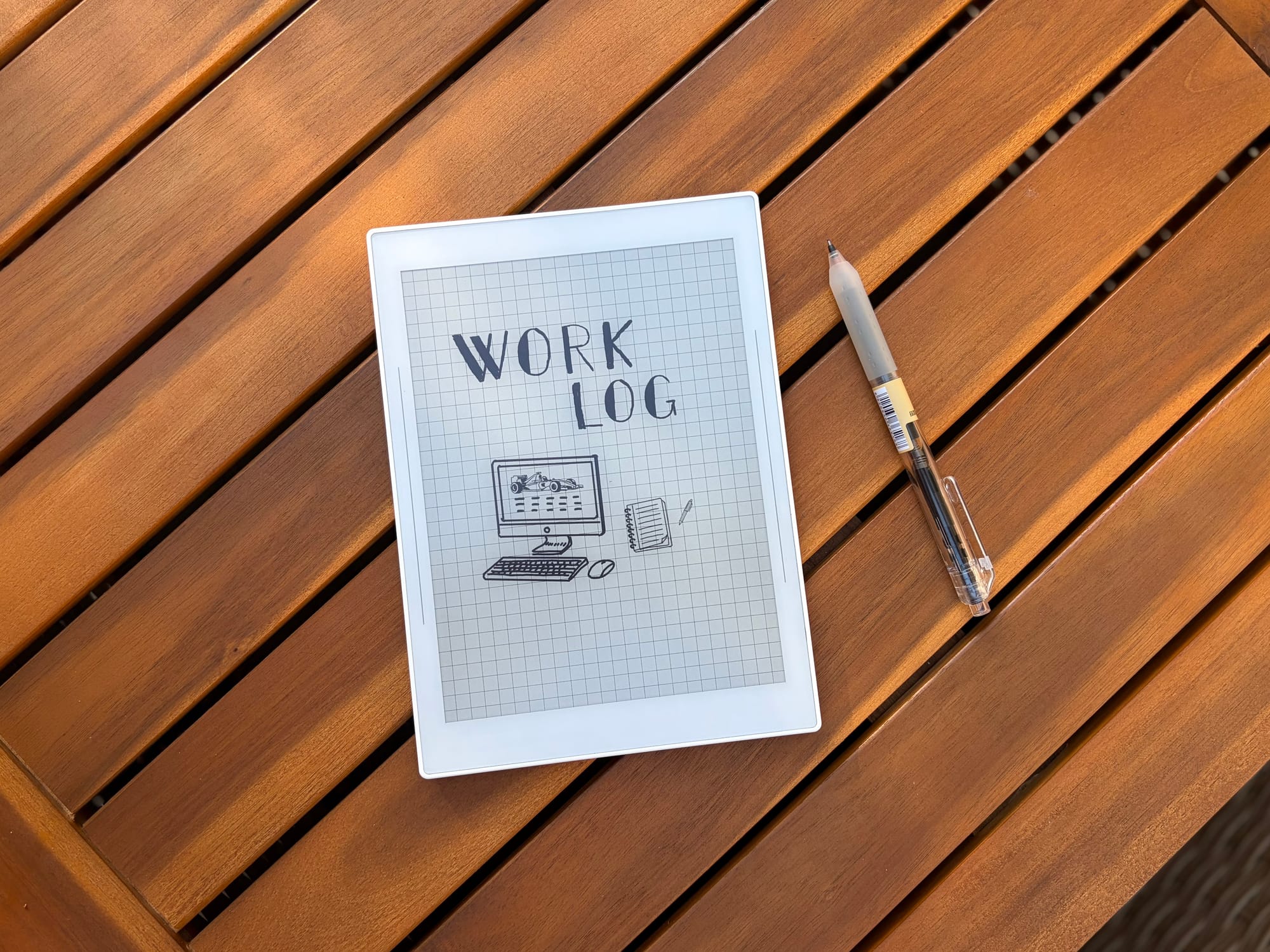
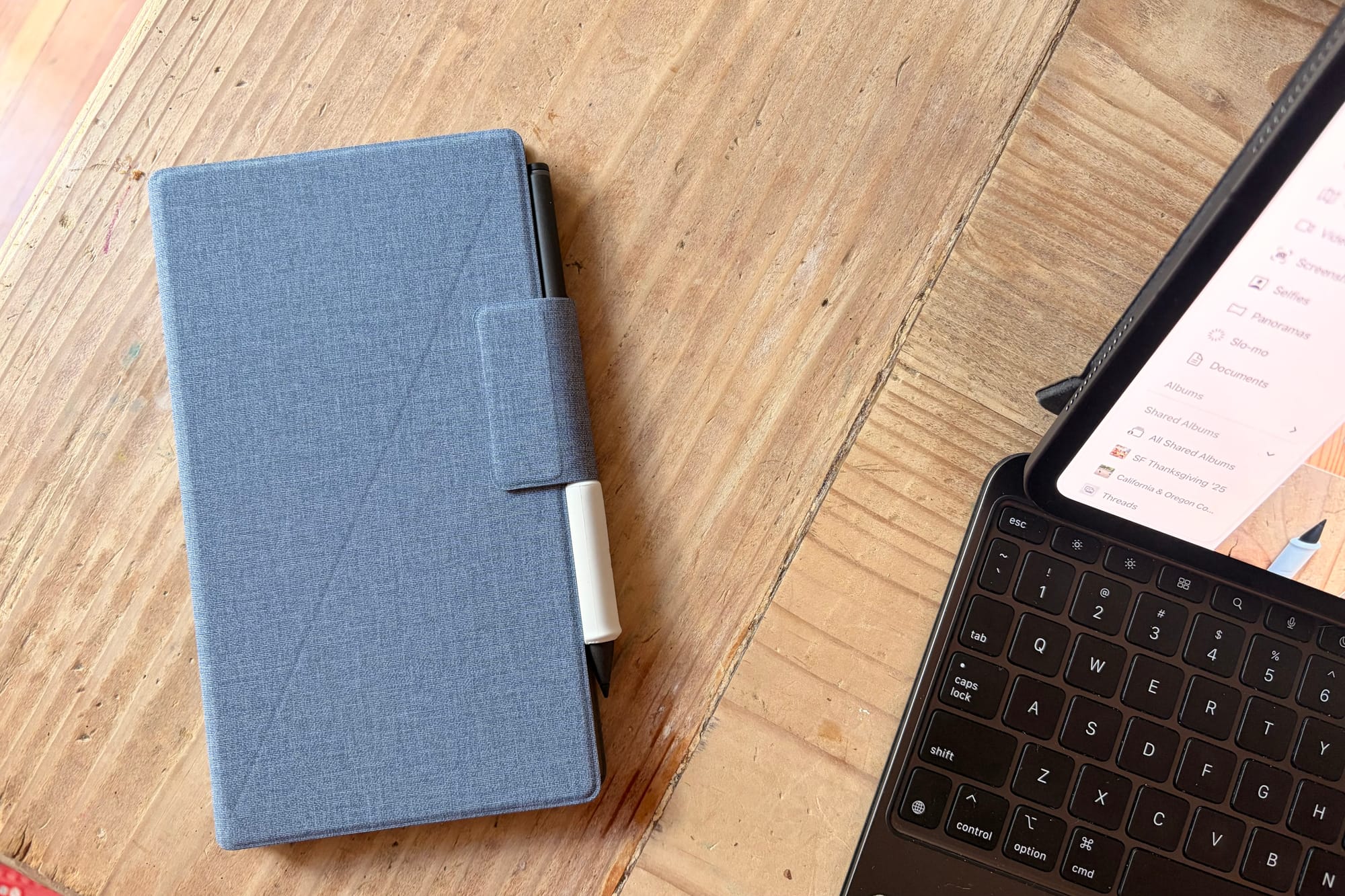
Supernote Nomad and DIY Pen
Both the Nomad and Manta offer different ways of protecting the device. The Manta has a cover that attaches to the side of the device, and the Nomad has magnets that connect to a case. Both in my opinion or not great. They do the job, but both feel very flimsy and not high quality. Granted they are much cheaper than cases sold by reMarkable for their devices and those wear pretty bad over time and faster.
The Manta has a pen loop built-in that is attached to the back that you can remove yourself if you do not want it, and the Nomad has a pen loop on the case. No magnetic sticking the pens to these devices which is actually a pretty great feature on the reMarkables. You also get the option for adding an SD Card for expanded storage. This is an awesome feature, but one that I don’t know if I necessarily need.
The display on each device has 300 PPI which is fantastic and everything looks very sharp on it. The biggest difference between the two though are that the Nomad has a glass screen with a FeelWrite2 screen protector and the Manta is plastic. So the Manta provides more “give” when writing, which Supernote claims gives you the feeling of writing on a pad of paper.
Supernote Manta and Heart of Metal Pen
Like I mentioned in my Move review, I don’t think digital handwriting will and ever should feel like paper. But I do think the Nomad and Manta feel really nice when writing. I don’t know if it is because both have the same screen protector but the plastic versus glass experience for me really isn’t there. Both feel pretty identical to me.
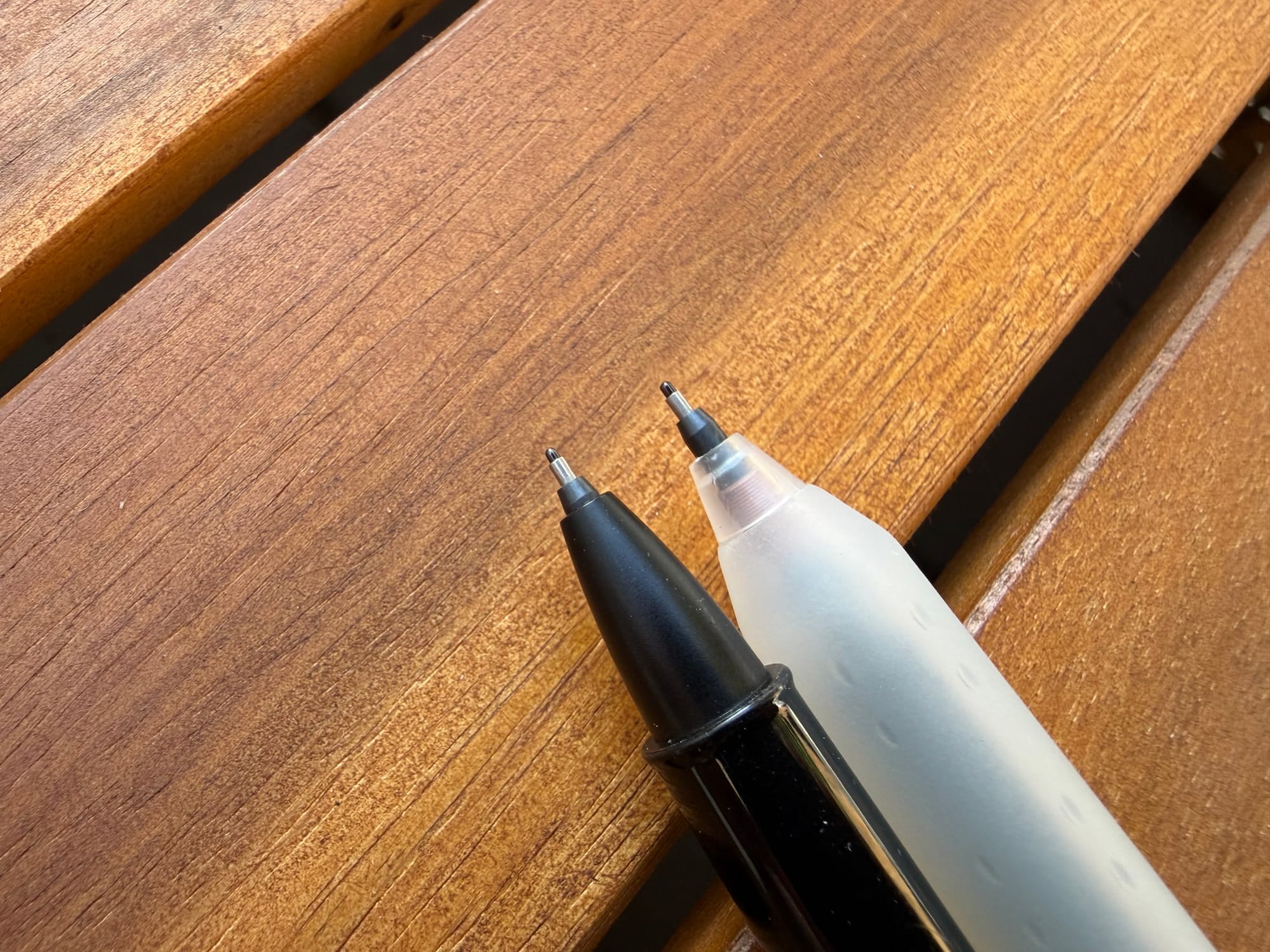
Before we move to the handwriting experience I want to quickly talk about the pens. I do really prefer the ceramic nib over softer stylus pen tips like the one for reMarkables. Not only because I never have to replace it but it is a lot more thin and provides a more premium writing experience.
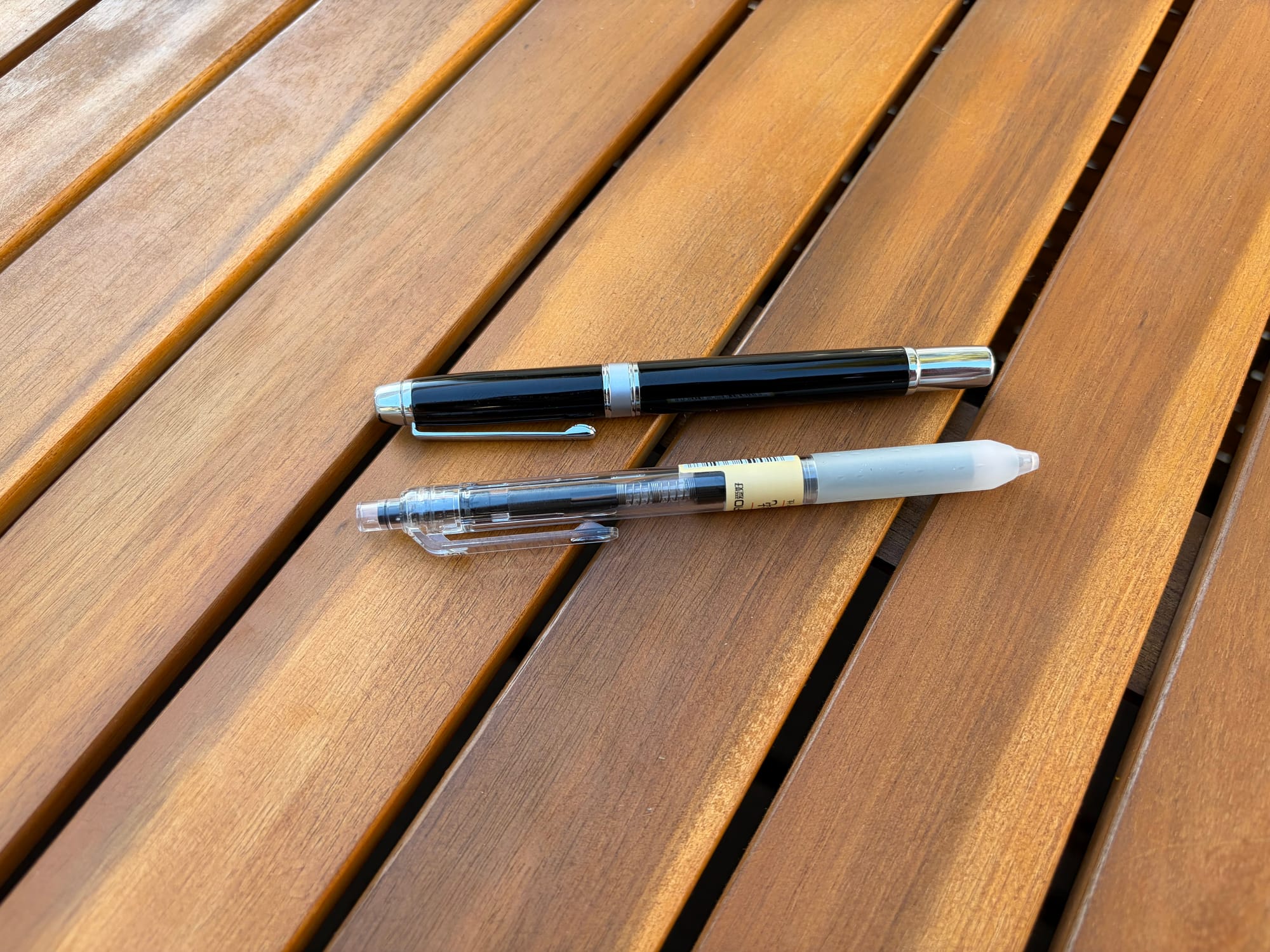
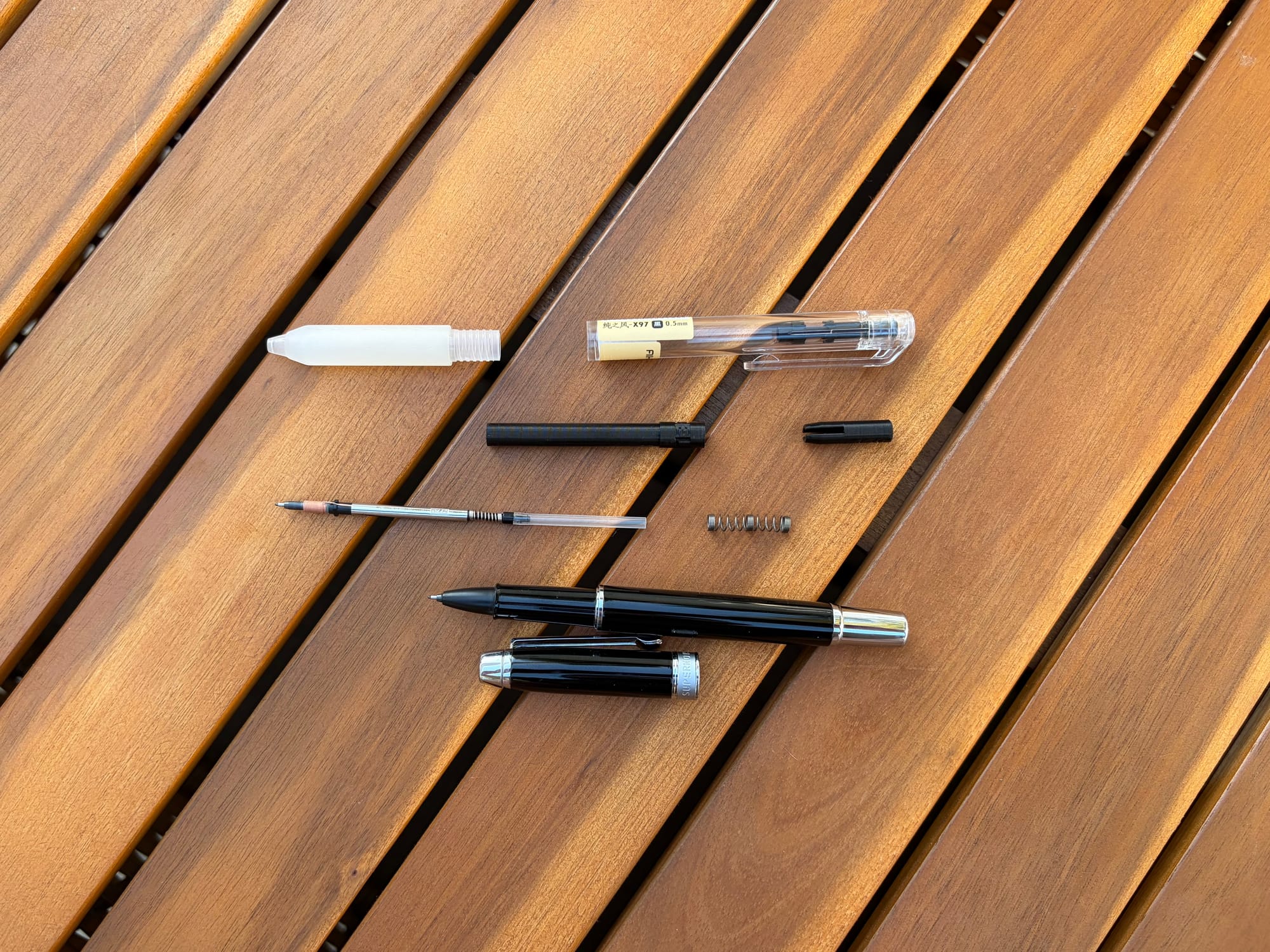
The Heart of Metal pen that I got with the Nomad is nice. I don’t usually go for pens like these, but it is cool that it feels like I am using a legitimate feeling premium pen on a digital notebook. The weight is good, I like the material, and overall it is a great device. My favorite pen though is a DIY pen I made using one of Supernote’s DIY replacement tip.
Heart of Metal and X97 (DIY) Pens
In order to use the tip I needed a custom part to make it fit in a pen that I wanted to use. I usually like to use a Sharpie Pen so I found someone on Etsy that 3D prints a part that can make the DIY tip work in a Sharpie Pen. I liked the setup, but I also have a new pen I prefer that I wanted to see if the modded part would work there also and to my surprise it did.
The pen that I use most often now comes from the manufacture AI HA, which has the brand czxwyst and model X97. I got a pack of 12 on Amazon for only $10 and I really have enjoyed using them. Luckily the part I got for the Sharpie Pens worked perfectly in X97 pen so I have been using that exclusively since it also the same pen that I use all day at work and when writing on paper. This is one great thing about Supernote is the fact that you can create custom tools of your own.
DIY Pen taken apart showing Supernote DIY ceramic nib replacement
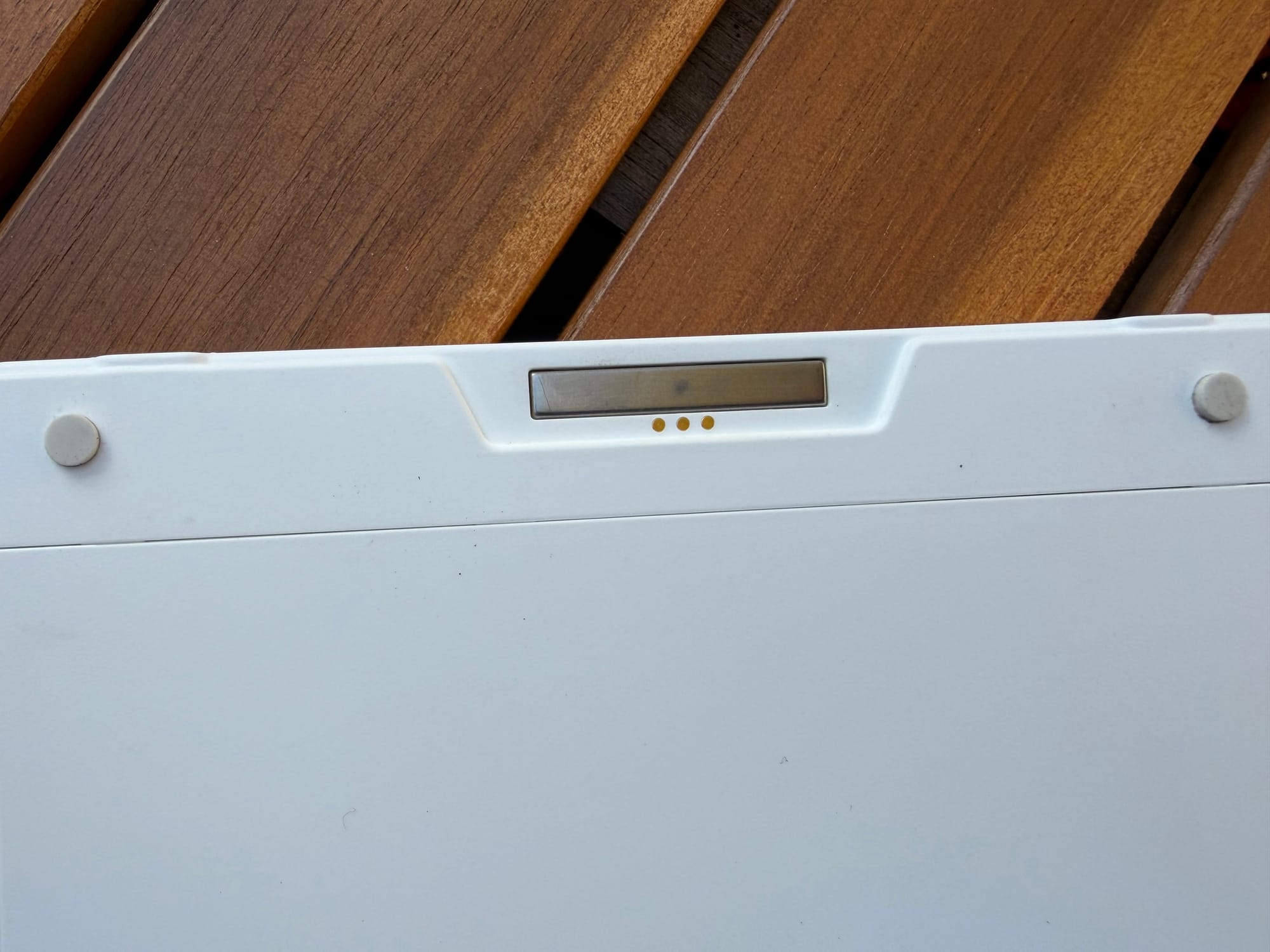
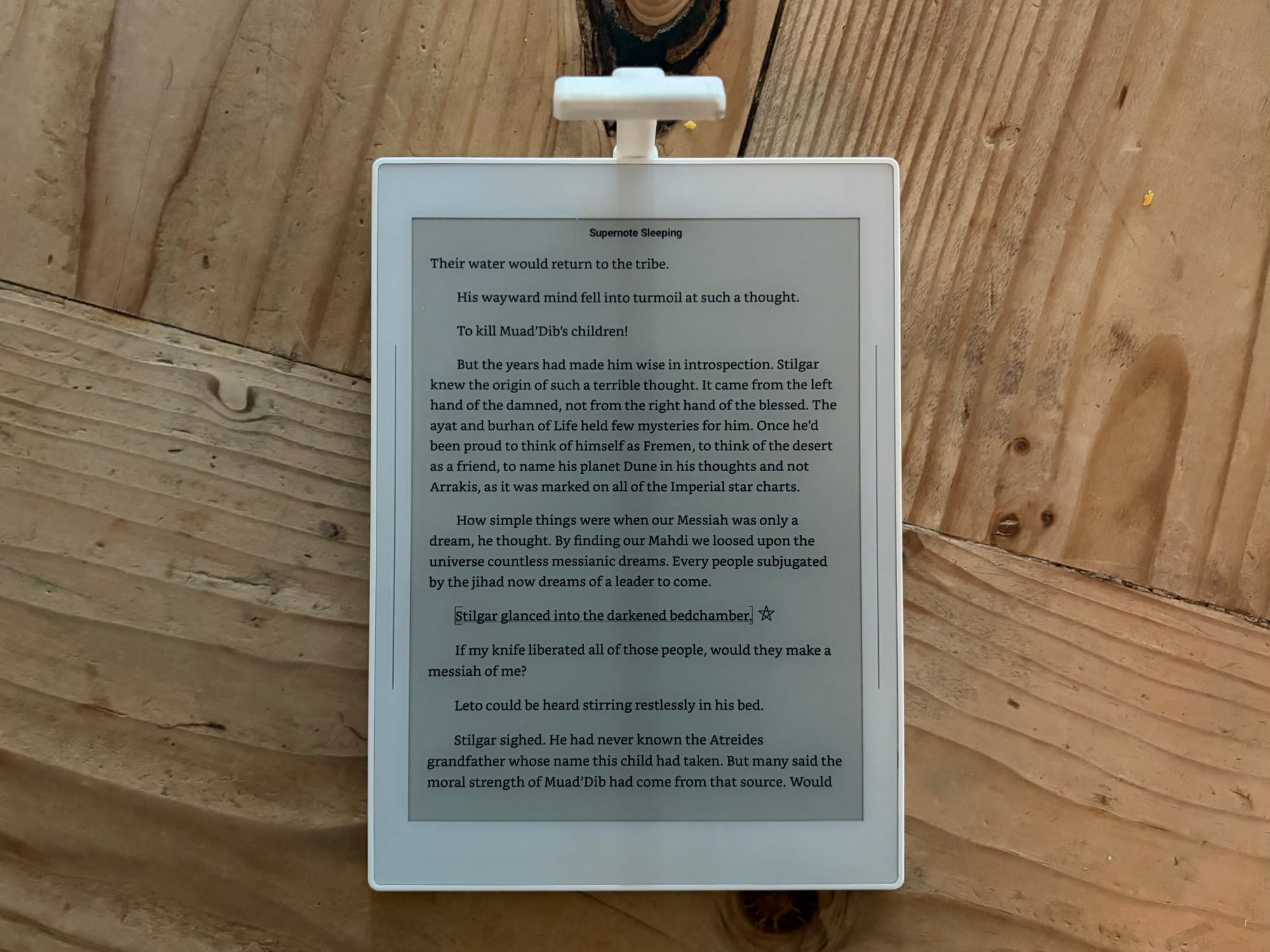
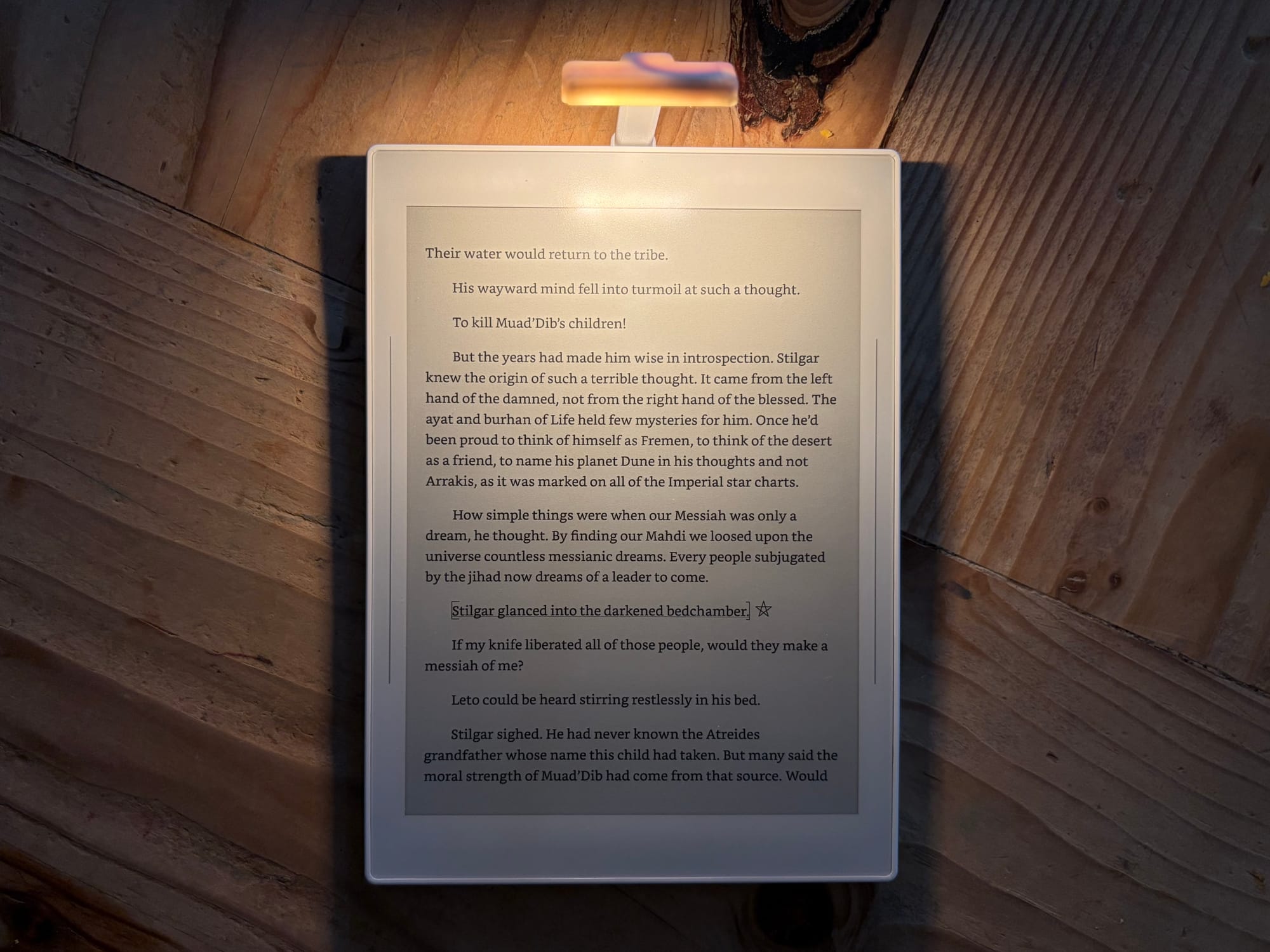
Speaking of customization, one other thing that I got for the Nomad specifically are lights that I got off of Etsy that connect to the pogo pins on the back. It magnetically sticks on and uses the power from the Nomad to turn the light on. Another cool feature is when the device goes to sleep, the light goes off. It provides exactly what I need, a light in low light conditions to use the device since it lacks a front light.
The only problem is that even with the lowest brightness option that I got, it is still pretty bright when in a really dark room. I can literally light up the entire area of our bed were my wife is sleeping next to me when I use it which is a little annoying. So far I haven’t got any complaints, my wife is a deep sleeper, but it is a little harsh in lighting things up.
Another issue with this specific light, and I don’t think it is the light itself but the device providing power, I do see a bit of flickering at times when the light is on which can be distracting, and it is very noticeable when I am doing things on the Nomad like switching between notebooks and apps.
Pogo Pins on the back of Nomad and the light I got from Etsy.
It is a nice thing to have when I need it, especially when I am up late and not wanting to turn on bright lights in the house to take notes or journal, but it hasn’t been something I use a ton for reading at night like I thought I would use it for. Instead, when I am not using the Move with it’s front light, I will bust out my Kindle Voyage and use that for reading in bed at night.
Handwriting
Ceramic nibs up close
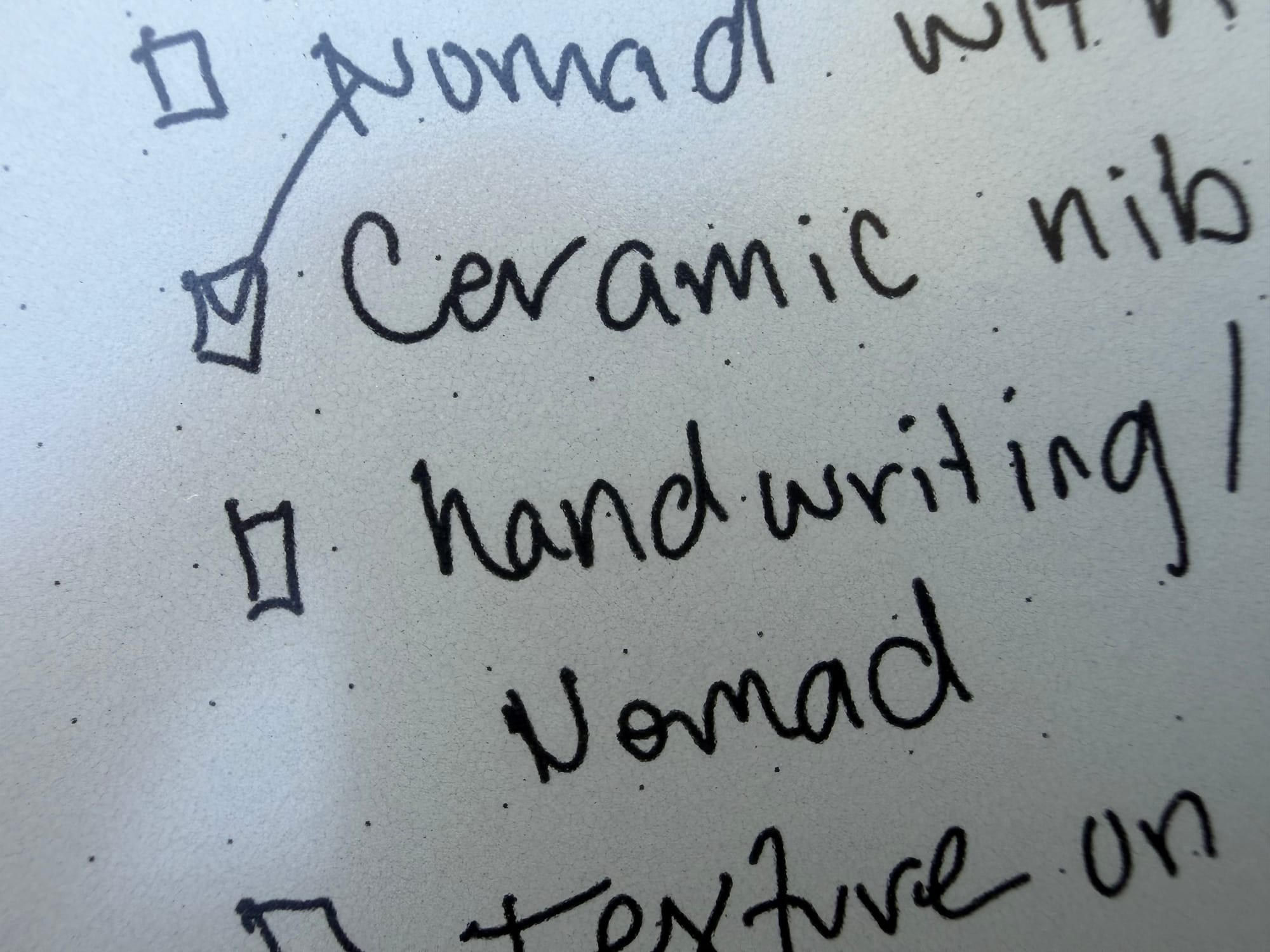
The writing feel with the ceramic nib took some getting used too. I like the texture of the FeelWrite2 screen protector but the stickiness and feeling of the ceramic nib on the screen was something I have never experienced before. You definitely get the feeling of pushing into the display, either by the pen nib moving up and down in the pen or from the softer screen protector allowing some give.
After about two weeks I got used to the handwriting experience and actually found to really love it. I felt my writing was more precise and true to how I would write on a piece of paper. I don’t know if it is the software or the hardware (of the tablet and pen) but the experience is truly nothing that I have ever used before. It made me realize how much the Move feels more like an upgraded iPad experience over giving me a whole new writing experience like the Nomad does.
I don’t know if I necessarily like the handwriting experience better than the Move, but I do like it a lot. Especially when using the calligraphy pen on the Nomad. The Moves version of the calligraphy pen makes my handwriting a bit sloppy, where the Nomads version makes my writing look very neat and fancy.
Handwriting on Supernote
There have been a couple times that the pen goes a little wonky and after writing it will continue to add writing to the device even after I have lifted the pen above the screen. I did try and recalibrate, something Supernote offers in the settings, but also after upgrading to the beta I haven’t had the issue happen again.
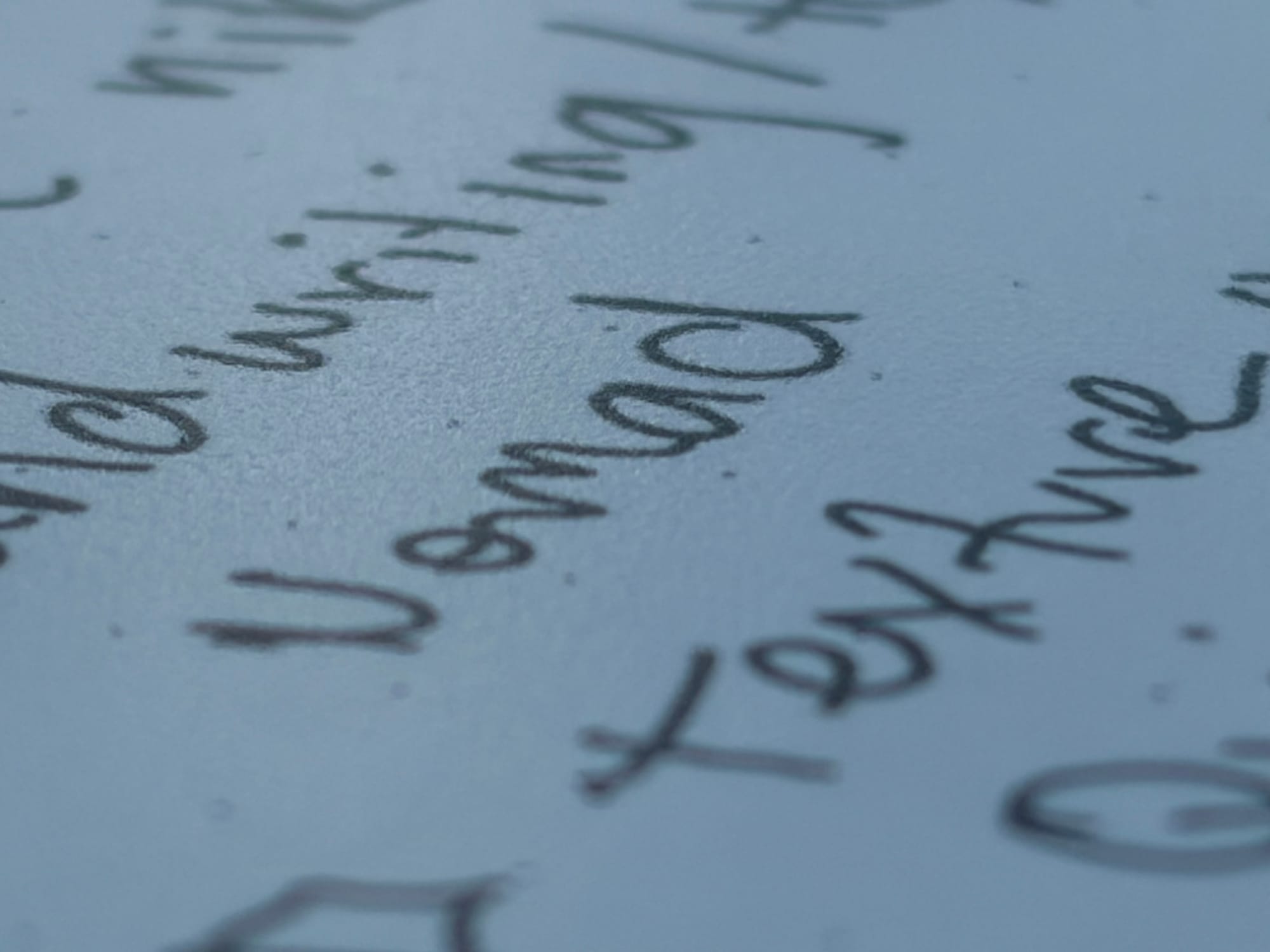
Writing on the Manta or Nomad doesn’t give the same “textured” experience that you get on a Paper Pro tablet or a iPad with a Paperlike screen protector, but more of a sticky experience preventing the pen from feeling too slippery like you would find using a iPad and Apple Pencil (without a textured screen protector). It doesn’t sound like writing a pen or pencil on paper either, it really does feel like its own thing.
Showing the texture of the screen on the left and what text looks like on the right for the Supernote.
This isn’t bad per se, but it is unique and something you will want to literally try yourself since all other options out there really don’t match the experience. I don’t think any other epaper or eink tablet has this type of screen so to really experience it you have to try it on a Supernote.
Software
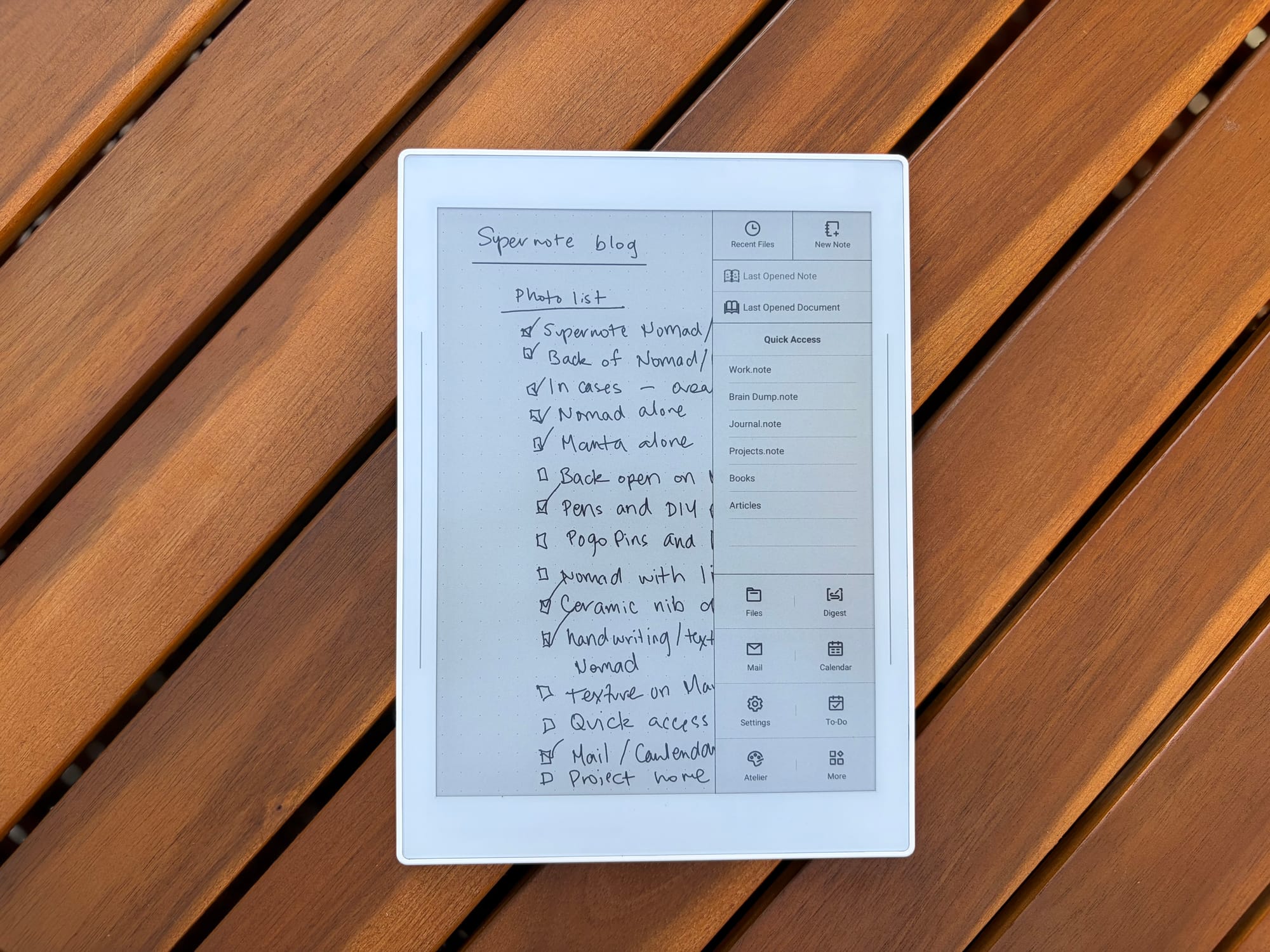
Quick Access on the Nomad by sliding down on the right gesture bezel.
Outside of the handwriting experience is the software itself. Now this is where it has taken some time to get used too. Unlike other epaper tablets, Supernote does not have a home screen. You get a side bar to navigate throughout the tablet pretty quickly especially if you utilize the Quick Access section, but not having a home to go to was a little jarring at first.
Once you get the hang of it though, you understand why Supernote designed the software the way they did. You are supposed to just use the device and for the most part, I usually start and stop using the device with a notebook open. If I want to do something else I can, but ultimately I don’t necessarily need a home screen to go to when I just want to open my digital notebook and take notes.
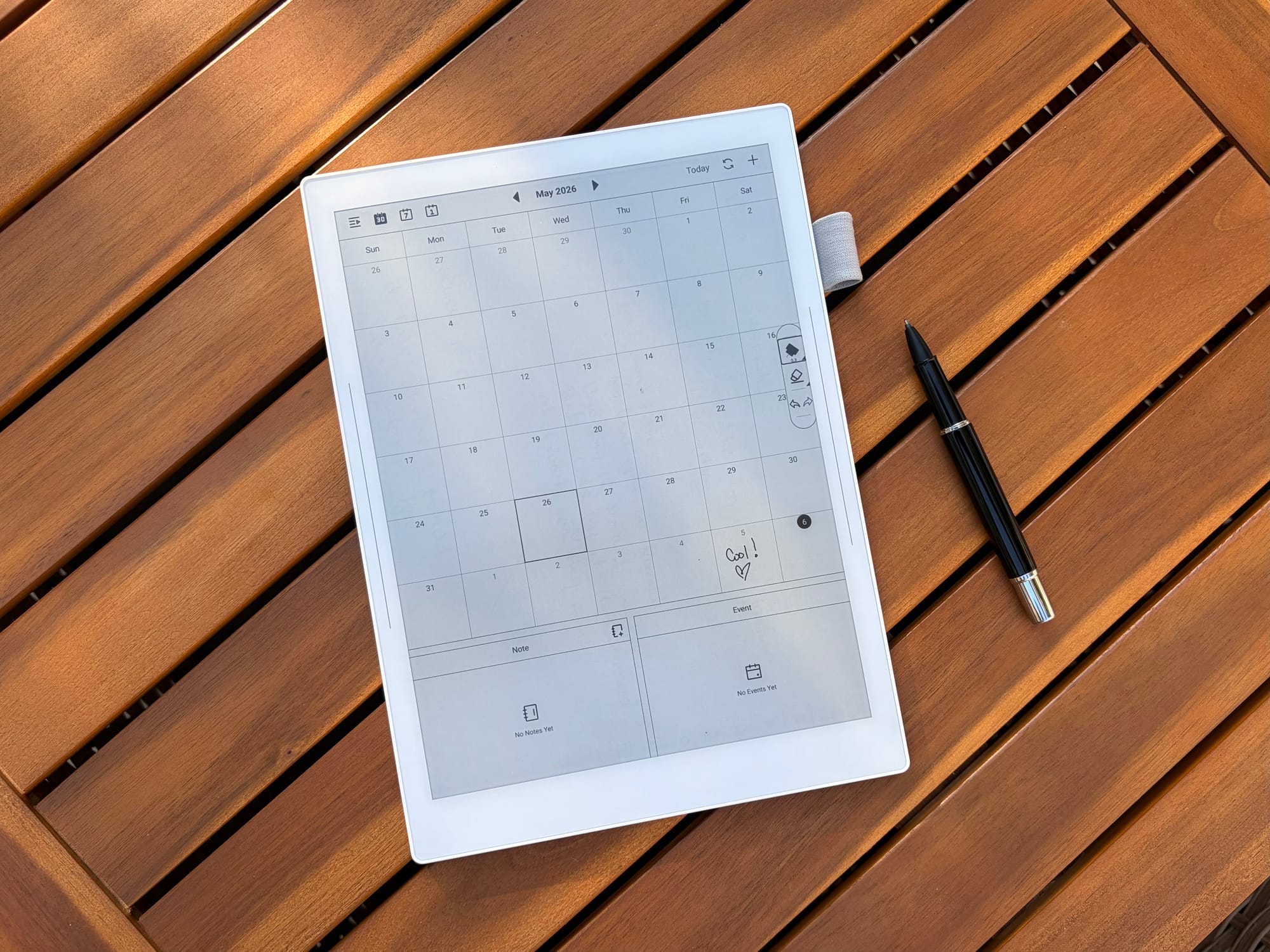
Because Supernote uses Android, you also get a lot of other benefits like side-loading apps and accessing a web browser. I installed a e-ink specific browser and file explorer app to move things around easier but other than that I have tried not to install too much to keep me from being productive. Supernote also supports email and a calendar that you can connect an account to.
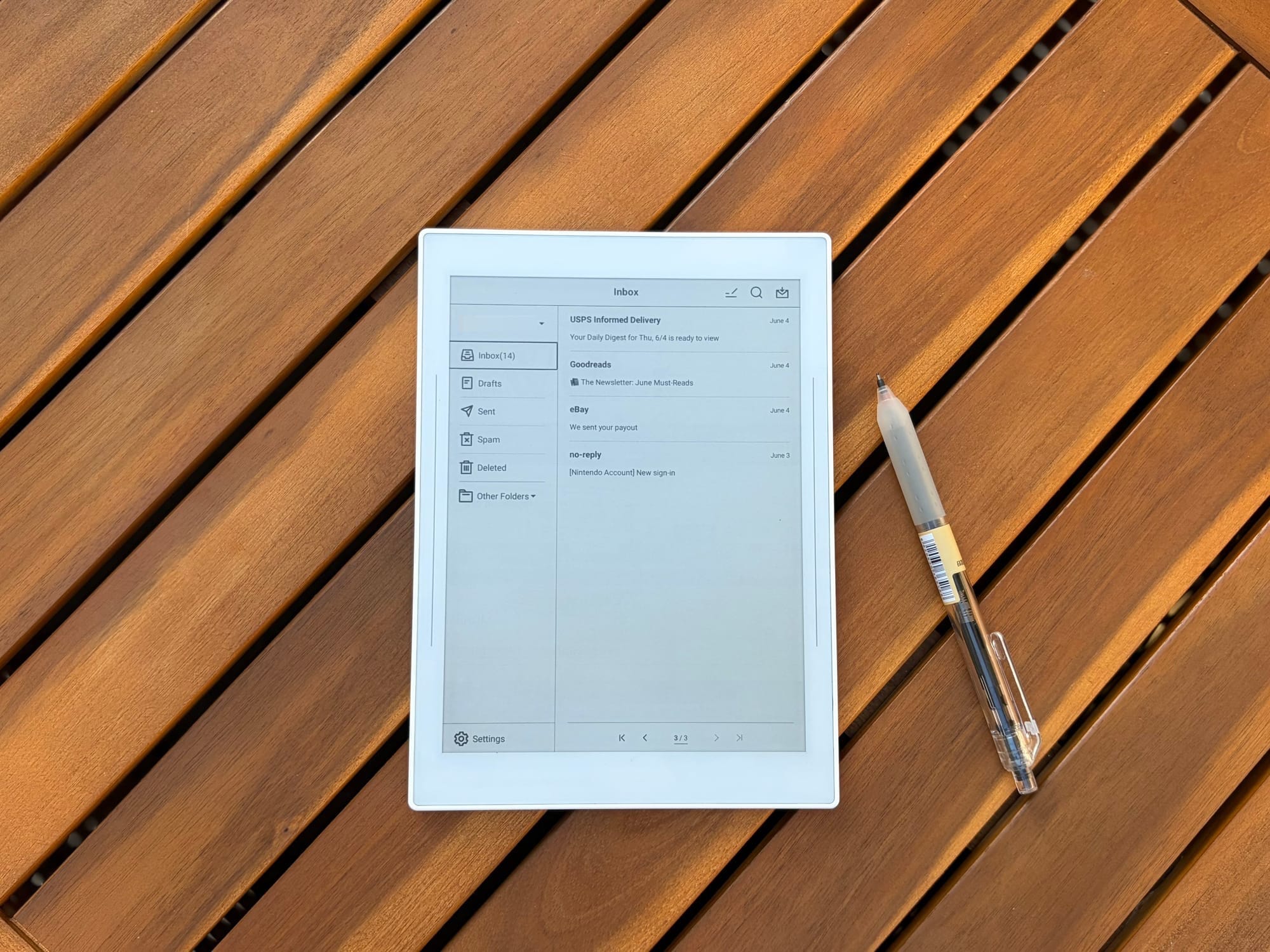
Email on the Nomad
At first I avoided those abilities but eventually gave in and added an email and my outlook account to the calendar to try it out. I don’t use those features very much but if I truly didn’t want to use my phone and just stay on the Nomad, those two features are nice to have. You also get a drawing app installed, Alteir, and Inkhub to add and install stickers.
I installed the beta on my Nomad so I now also have the ability to add plug-ins, I haven’t added too many yet, but it is just another example of Supernote really giving users what they want in providing flexibility and customization to allow the device to do what you need. When comparing the Nomad or Manta to the Move, it is clear that Supernote provides you so many more options on how you want to use the device, where reMarkable is a lot more strict on keeping the device locked to how they want you to use it.
A couple of other features that are built-in are Tasks and Digest. Again, I haven’t really tried these features out too much, mostly because of the learning curve to understand how they work and how I can make them useful to me, but also my main goal is to use a epaper tablet as a digital notebook first and foremost.
When writing in a notebook you do have some really cool abilities like being able to link notes or notebooks to text or an image. Creating headers or keywords to be able to jump to a part of a note quickly or keep track of specific keywords in a notebook. The sides of the Nomad also provide you additional gestures where you can use two fingers to lasso or erase something, refresh the screen, and redo or undo. It is nice but does require two hands which can be a bit annoying sometimes.
Overall Thoughts
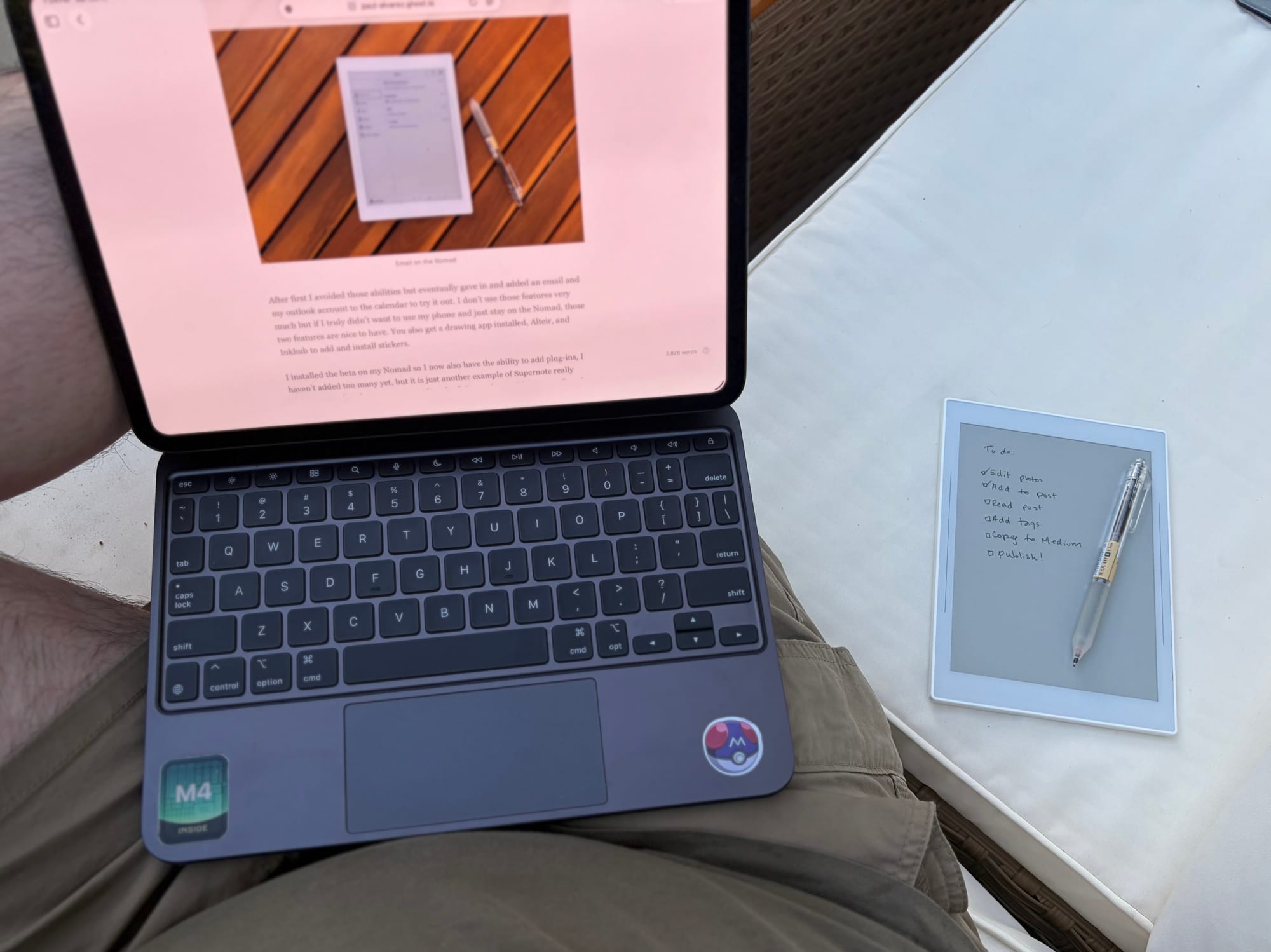
The Nomad is my sidekick for all the things.
After a couple of months of using both the Nomad and Manta, I am pleased with these devices and understand better now why so many people love them. When I originally bought my reMarkable Paper Pro Move, I knew I wanted a larger device to go with it, the Paper Pro just hasn’t fit my needs and the Pure is actually the device I was waiting for.
As I was waiting for the Pure to arrive though, I decided to get the Manta go with my Nomad to see if that pairing would be better than a Move-Pure pairing. I will have an upcoming post comparing the two “pairing” but I am glad that I did get a Manta to go with the Nomad. I like that the size of the Nomad is larger than the Move, but the Manta provides so much more room when I am using it at my desk at work.
The Manta has stayed at my desk at work, while my Nomad comes home with me each day. The setup works great and I think having both really adds to the experience in using Supernote. The other benefit is that they sync together using Supernote Cloud which is free, but I have to remember to manually sync them since I have been having issues or conflicts with auto-sync.
Manta and Nomad in their cases and pens.
As digital notebooks Supernote not only offers great devices but unique ones. Like I mentioned before I don’t think there are any other tablets available that are like the Supernote in what they offer when it comes to handwriting experience, upgradable and replaceable hardware, and software features like gestures and plugins. The community feels solid, and Supernote is very receptive to the community which I think is also a huge plus.
So, overall I like the devices. Will they be the pairing I use over my reMarkable devices? Time will tell after I have used all these devices more. I will say that I think Supernote and reMarkable are definitely the two platforms I prefer but the back and forth between devices has been a bit daunting, so I need to make a decision soon.
The device that helped me embrace the world of digital notebooks.
In my post For the Love of E-ink, I expressed my joy with eink and epaper tablets and why over the years they have become more important to me. As a way to escape blue light screens but also provide a more focused device to help with all the noise in the world.
After using mostly Kindles and ereader versions of eink, this year was the first time I took the epaper tablet world more seriously. I never found them to be super useful, and the ones I did try in the past like the Boox Note Air2 Pro, seemed more cumbersome than to just use a iPad or traditional tablet.
When I picked up the reMarkable Paper Pro Move, going to just call it Move for the rest of this post, for the first time I still didn’t get the appeal. It wasn’t until I was waiting on a Boox Go 7 (black and white version) to come, which was delayed in shipping, that I realized that I wanted something more than my jailbroken Kindle Voyage that I was using at the time.
The Boox Go 7 was really not going to do anything for me besides replace the Voyage and started thinking more about what I actually wanted or needed. I stopped using my iPad as a digital notebook/journal, and started the year trying out the Theme System Journal again but that ultimately didn’t feel right either.
My addiction to scrolling, watching bullshit, and getting sucked into the disastrous world we are living in; it was hard for me to focus on anything. I realized I needed to make a big shift in how I do things so my focus on goals were more meaningful.
That is a lot of weight to put on a single device to take on, and I am not saying the Move has ultimately fixed all these problems for me. But I will say that it has helped… ALOT. Instead of grabbing my phone when I am at home, I am more eager to “do something” and will pull out my Move instead.
What I do on it, when I pick it up, varies. If I realize I haven’t done my daily journal that day I will start there. Sometimes I just start brain dumping all my thoughts. A lot of times that brain dump is me trying to understand why I want to pick up my phone or watch something.
So far, the Move has helped a lot in keeping me from devices that I don’t want to use as often as I do sometimes. But it has also become a notebook to jot things down, a daily journal, to-do/task list for personal needs and work, and also a sketchbook plus an ereader.
I will say that all of these things, except one, are fantastic on this device. The only one lacking is the ereader experience which I have solved a bit with putting KOReader on it, which I will go over more later. Overall this device has fit in my life way more than I expected.
The Hardware
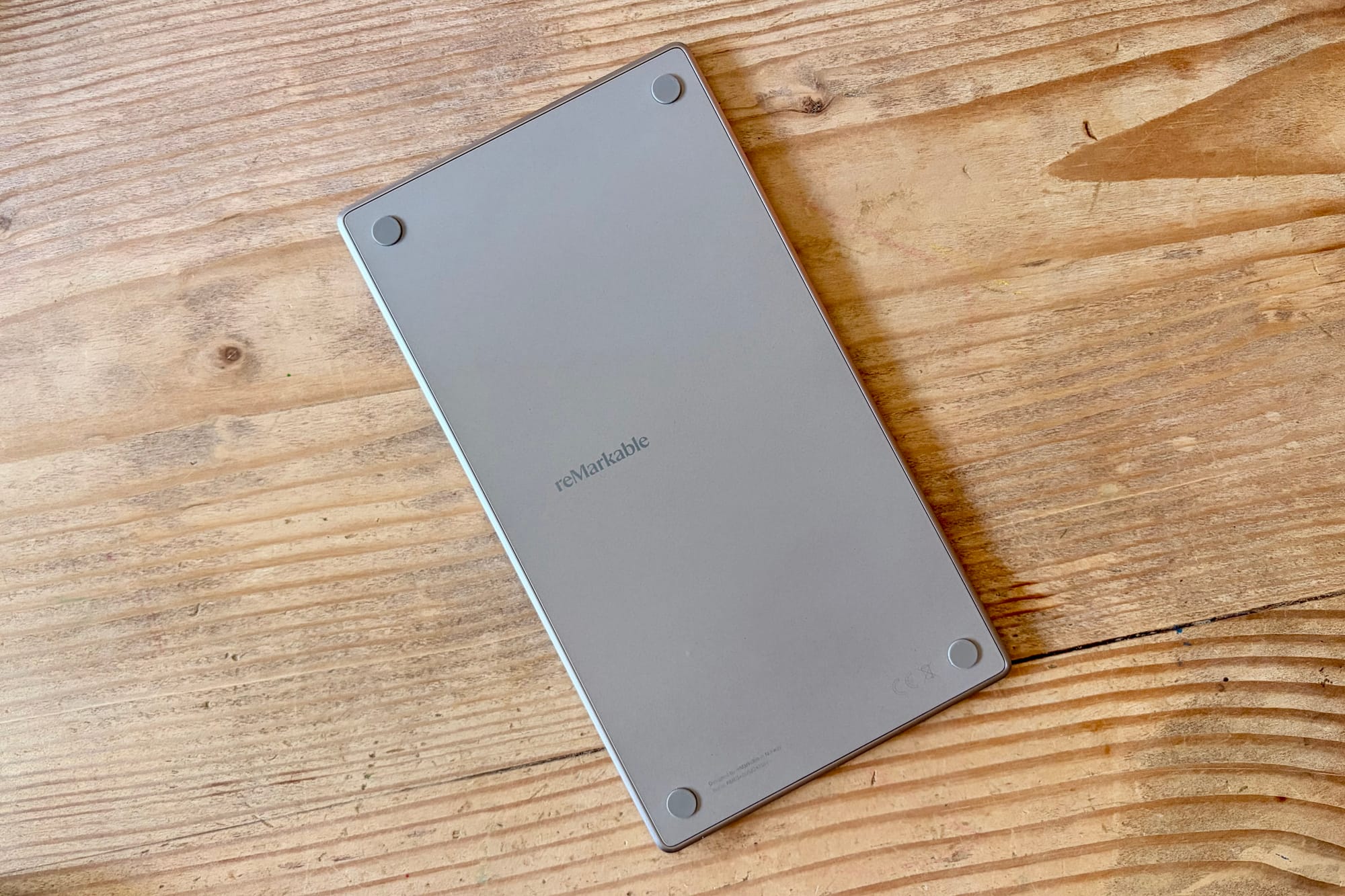
Back of reMarkable Paper Pro Move (photo by author)
I don’t like to do traditional reviews that many do online; YouTube video hot takes, and blog posts just listing specs and comparisons. I like to use the device, go over some of the spec details briefly but focus more on the usefulness and how the device fits in my life that may relate to others.
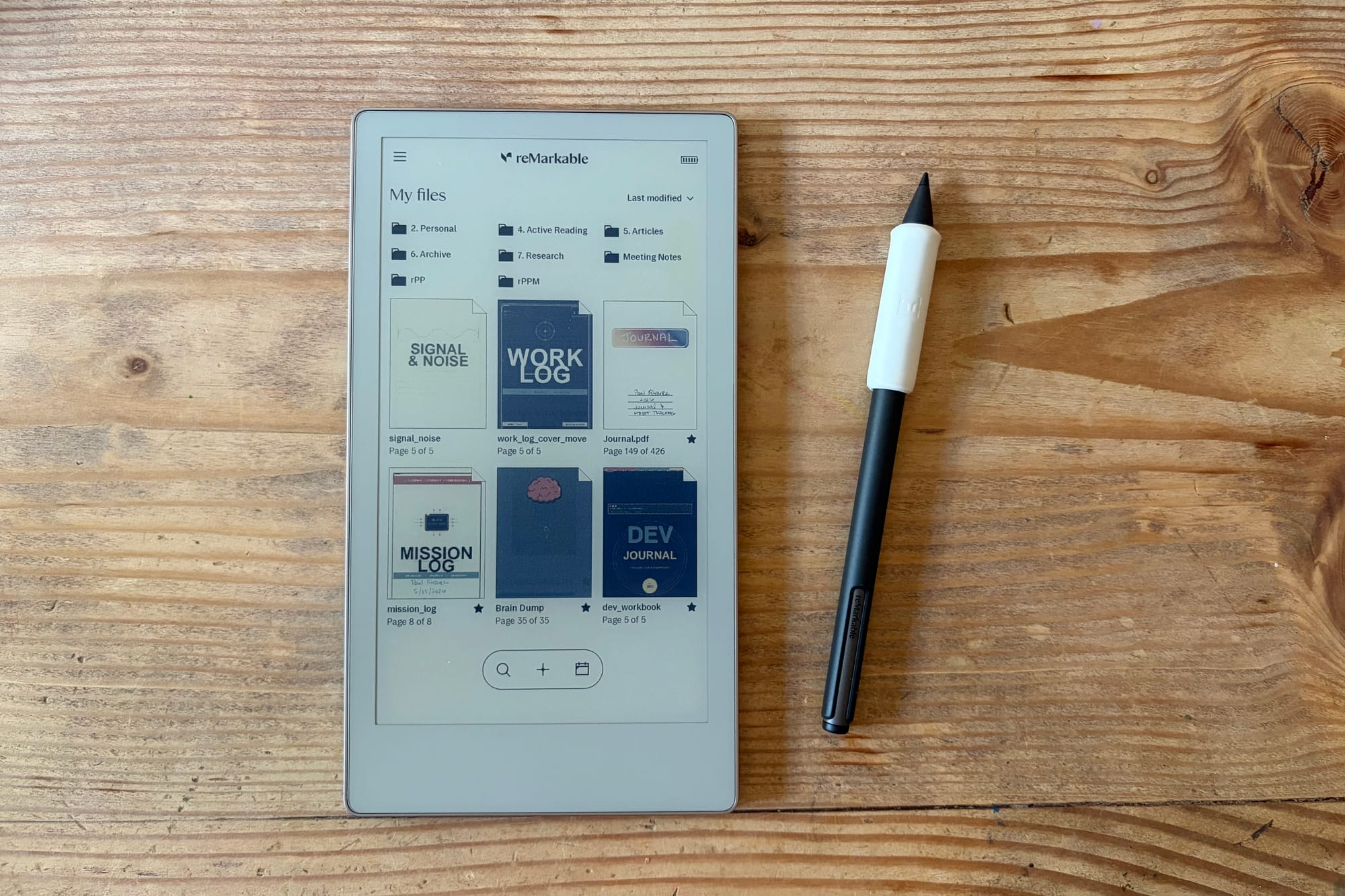
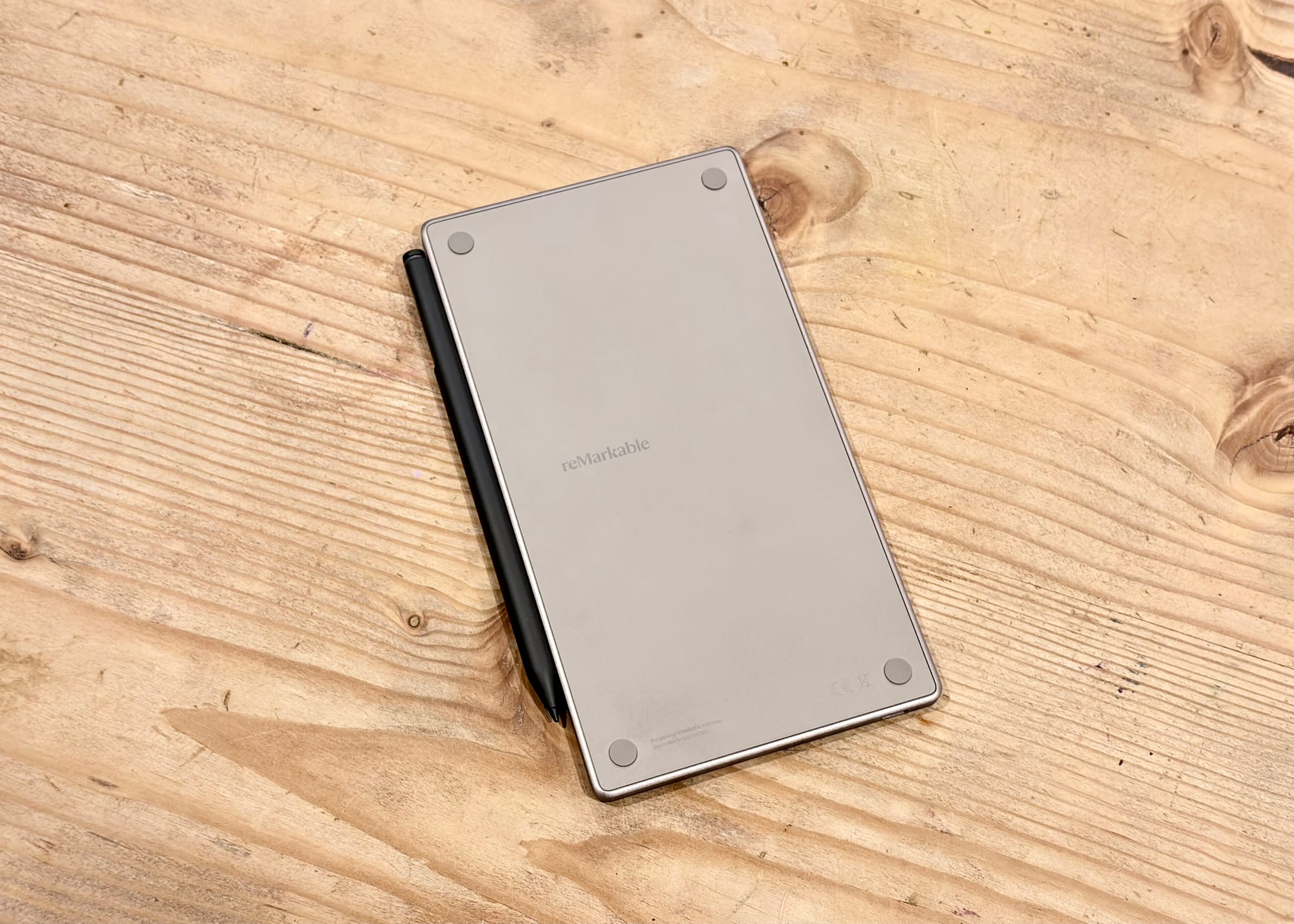
So first let's focus on the hardware. Once you take the Move out of the box, you can immediately tell this is a premium device. It has some weight to it, but not heavy per se, and the build quality is fantastic. I love the white bezel around the display, the solid aluminum frame, and textured back with non-slip feet.
It just feels like a device you want to hold. I know that sounds cliche, but it is so true. The Move feels like a true futuristic notebook that has so much opportunity over a regular paper notebook that I have used for years. Comparing paper to epaper is just not worth it in my opinion, I don’t feel like those two should, or will ever, be identical.
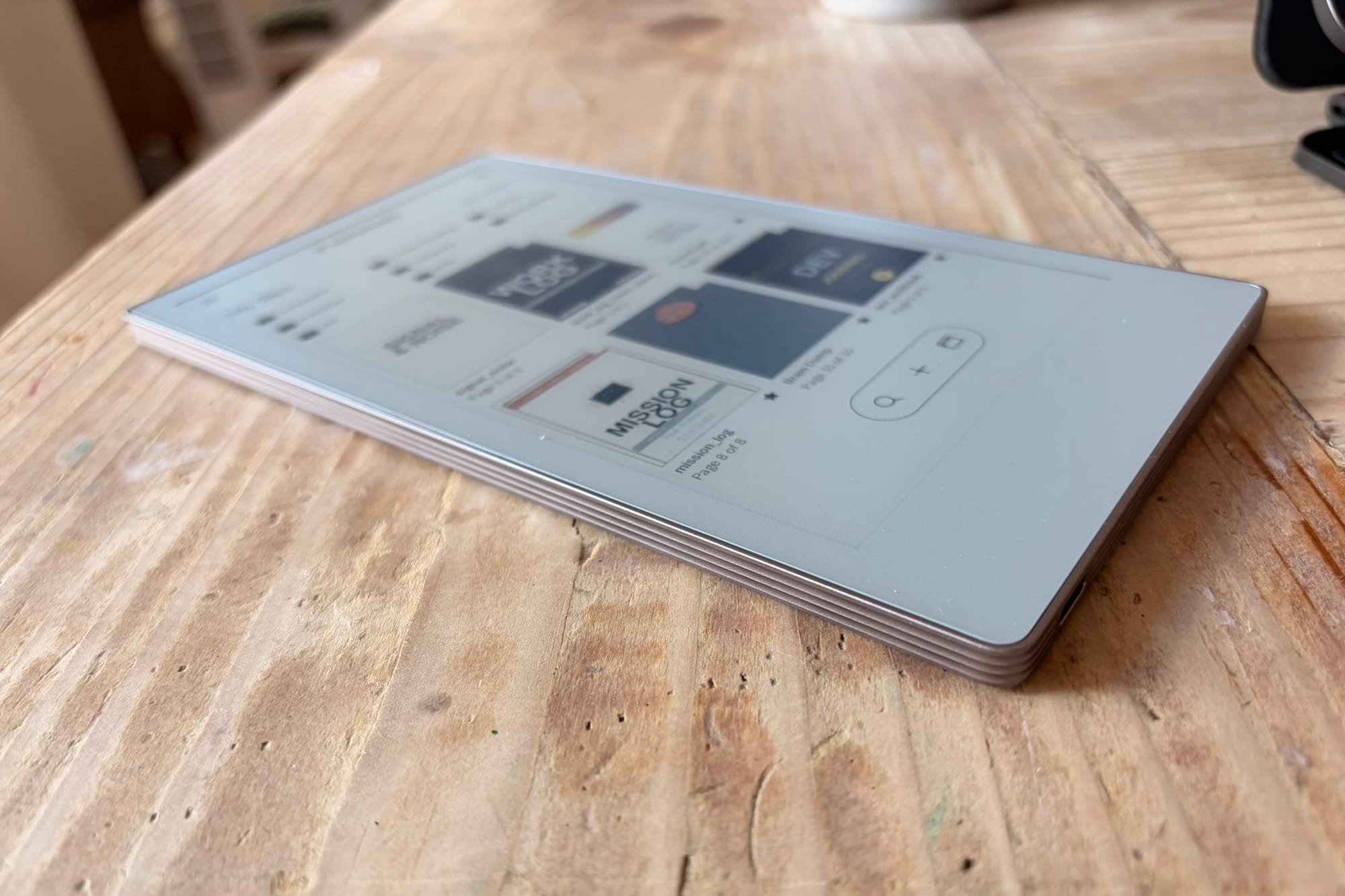
When I first held the Move, I thought the frame was made of stainless steel since it feels so solid. It also has some neat details surrounding the entire device to look like pages in a notebook — something also on the bigger Paper Pro too. It is a nice detail that makes the device more premium, but it also provides a nice feeling when holding it too.
Page style aluminum sides of the Move (photo by author)
The back is plastic which some found disappointing, due to the bigger Paper Pro having an aluminum back, but I actually don’t mind it. I like having a textured back, something the Boox Go 7 devices also have—if it also reduces the weight of the device, I am also all-in. The best part of all is the little non-slip feel that makes the device stay still when sitting on my desk as I write.
The glass screen on the front is laminated but still has a very slight gap from the actual glass and eink display though it is barely noticeable (and worth it to have a front light). I also don’t notice the gap at all when I write, I feel like the digital ink from the pen is inputting directly on the screen.
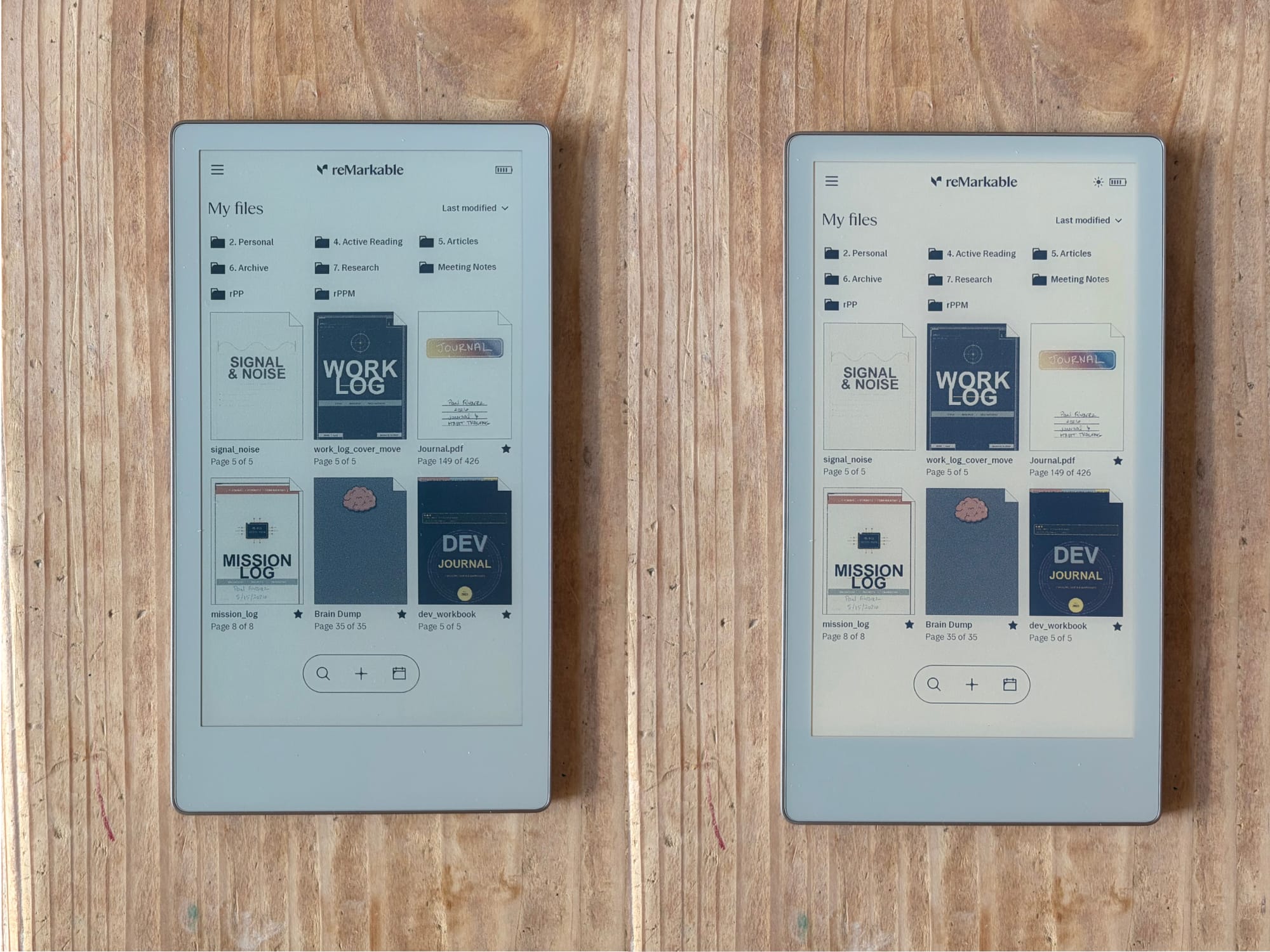
The front light works great, reMarkable added a feature to make it “extra bright” which I have turned on and makes it even better in low light conditions. I do wish I had a warmth setting to make the screen a little more yellow when I am reading at night, but with the front light low and the e-ink display it is way more comfortable reading in bed over a phone or iPad.
Move with front light off on the left and full brightness on the right (photo by author)
It also has a power button at the top left, and a USB-C port to charge and use to connect to my computer. That is pretty much the hardware on the Move and it is genuinely great. Some people have had bad units where the screen is very yellow or has bad ghosting, but my device so far has been perfect.
Next, I want to go over the software, then last, I will go over the writing experience and some opinions about the Marker Plus.
The Software
My home screen on Move (photo by author)
One of the things I didn’t realize when I first bought and started using the Move was that it has a customized version of Linux running on it. Unlike so many other epaper tablets that just default to using Android, reMarkable actually made a custom OS using a Linux distro, Codex, to run on reMarkable devices.
This comes with two things that I want to touch on, bad and good. The bad thing about this is that the feature set with the OS is limiting, and slow to introduce some things that many reMarkable users want since reMarkable is the only one who can make changes. The good thing about this is that I can "hack" and customize it to my liking, to a point.
I am lucky that a lot of great features exist now on the reMarkable tablets that have been a long time coming in the past. Since the very first reMarkable the company has made a ton of changes overtime, and most if not all of the features are available on the reMarkable 1 as well. So they support older devices for a very long time.
With any large company, especially as they become even larger, things get more complex and frustrating. If you scroll through the r/remarkabletablet subreddit you can see all the complaints that many people have. Like other tech companies as they grow and their market widens, priorities change from improvements to “how much more money can we make this quarter?”, which could lead to things getting worse, but their are still a lot of good that exists on this platform.
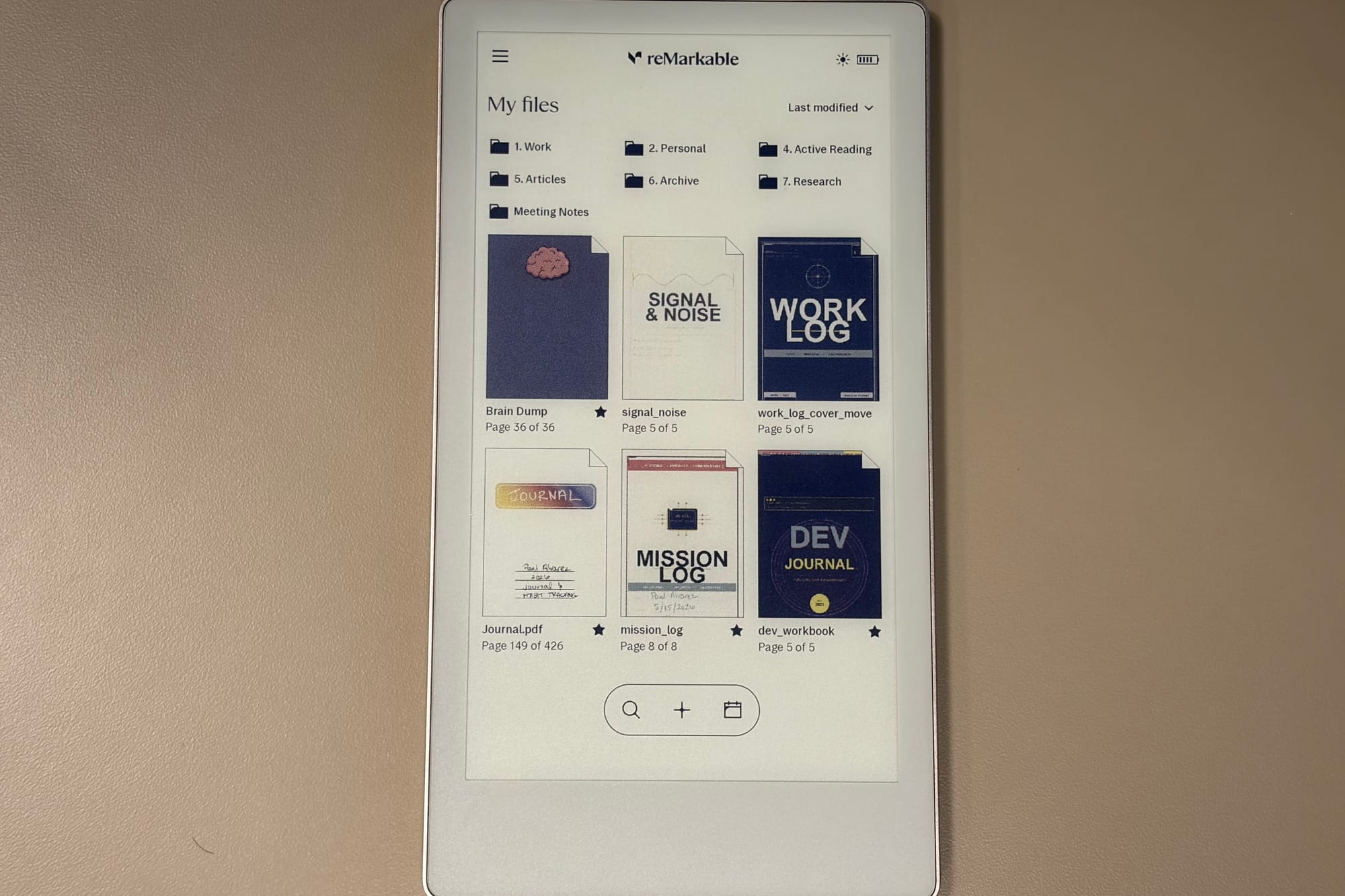
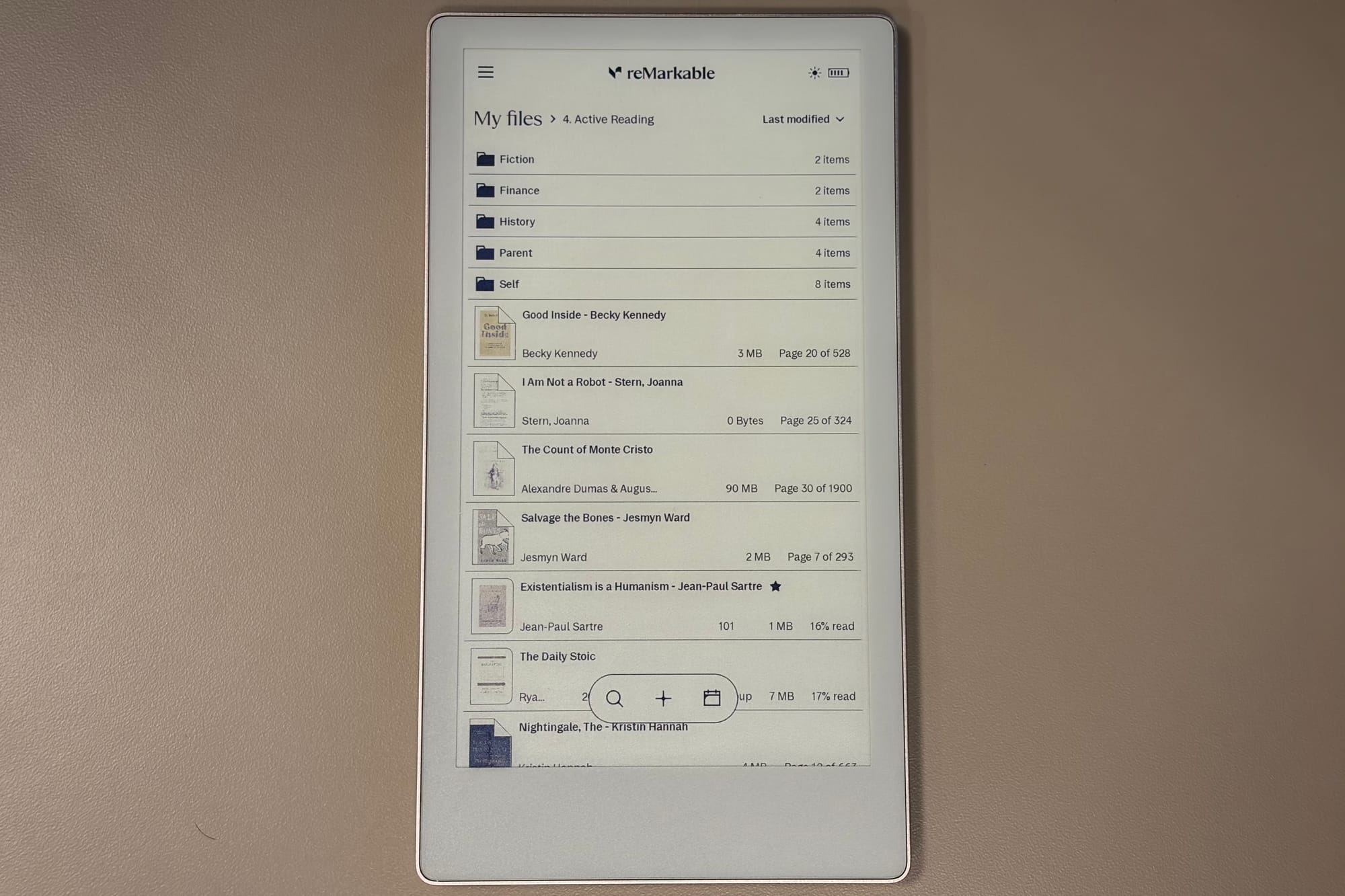
Let’s start with the good then, shall we? I really like the simple organizational structure on the reMarkable. You literally have a files section that stores all the files that sync to the reMarkable connection service, and you can add folders to organize them. You don’t have to use folders, but after while with a lot of documents that main "My Files" section can get cluttered.
Setting son the Move (photo by author)
You can also have subfolders in folders to get even more organized. You also have the ability to use tags too. Like I said, the organization is simple but effective. I have some main folders to keep certain things organized and keep my main documents that I use ever day in the main files section.
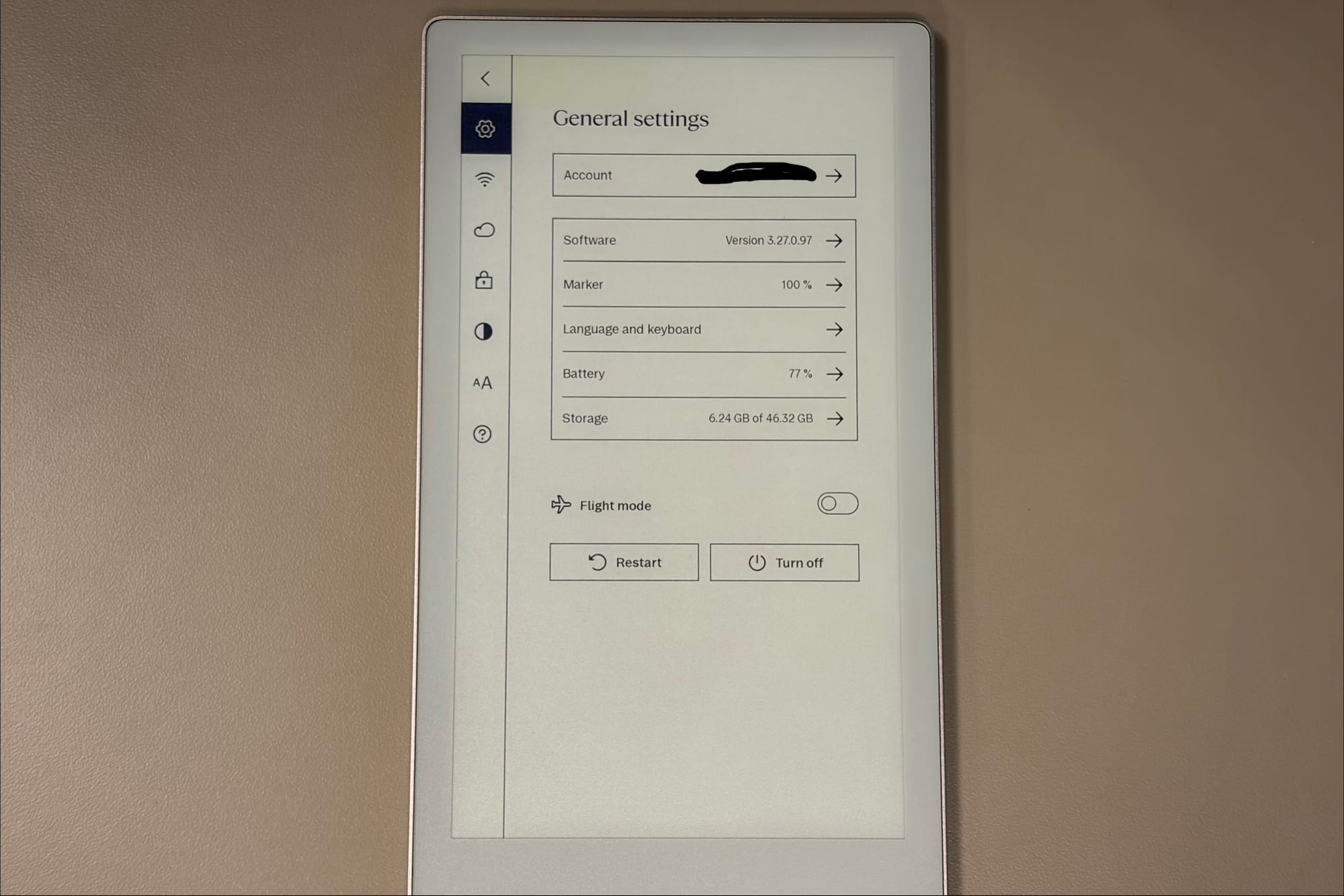
The settings are also limited. You have the ability to change how long it takes for the device to go to sleep, power off, and change your passcode. You will also find the other usual settings like WiFi, brightness, some display or accessibility settings, etc. The reMarkable devices are to use not tinker with settings so it makes sense these are limited.
The one thing that can be frustrating is how reMarkable handles documents. Notebooks use a custom file type, but can be converted to a word document, plain text, or PDF. Everything that is imported are treated like a PDF, even epubs, so the ability to do certain things with ebooks are just not possible on the reMarkable like you will find on other e-readers like a Kindle, Kobo, or Boox.
For example, you can’t bookmark a sentence or paragraph and look up it up in a list of highlights later, use a dictionary to define a word, and the formatting settings, including fonts, are very limited. I tried adding my own font, I really like Booklery that is used on Kindles, and though there are ways to do it, reMarkable just doesn’t let you add them natively.
List view on the Move (photo by author)
The technical team at reMarkable had an AMA on Reddit months ago and explained their approach to epubs, though it makes sense, it isn’t that reassuring. The companies argument is that they want to provide active reading experience so being able to write in the book or on the margins is how they have designed reading on the tablet. Again, very opinionated but it makes sense and I can see the use case, even if it isn't for me.
Many who like to view PDFs on their reMarkable, like reviewing scientific papers or technical documents, this active reading use case makes a lot of sense. I also understand that some might want to treat books the same way, but I feel there is a way you can have both. Some devices like the Kindle and Boox e-readers do offer all the normal functionality that your would see with ebooks but also implement a way to write in and around the books as well.
I am hopeful that with enough push from their users, which happens a lot on Reddit and elsewhere, reMarkable will eventually beef up the reading experience for ebooks. They even hinted in the AMA that they may be working with some integrations with other apps so we might see a Kindle or other ebook app coming in the future. I don’t love this, but if it does allow me to load KOreader on natively I am all for it.
So yes, the software can be very limiting but that is the selling point of reMarkable. It is supposed to be a focus device that eliminates the need to change and configure things but just allow you to use it. But because it is running Linux, developers have provided tools to allow you to do more which I have done myself on my Move that I will go over next.
Customization
reManger running on MacBook (image by author)
This isn’t a post about me going through all the steps of customizing your Move, but just an introduction to some of the things you can do. If you want me to do a tutorial on some of this, let me know in the comments and I may follow up with some “how-tos” for setting some of these up.
Going back to Reddit really quick, the subreddit that I mentioned earlier, r/remarkabletablet, is where you can learn a lot about the devices but also find some cool hacks that people have created or done to customize your own device.
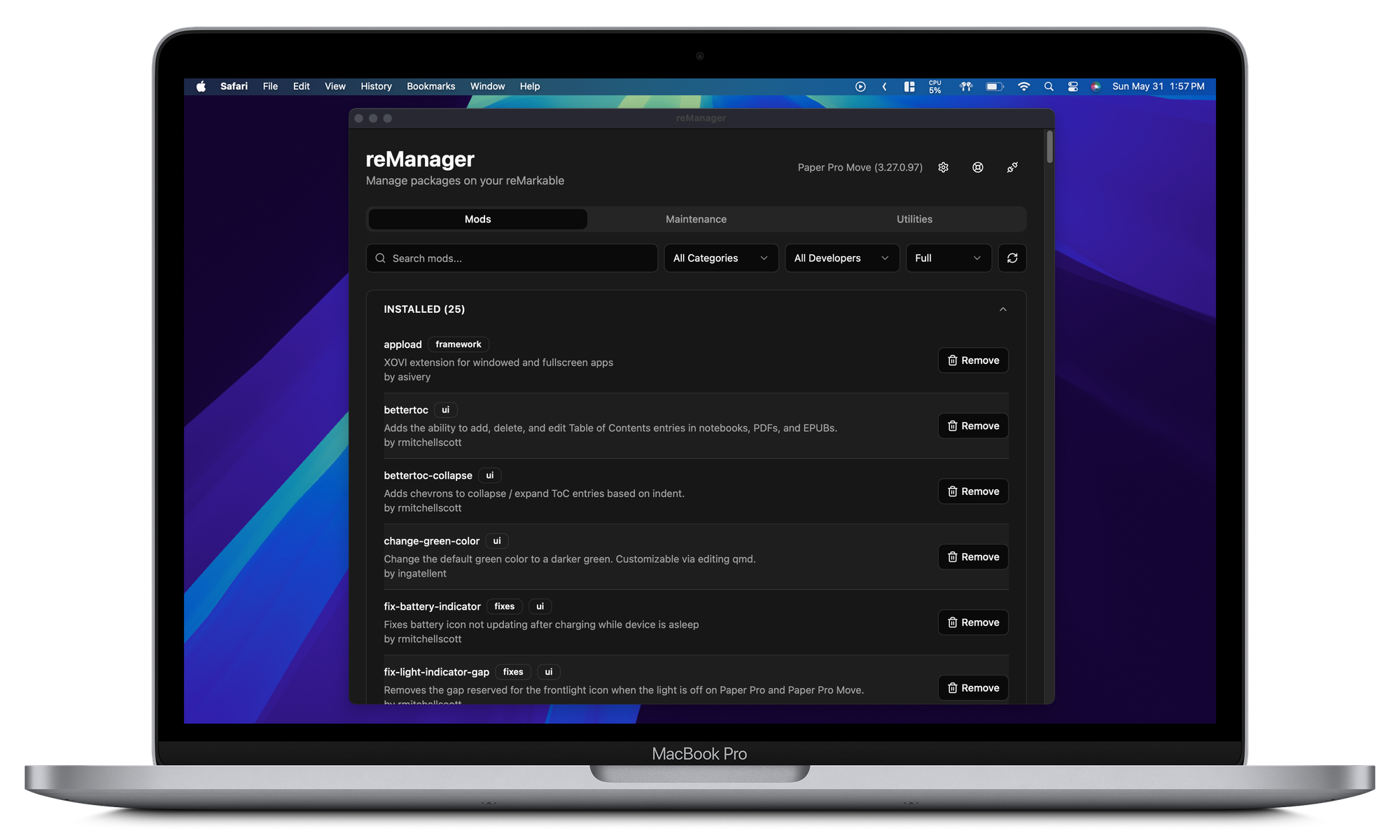
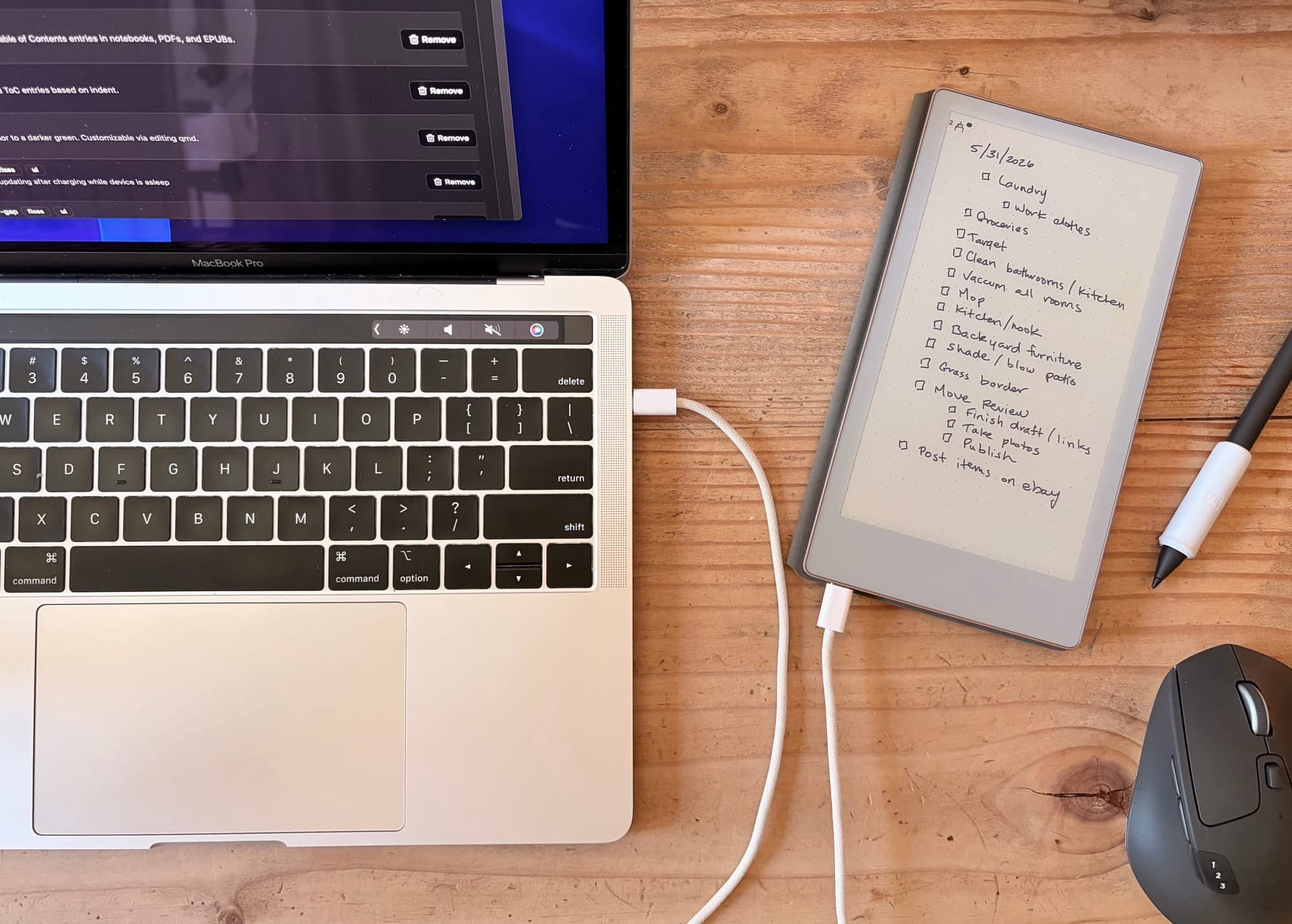
One of the tools that I found was reManager, it is open source software on GitHub that lets you connect to your reMarkable tablet, over SSH, and offers some utilities using another open source software. The developer of reManager, rmitchellscott, has provided a lot of cool utilities you can find in reManager and is very active on the RemarkableTablet subreddit and wanted to make sure I shouted him out directly.
I don’t know a ton about how all this works, so I won’t go into detail, but ultimately once you install reManager on your computer and connect your Move, you have a variety of tools that you can choose from to install on your device. Some of the things that I implemented on my device are:
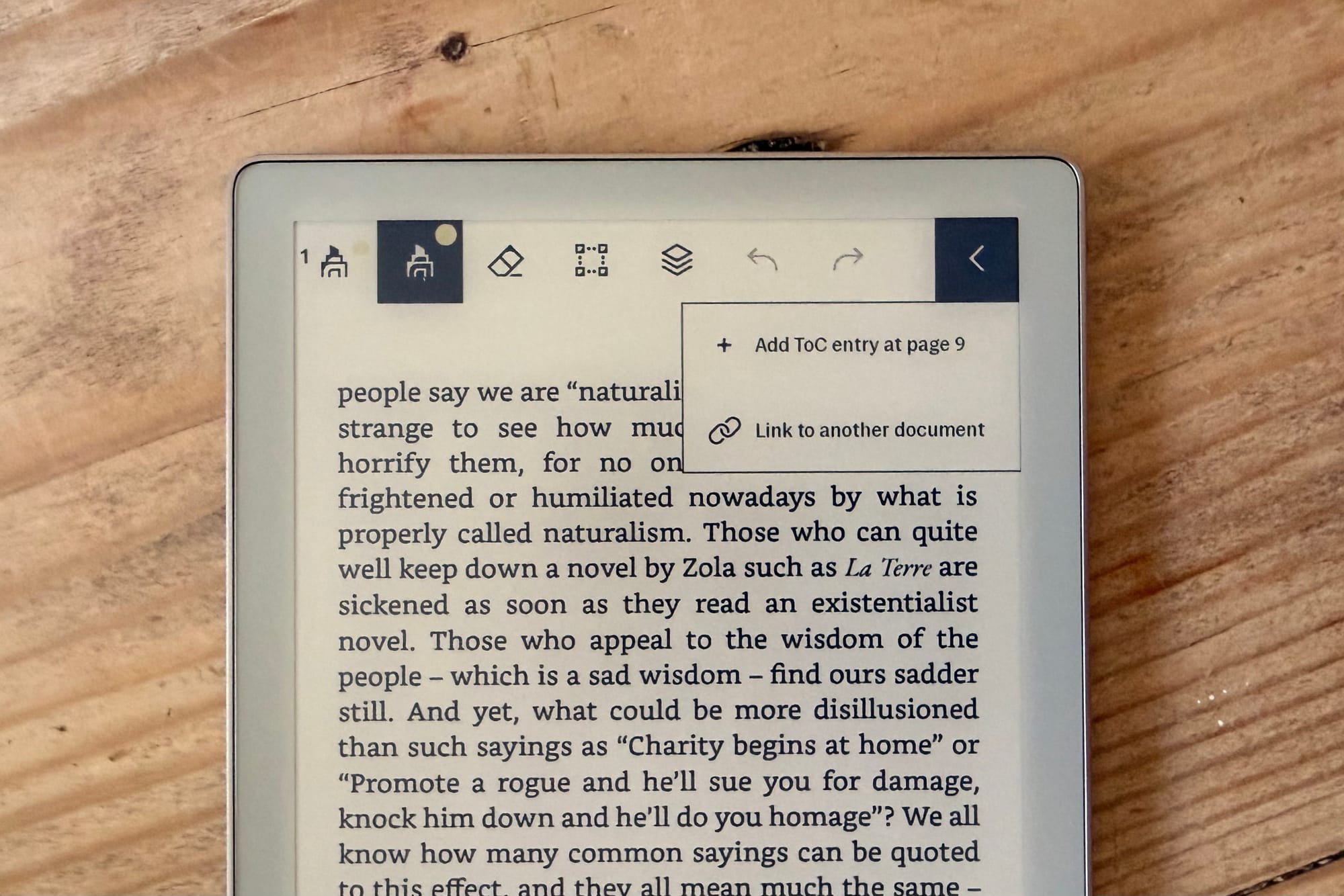
bettertoc: Adds the ability to add, delete, and edit Table of Contents entries in notebooks, PDFs, and EPUBs.
enable-extra-pen-on-move: Adds extra pen slot to toolbar (RMPPM only, requires qt-resource-rebuilder v16+).
hide-document-close: Hides close button, use slide-down from top instead.
koreader: An ebook reader application supporting PDF, DjVu, EPUB, FB2 and many more formats.
ghostbuster: 5-finger tap to perform a full screen refresh.
This is really cool because now I can have things like two pen tool choices in the menu, link pages as a table of contents in a notebook manually, removing the X to close a document since I can slide down from the top to go home, and I also added the ability to tap my screen with five fingers to do a full refresh.
These aren’t huge changes but small changes that make the experience that much more fun. The big change I did make though was install XOVI and KOReader on the Move. What this does is add a new option in the main menu bar and be able to use KOReader to read books.
Move tool bar with some customizations (photo by author)
This has made reading on the Move much better. It isn’t perfect like for instance when I reboot the device I have to start the XOVI service again by either triple tapping the home button or using SSH into the Move from a MacBook and start the service manually. Once started the App Load option is available again and I am able to use KOReader, until the device is rebooted again.
Maybe it is the tinkering bug in me right now, but being able to hack into this little device, that the company allows (also kind of encourages) to make changes to how certain things work to make it more unique to me is so much fun. It isn't side loading apps unless you consider installing KOReader on it is a type of side loading, but I can't put Instagram or a RSS app on it but instead forced to keep the same experience always and add a few tweaks here and there while keeping most of the experience very much the same.
The Pen and Writing Experience
Sidekick notebook for my MacBook (photo by author)
Which leads me to one of the most important parts of using a digital notebook over a paper one; the writing experience. The Marker Plus is nice and I really have no complaints. I like having an eraser and use it all the time, though I do also use the tap-two-fingers on the screen gesture to undo a lot. Being able to just turn the pen around and erase something is really nice.
The texture of the screen is very nice and is what has really drawn me to want to use it so much but has also provided some downsides too. For writing with the stylus, handwriting feels amazing. Some complain about the tapping sound it makes since the tip of the stylus is a bit hard and the screen is glass, but that has never really bothered me. The feeling of writing with the pen on the texture screen is what is really great, it really provides the experience of pencil on paper.
Again I don’t want to imply this is a one-to-one replacement over pencil and paper, I honestly believe these will always be different and that is okay. But the sound and feeling of writing with the Marker Plus on the textured Paper Pro glass display is really nice. The performance is also great and feels like literal ink is pouring out of the pen onto the screen, the latency is so good. Even with a front light, I feel like the pen tip is very close to the digital page.
Close up of a doodle on the Move (photo by author)
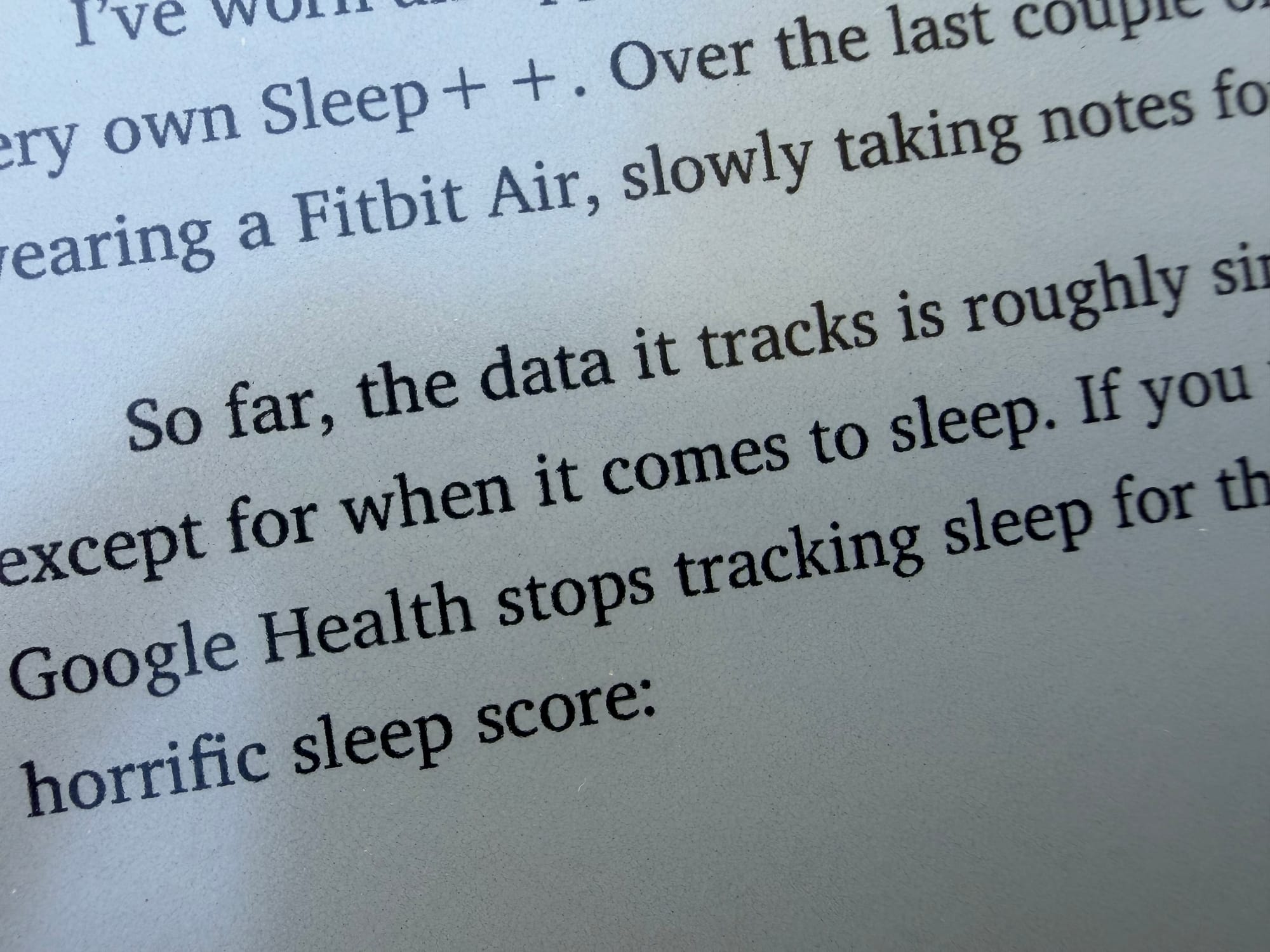
A couple of downsides though, one I mentioned early regarding the textured screen, is that the clarity is not that great when reading text. It is far better than a Paperlike or other matte screen protector I have used in the past on a LCD or OLED display, but it is clearly there and can make things feel a bit grainy.
The other downside is that textured screen does wear down the tip of the Marker Plus pretty quickly in my use. I have been trying to not press too hard, something I know I do with a regular pen, but after about a week or two of using it I definitely feel like I need to replace to the tip to go back to a good experience in writing. The replacements aren’t cheap ($20 for 6 in a pack) so this can be costly over time.
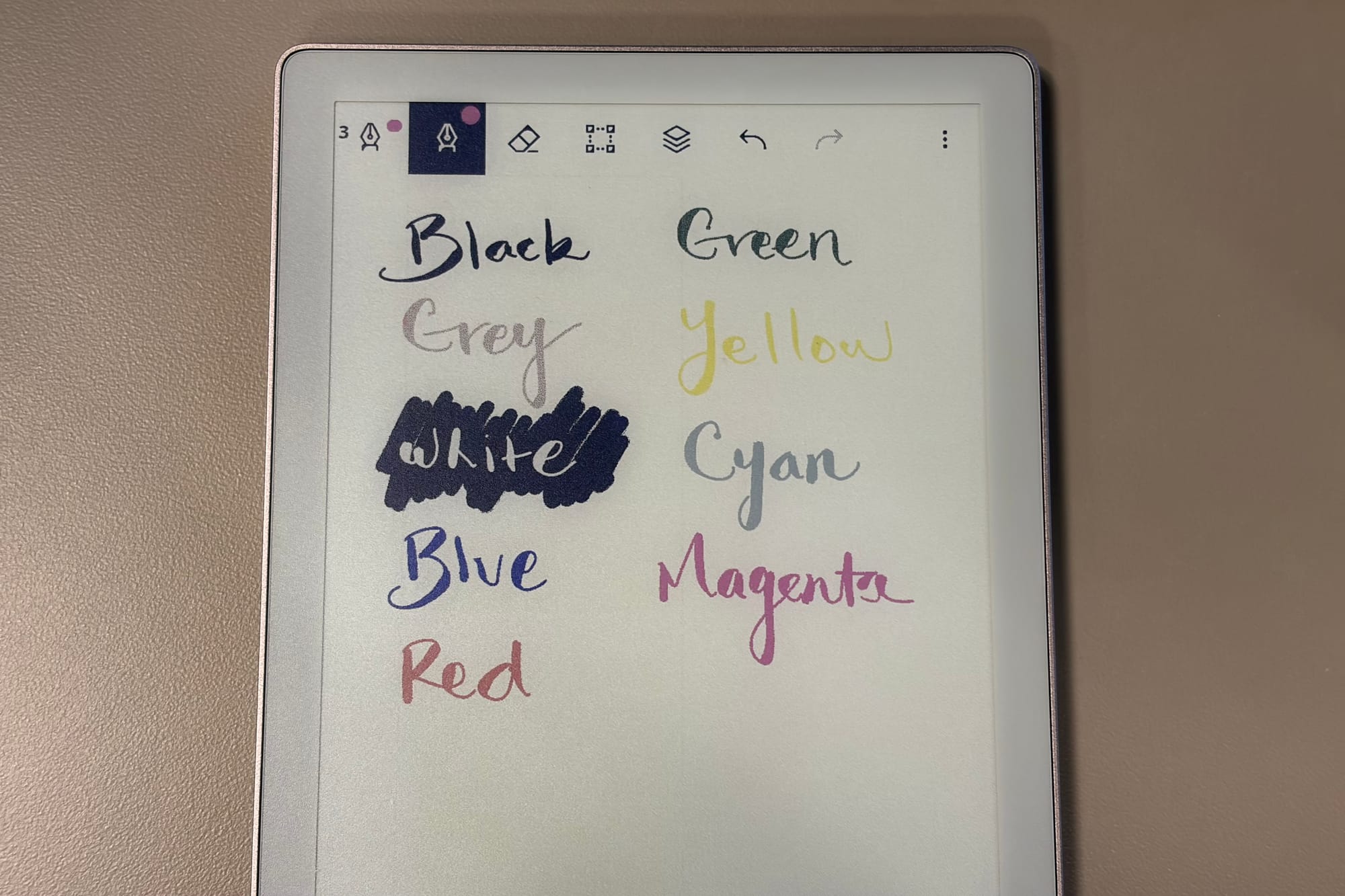
The last thing I will touch on is the eink color aspect of the device and the Gallery 3 display. Some speculate that this is the reason for some of the quality issues many have found on the Paper Pro version which many have reported bad ghosting, severe yellowing, and other display hardware failures. So far, I haven’t seen these issues on my Move, but Gallery 3 does come with other compromises.
A couple of things are that the black color isn't truly black but a very dark blue. Most of the time I am using the black color and with the brightness really low or the front light off, my brain just sees black ink. So in my opinion this is a non-issue. Other colors aren’t as vibrant as you would expect on an LCD but they do look better in some ways than Kielido displays that you see in all other color e-ink tablets.
Color options on Move (photo by author)
The only difference for me is that the green is very subtle, and many times the color that I write initially looks better than the version that sticks after refreshing. Which leads me to the last compromise with Gallery 3 is that when you use color it does constantly refresh. Every time you write with a blue or pink pen, flashing happens on the display.
From my experience this is also not an issue, I am willing to put up with it and maybe that is because I don’t use colors that much. Black ink never needs a refresh so for the most part I just don’t experience it. So, again, this is another non-issue for me but maybe something you may want to consider before picking it up for yourself.
Handwriting looks crisp even without 300 PPI (photo by author)
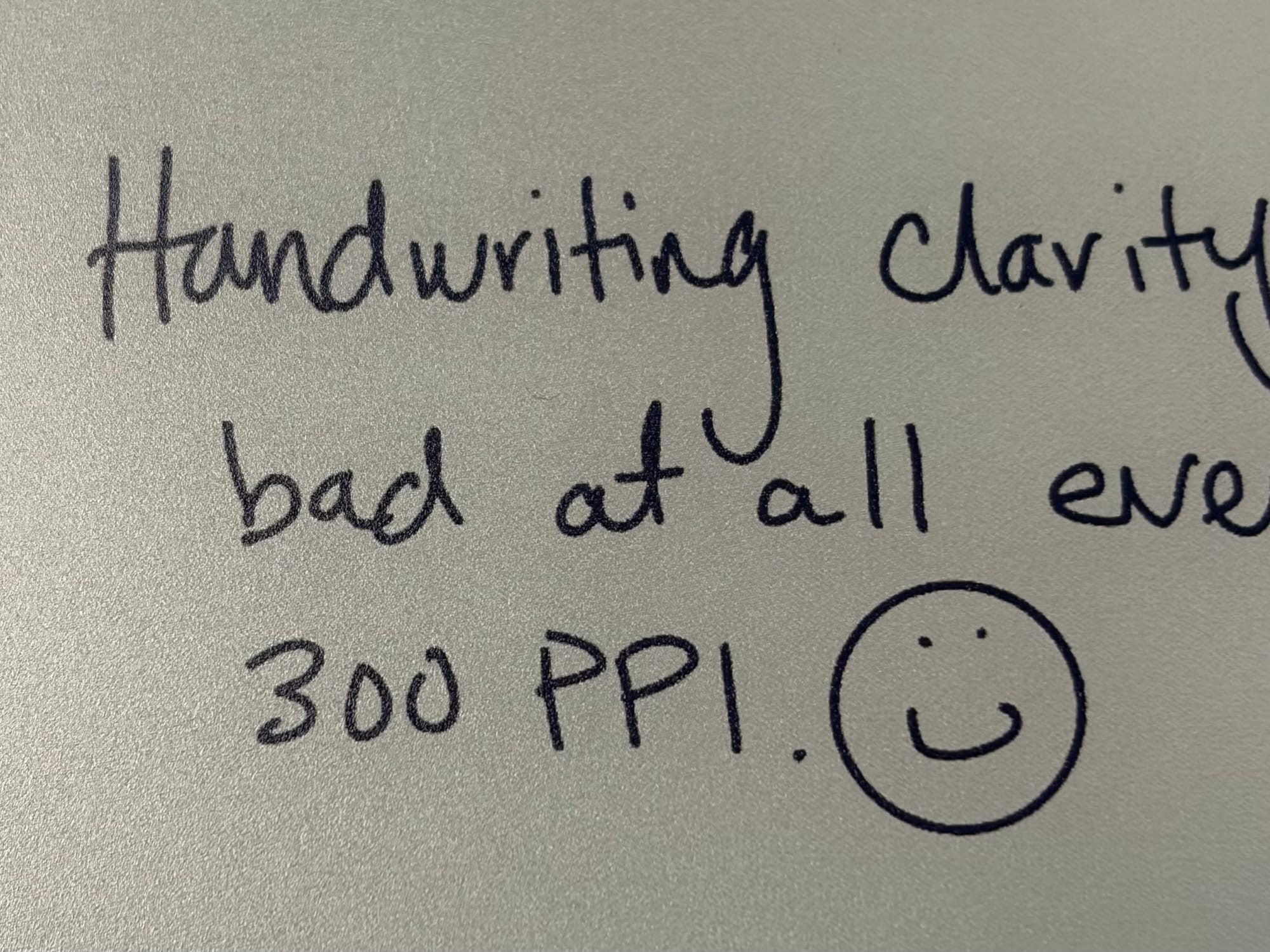
One last thing is the PPI of the display with is around 260. With all of the 300 PPI eink displays out there this does seem like a miss, and you can tell when reading text. For handwriting though, everything is very crisp, so I have not found it to be a deal breaker, but it is disappointing, especially with the new Paper Pure that was just announced has the same PPI as the reMarkable 2 it is supposedly replacing.
Conclusion
Move in it’s case (photo by author)
Over the past 6 months I have truly loved using this device, and this isn’t just the Move but embracing digital notebooks in general. I also have a Supernote Nomad that I have been switching back and forth with the Move (which I will have a review for and comparison coming soon), and I am ultimately really enjoying switching from physical notebooks to epaper tablets.
I think the Move was the really the device that pushed me to really see the advantages of making the switch, and I don’t see going back anytime soon. I still have paper notebooks, and regularly use them, but everything eventually ends back up in a digital notebook in some way. It is my journal, brainstorming tool, and a device that I feel has truly helped with focus and my mental health.
If you want a small and compact digital notebook that has color and a front light you really can’t go wrong with the Move. It has its compromises and limitations but even with those, you are still getting so much more over a paper notebook. The only other caveat is the price, with everything included, case, Marker and tax, you are looking at spending $500-$600 brand new, but I have to say that the quality and other benefits that come from using a device like this, for me, has been well worth it.
A review for a truly Apple iPhone; which is a good thing.
I wrote about the iPhone Air and iPhone 17 Pro around October 2025 and after using both I realized that my iPhone 15 Pro Max was good enough to not need to upgrade. After a few weeks of going back to the 15 Pro Max, one phone in particular was stuck in my head.
For the cameras and battery life, it makes sense to go with the iPhone 17 Pro. Over the years I have realized how much cameras are not as important to me on an iPhone. I use the camera on my phone a lot, don't get me wrong. But if I wanted to take pictures of a special event or need something more capable I have a Canon mirrorless camera that I can use.
With all that said, I have used the iPhone Air's camera for months now and the pictures are great for when I need to use it during family get togethers or trips. I have a ton of fantastic photos using my iPhone Air that may be better using a 17 Pro, but not enough that I notice at all.
Single camera is just fine for me.
One of the main reasons is because I don't have a iPhone 17 Pro to compare the photos too. The one thing I do miss is not being able to zoom more on the iPhone Air. 2x is fine for some scenarios but I do miss being able to zoom to 5x on my iPhone 15 Pro Max, but again that isn't a deal breaker for me.
The battery is another story, but still not that bad. I have realized over the years that my daily routine allows me the luxury of always having a charger near by if I need. My car has a Qi Charger, my desk at work has a MagSafe charger that I use all day, and I have a number of fast charging cables and adapters available when I need them.
I will admit that I bought the Apple MagSafe battery pack for the iPhone Air when I was on a trip to Utah during the holidays. But this was more out of convenience than actually need. I knew I was going to be out and about a lot and having the MagSafe was a nice to have and used it a few times when traveling.
Other than those two things (battery and camera), I don't see a lot of other reasons why people would choose the Pro models over the Air. Screen size can also be a preference if you want something larger or smaller than the Air, but again I think the Air fits perfect between the Pro and Pro Max when it comes to size. This is why coming from the 15 Pro Max was not that big of a change when it comes to the size at all.
The things that I love about the Air, though, are endless and I love this phone so much that even if the battery and camera were issues for me, I don't think they would still steer me away from wanting it. The size and feeling of the phone are just outstanding that I can't imagine going back to a different phone in the future. Except of course a iPhone fold or what ever Apple plans to call their foldable iPhone.
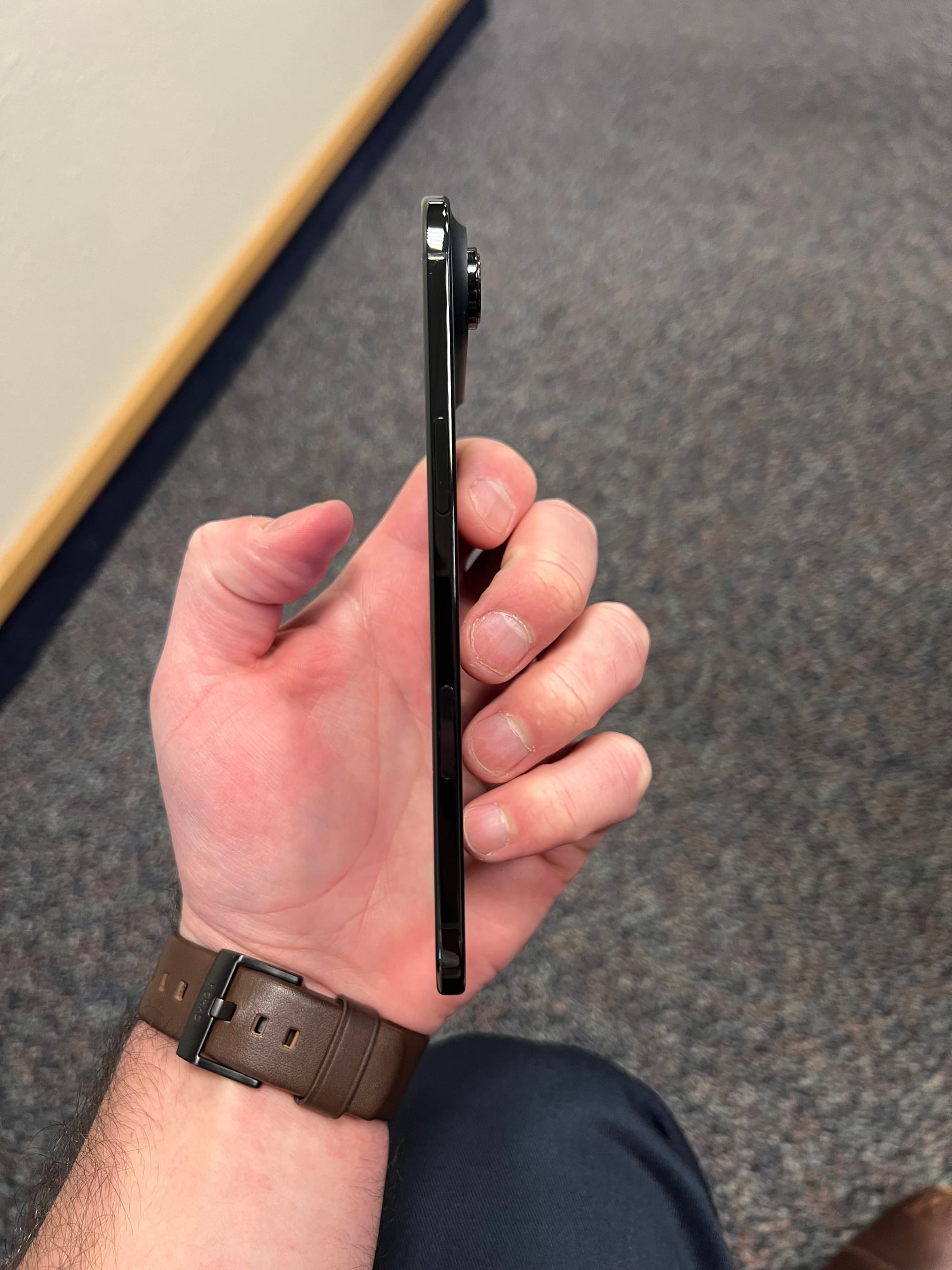
So thin!
This was another reason why I bought the iPhone Air. If this mythical foldable iPhone does come out this year or next, I wanted to see what it was like to at least use half of it while we wait and see what actually is released – since the rumors are that the foldable iPhone will be similar to two iPhone Airs put together in terms of thinness.
The last reason I upgrade to the Air was I also wanted to change my AT&T plan to include the Next program since I have decided that whatever Apple releases this year I want to be able to upgrade without the hassle of paying off, selling, and purchasing a new iPhone. I would prefer to have the ease of just trading in my old phone for a new phone when I want to upgrade.
So, those are the reasons why I decided to get the iPhone Air, now the question is: what do I think about it?
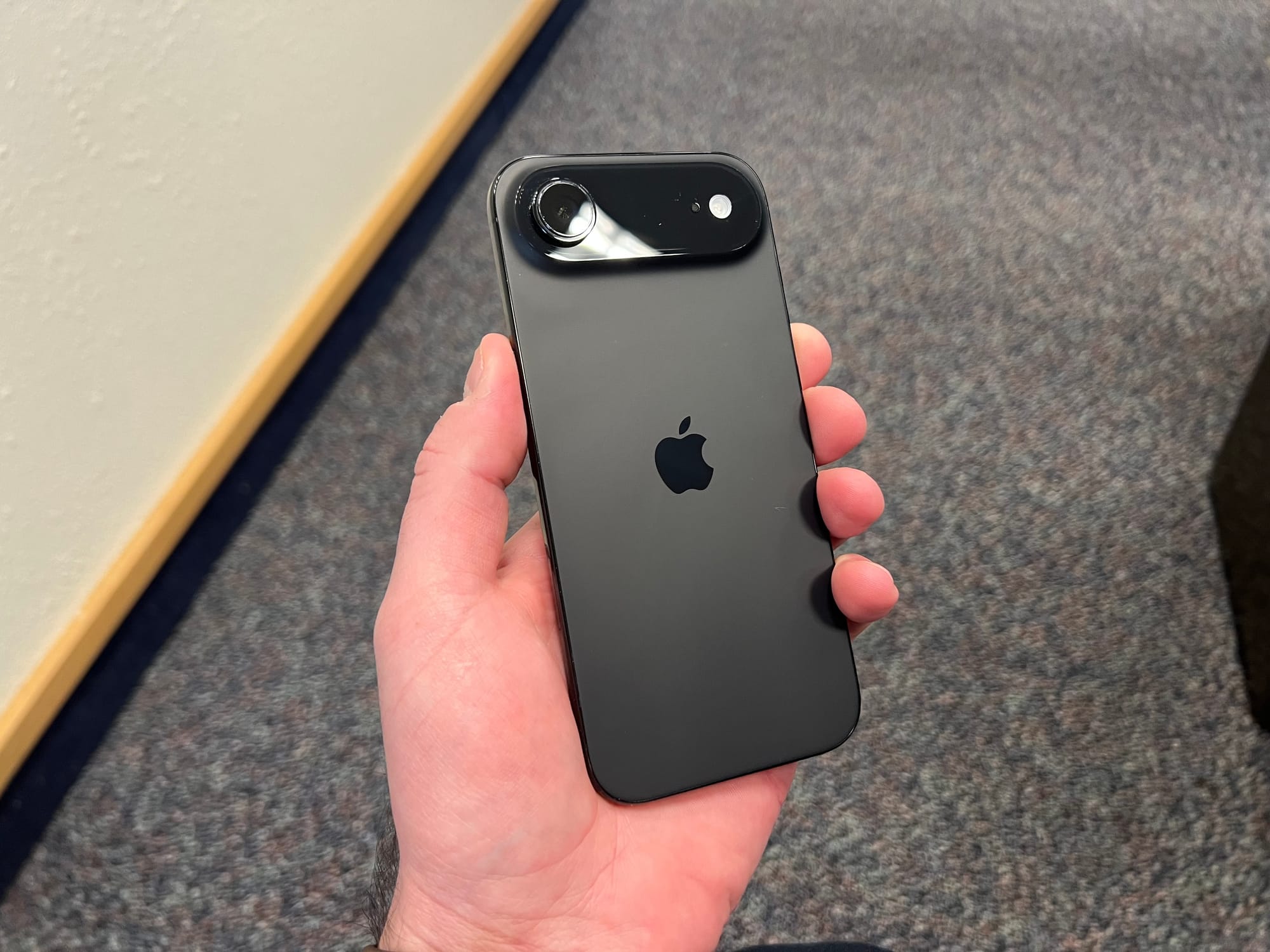
It is literally one of my favorite iPhones of all time. I put it up there with the iPhone 4 and iPhone 11 Pro. The form factor, screen size, and everything else about a usual iPhone (using iOS, apps, power, etc.) is fantastic on this device. I go back and forth using it with a bumper or case-less and I love both options.
The bumper can add a little extra thickness to the sides, but I appreciate that it is a bumper and I can still feel the back glass of the phone, plus it is still much slimmer than traditional cases. I really loved the bumper on the iPhone 4 so this is no surprise for me.
Comparing the iPhone Air to other iPhones, even the iPhone 17 Pro is sort of boring to be honest. Reviews of phones since the iPhone X and iPhone 12, you could argue has been pretty boring. iPhones don't change that much any more when it comes to how they are used. The form factors sometimes make small changes but overall they pretty much stay the same.
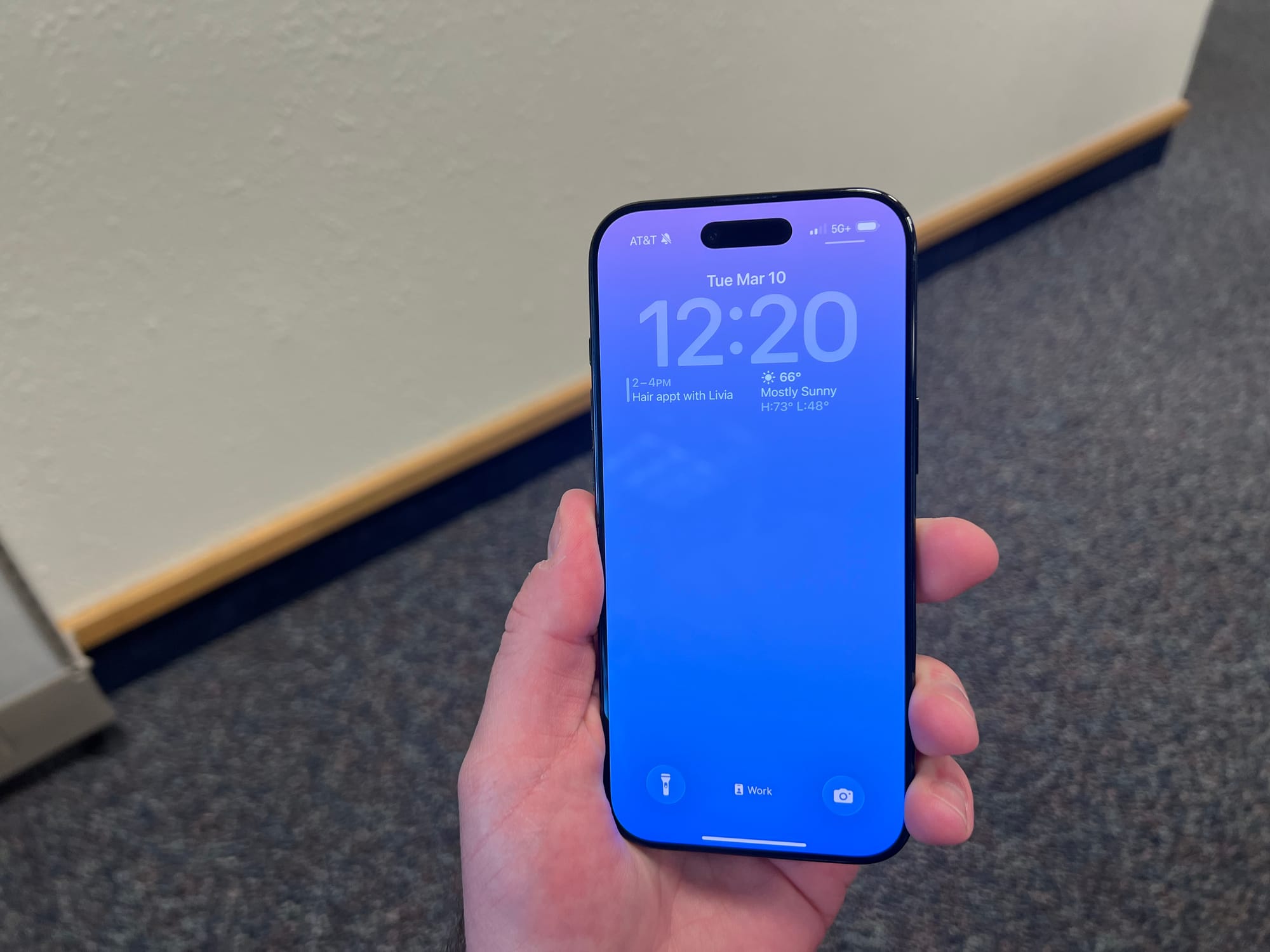
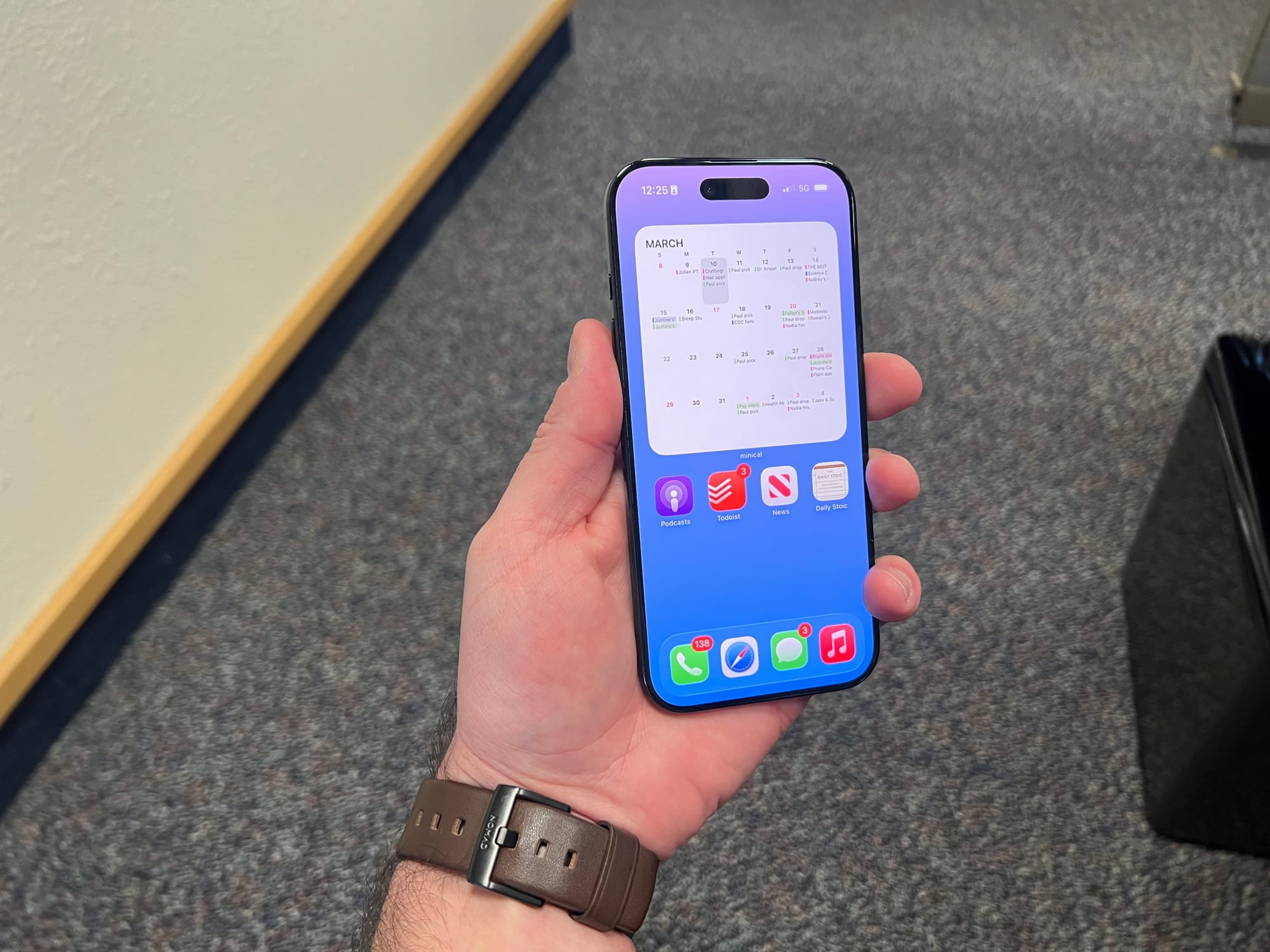
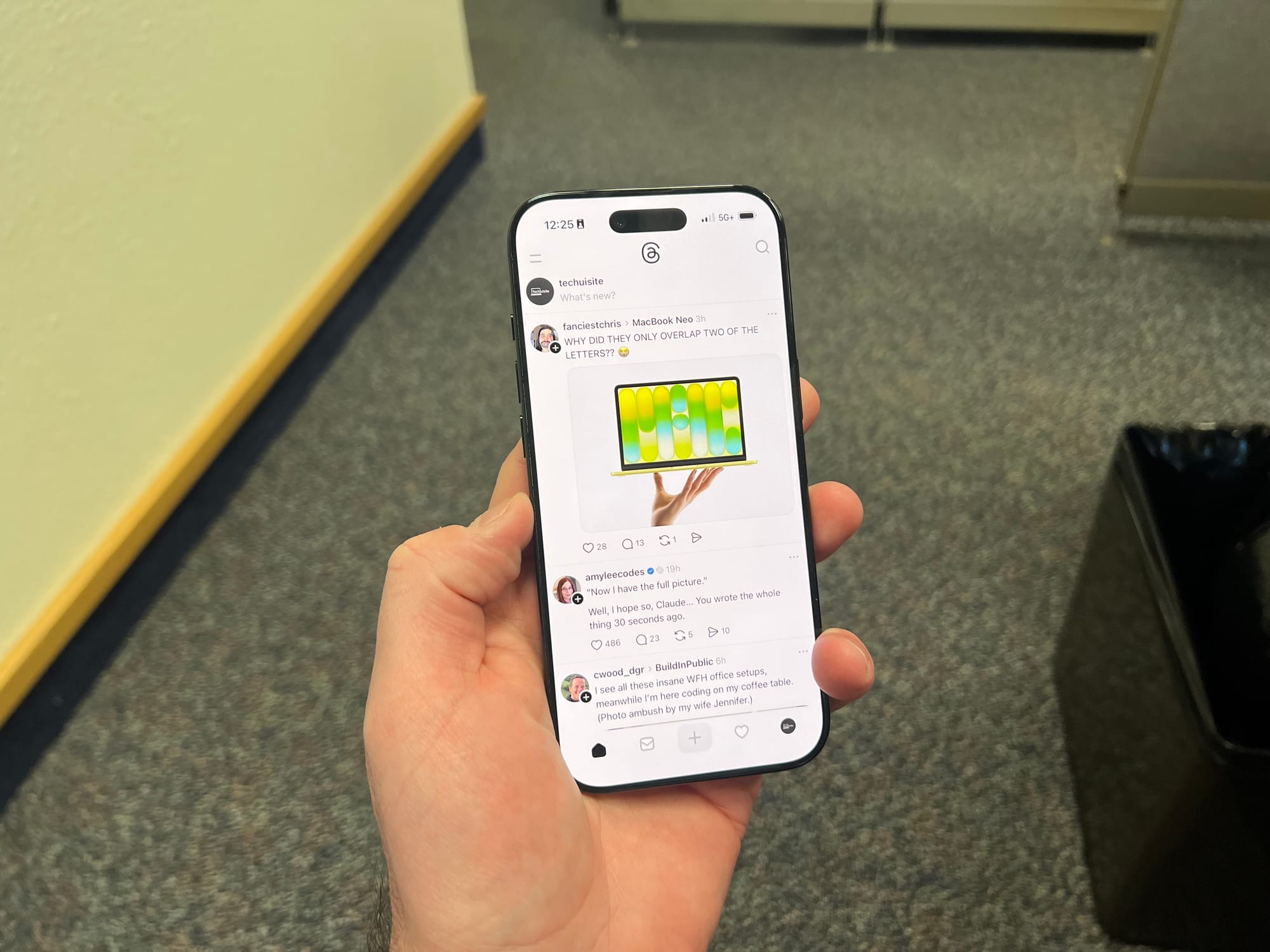
My “work” Home Screen and Threads on iPhone Air
What I really like about the iPhone Air though, is that Apple didn't compromise a ton with this device even though they made it so slim. It has the Camera Control button, ProMotion display, FaceID, a decent camera, and MagSafe. It feels like an iPhone Pro but with less cameras and so much smaller.
Because the cameras and battery are not an issue for me with smartphones, as I addressed at the beginning of this post, nothing else with this phone feels like a compromise for me. The fact that it has titanium sides and a fully glass back is also a huge plus compared to the new iPhone 17 Pro models.
The only phone I think is close in comparison in terms of having a great phone without compromises is the iPhone 17 models. Now that they offer ProMotion on their displays, the iPhone 17 is a fantastic value and I prefer that form factor over the iPhone 17 Pro models as well.
Where the iPhone Air really shines though is the screen size. Though the iPhone 17 is a fantastic value, coming from a Pro Max phone, I definitely didn't want to go back to a smaller display. The iPhone Air is the perfect size screen and with the smaller bezels and slim frame, using the larger display is really great.
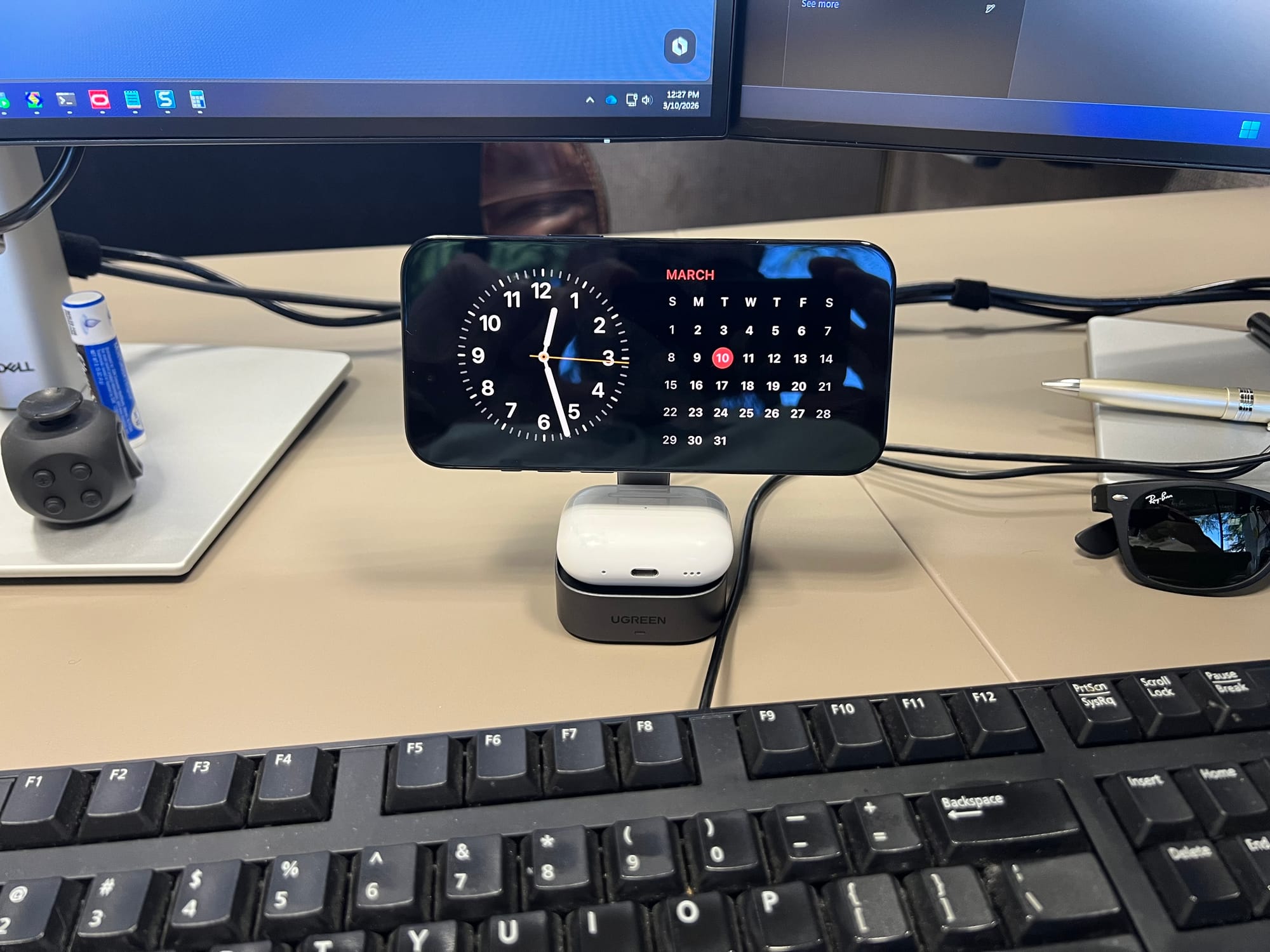
Standby and MagSafe are just as good.
Overall the iPhone Air is a great phone. Just like every iPhone released in the past. But I appreciate Apple doing something different this time, and I hope this is a sneak peak into a new kind of iPhone like a foldable. I don't think I necessarily needed to upgrade to it from my iPhone 15 Pro Max, but it truly has been a great upgrade and love using it everyday.
Vibe coding and tinkering with other gadgets has made me fall in love with the Mac again.
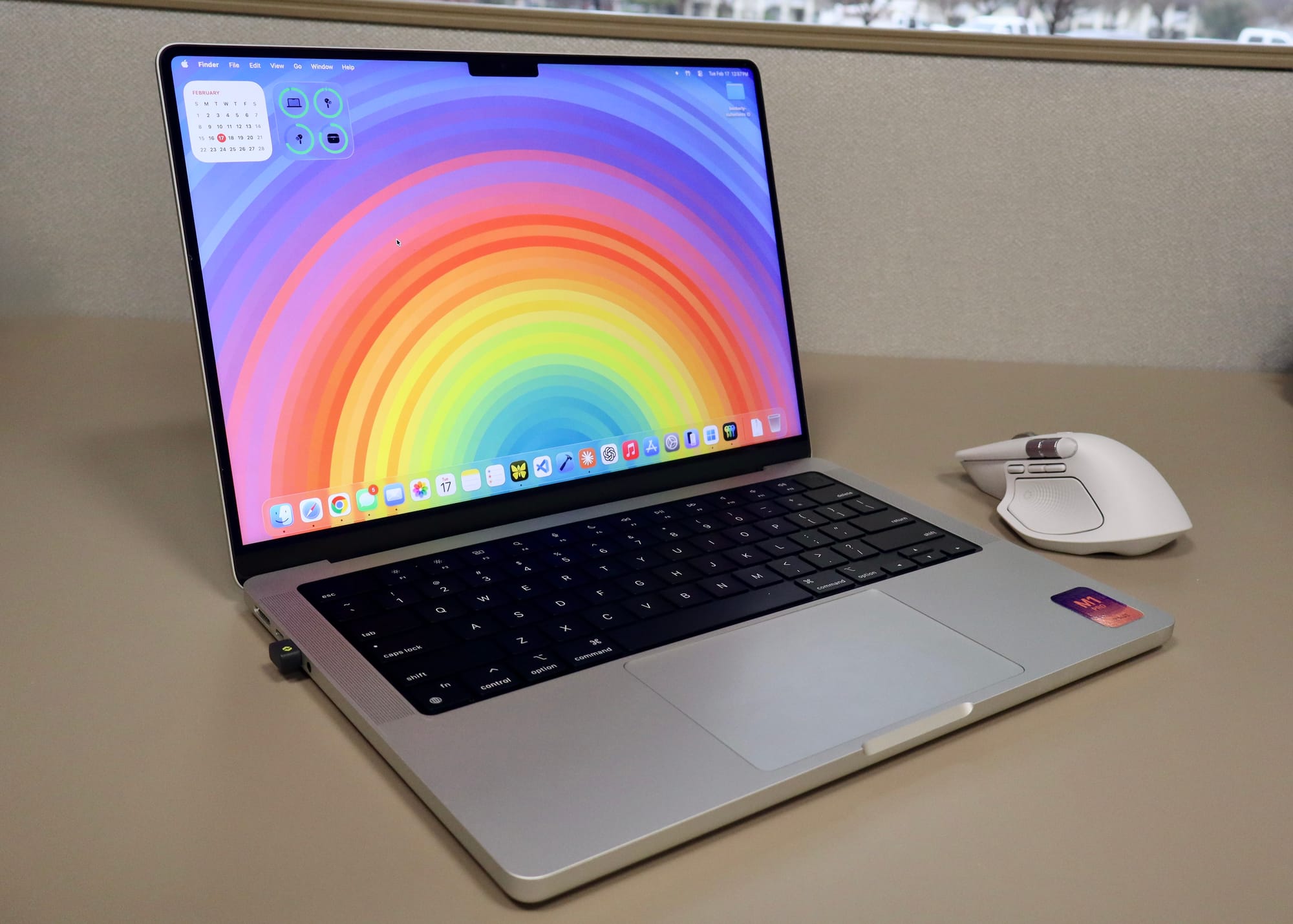
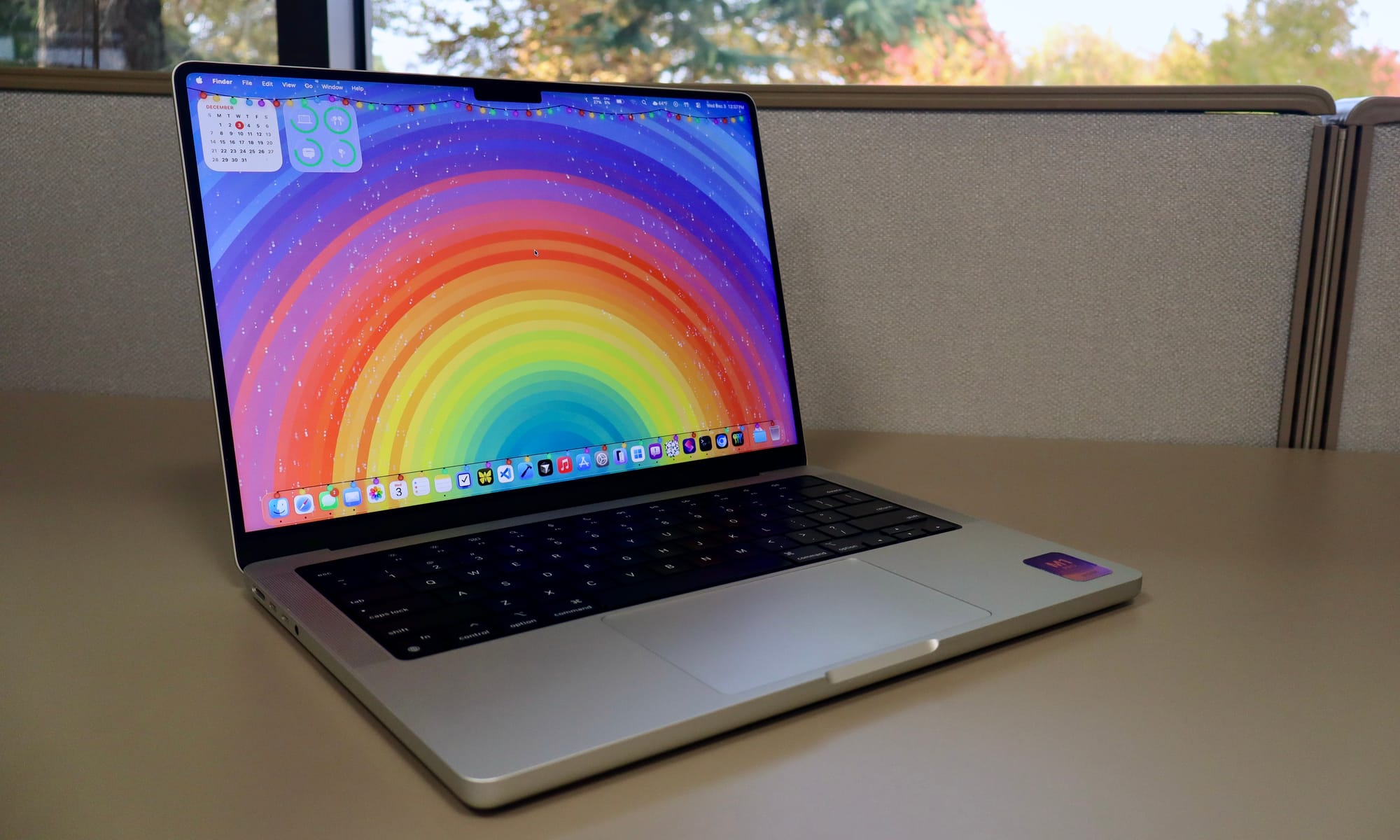
Since writing about picking up a new-old MacBook Pro late last year, it has become an essential part of my computing life. The M1 Pro has been more than enough for my needs, and after a few upgrades I am so happy with this computer.
I bought this MacBook on Swappa for around $700, which is a steal when this same model when released over 5 years ago was $2,000 brand new. It is older, but with 85% battery health and no issues at all in terms of performance over the past few months I truly can't complain.
I did make a few changes to make the experience using this MacBook Pro more personal and useful for me, but for the most part the Mac is what it is. The internals can't be changed or upgraded, which has been the case for MacBooks for years now.
Personalizing and Accessories
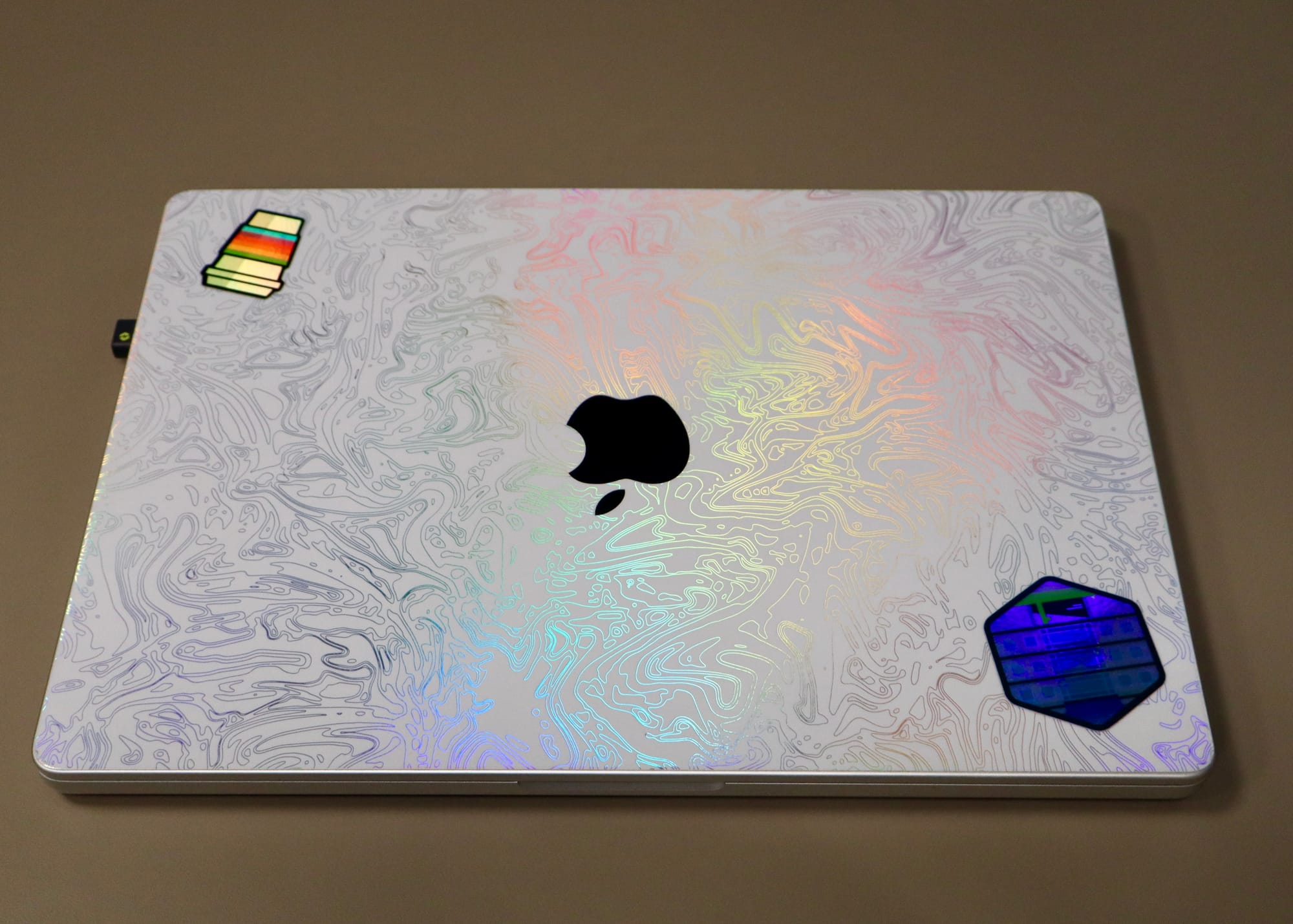
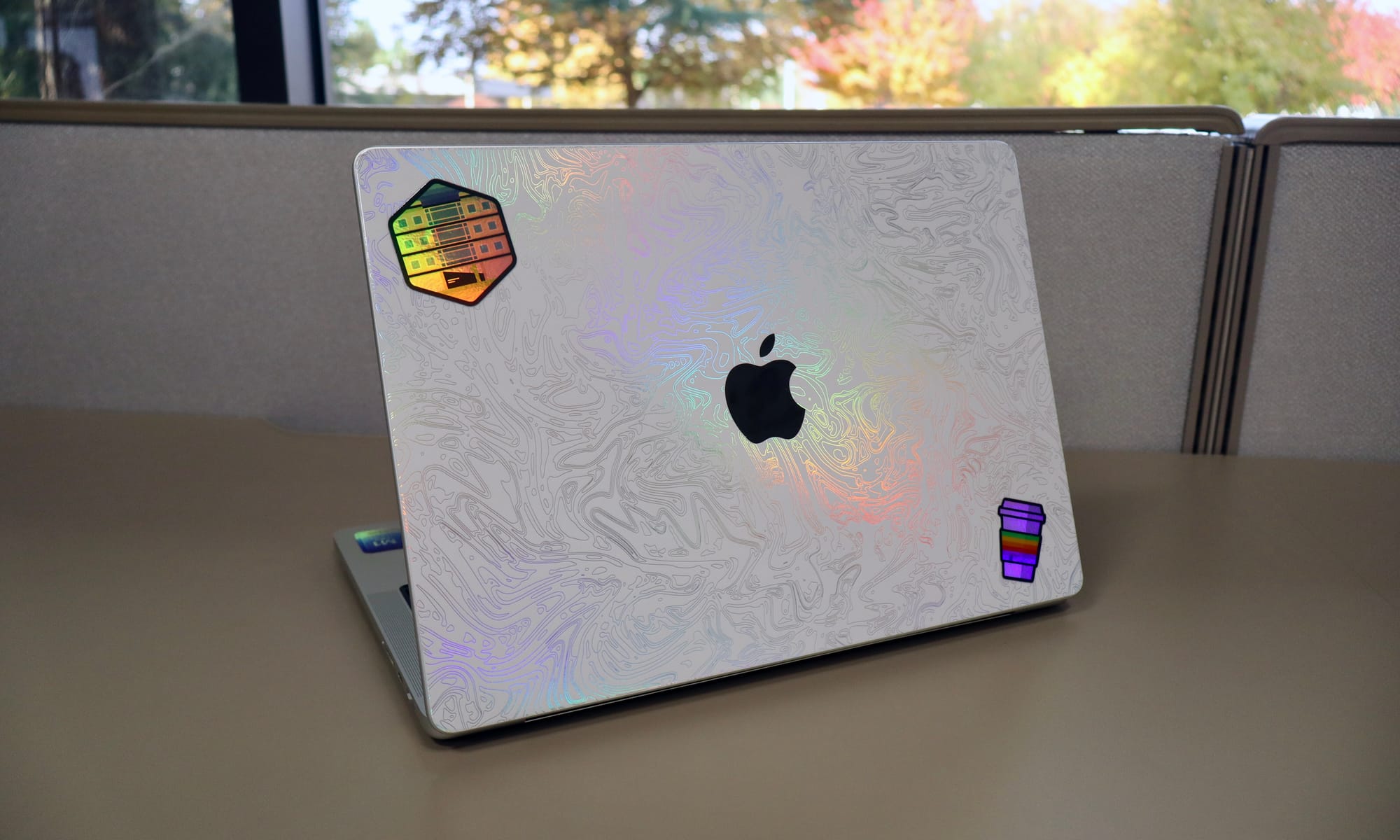
The first thing I did was get a Dbrand skin for the top of the MacBook, something that complemented the silver color of the MacBook but also made it feel a little more fun. The geography design in white with the multi-color reflection areas make it unique and fun. I also added a couple of Basic Apple Guy stickers too to add some additional pop of color.
Dbrand skin and Apple Basic Guy Stickers
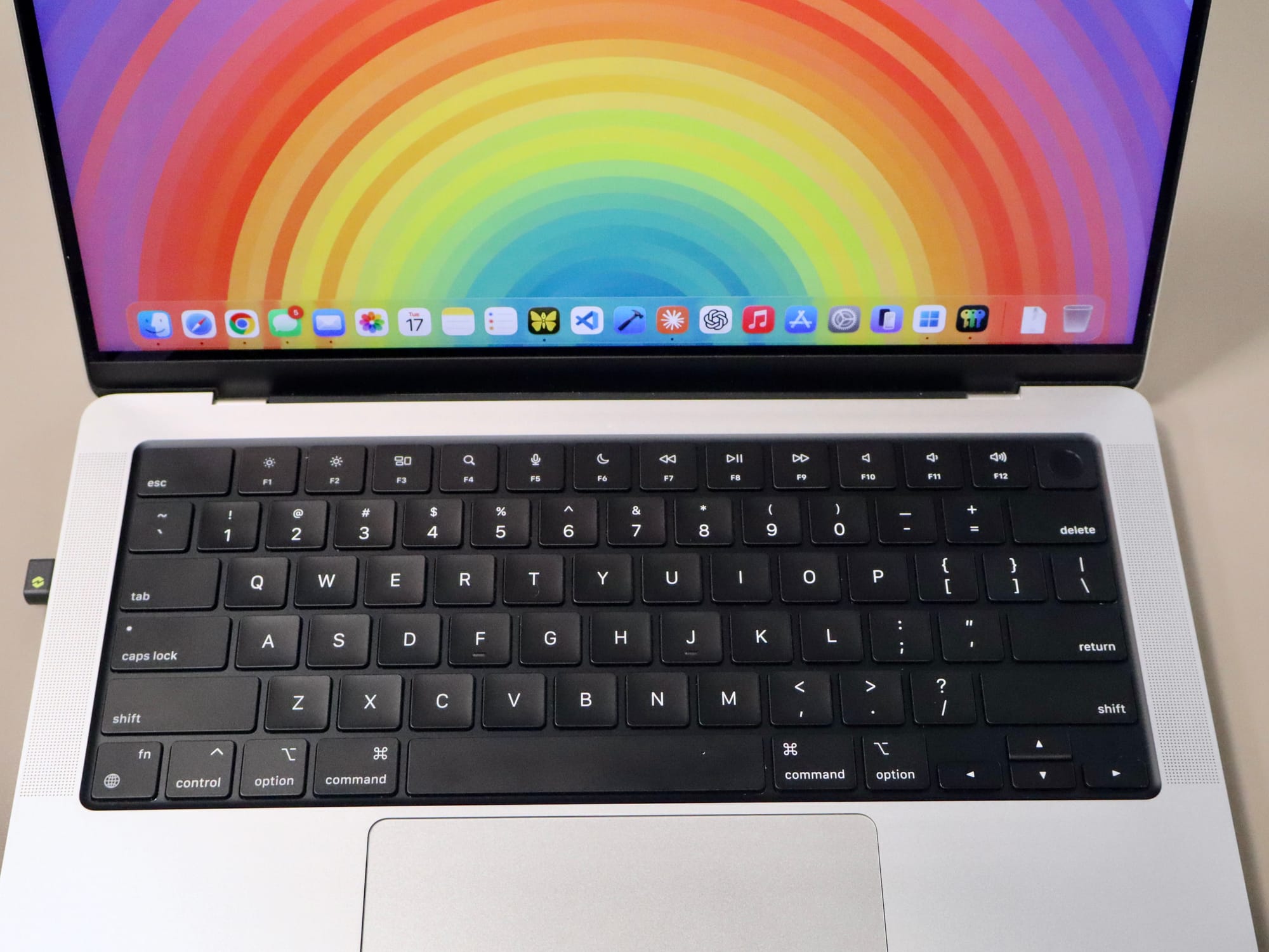
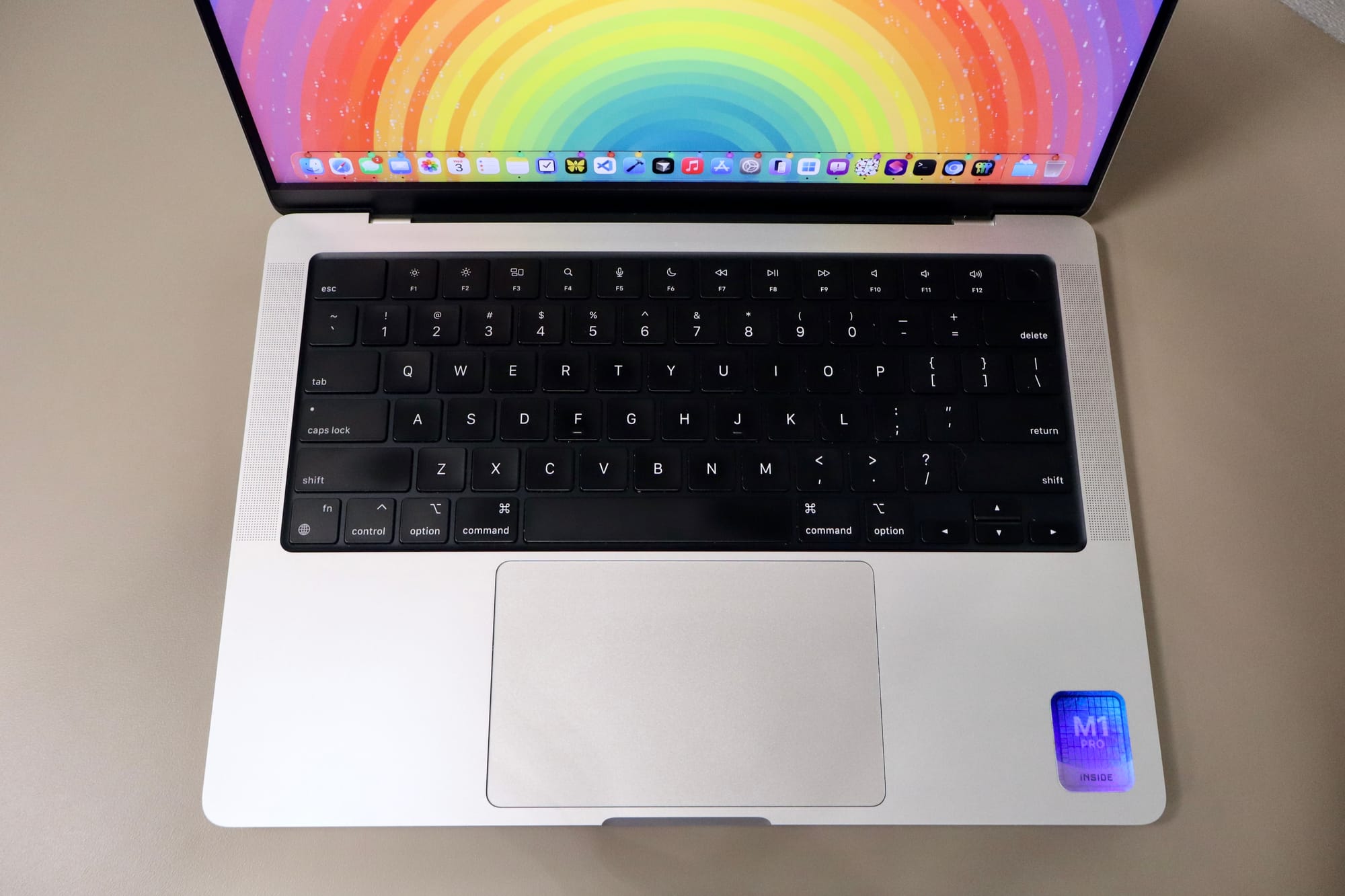
On the inside of the Mac I made one big and important change. The keycaps that came with this MacBook were worn and very greasy looking, so I paid iFixit $25 for a set of brand new keycaps and tediously replaced every single one. It was a pain in the ass but I am so happy I did it — adding those new keycaps refreshed the MacBook and it looks brand new inside.
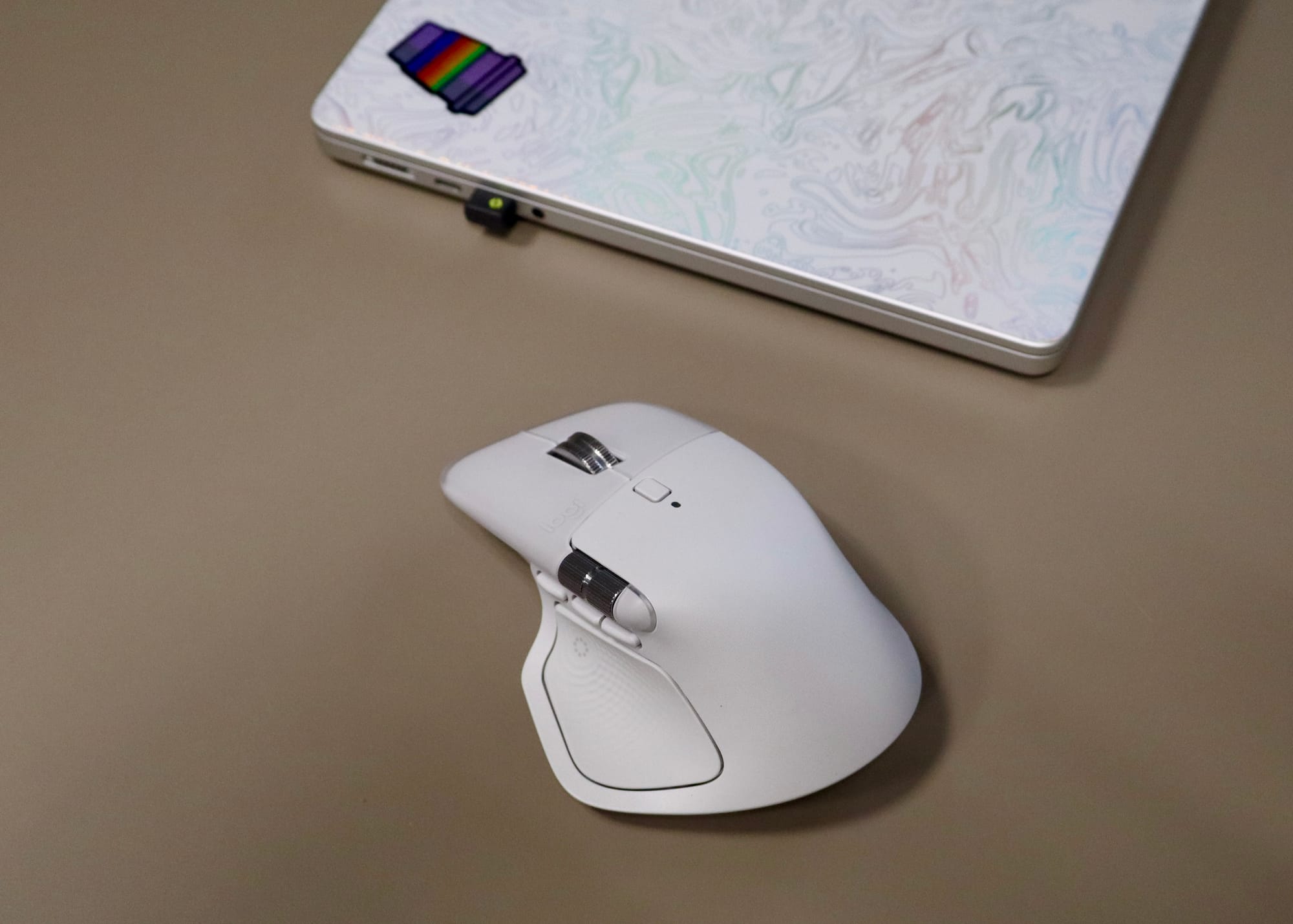
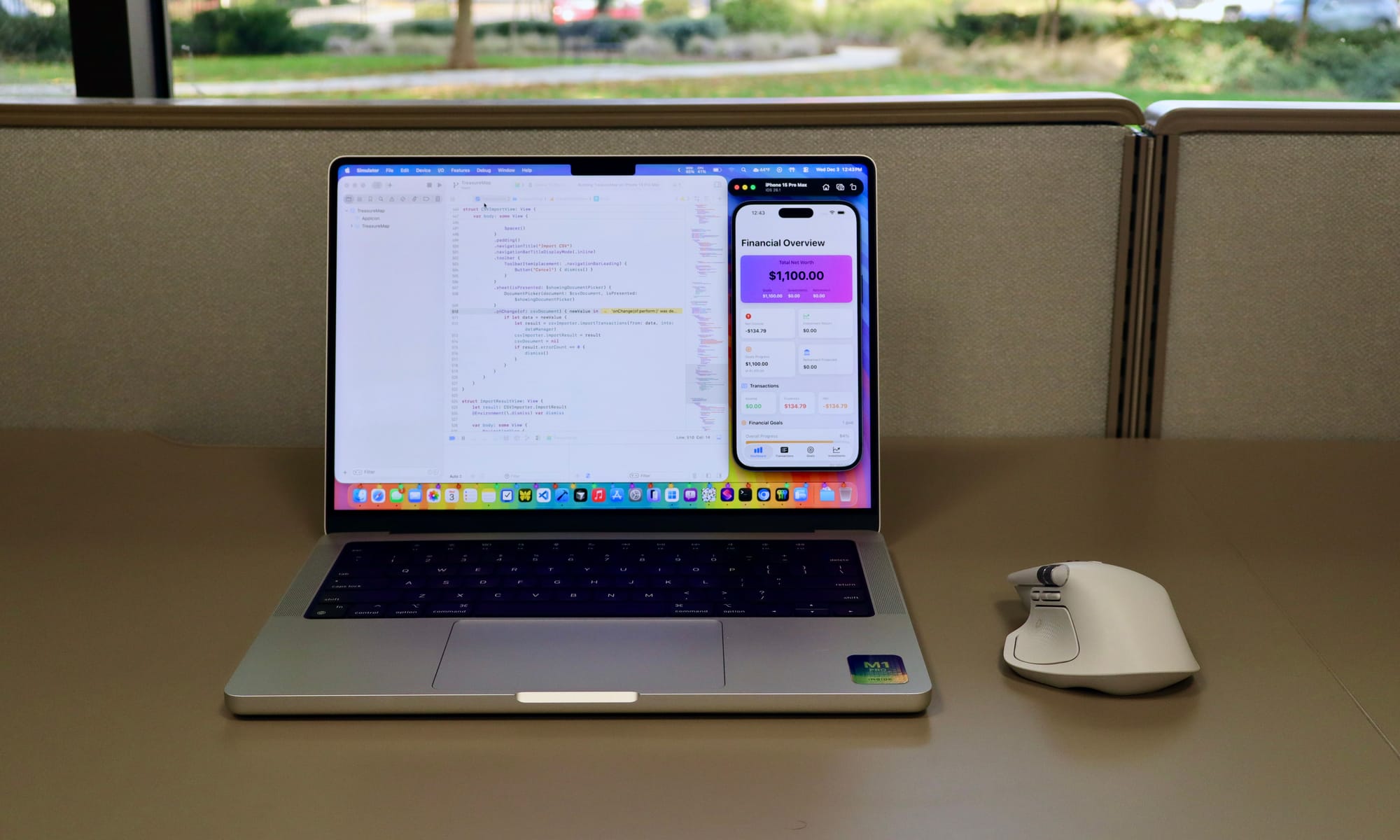
The last addition was getting a Logitech MX Master 4 mouse to go with the MacBook. I keep this wireless mouse in my bag at all times and keep the dongle in one of the USB-C ports to keep it from getting lost. I have really loved previous models of the MX Master mouse and this new model is no exception.
Logitech MX Master 4
I love the haptic button on the side where I have programmed it to show Mission Control. I have a few other customizations like the front button above the haptic section is set to bring up Spotlight and the two buttons below that move me between different desktops. The trackpad on the MacBook is great but I have really fallen in love with the MX Master so it is a perfect addition to my MacBook when I take it with me.
What I use it for.
The MacBook Pro has become my main computer. It is funny how much I just don't use my iPad anymore ever since I got this MacBook and another device that I have yet to talk about, the reMarkable Paper Pro Move. Yes, the MacBook has capabilities that my iPad will never have, but I think it has also been nice to be back on a traditional laptop after using a tablet for so long.
There are a lot of things that I do on the MacBook that I could do on my iPad Pro with no issues at all. Actually, there are some things that I would actually like to do more on the iPad versus the Mac, but because the Mac can do everything I can do on my iPad and more, it has become my default computer.
The problem with being a nerd like myself is that I am constantly changing my interests, meaning that I jump to other technologies or tools regularly. Sometimes this has no effect on what computer I use, but those times that it does, having a MacBook is so much more ideal.
Keycap replacement was a success.
For example, I have dove pretty deep into the reMarkable world lately, and since they use a custom Linux for its OS, using SSH on my Mac to make changes is not something I can do on an iPad. I don't always need to do this specific thing on a computer, but when I do the convenience of knowing that my Mac can handle it has been really great.
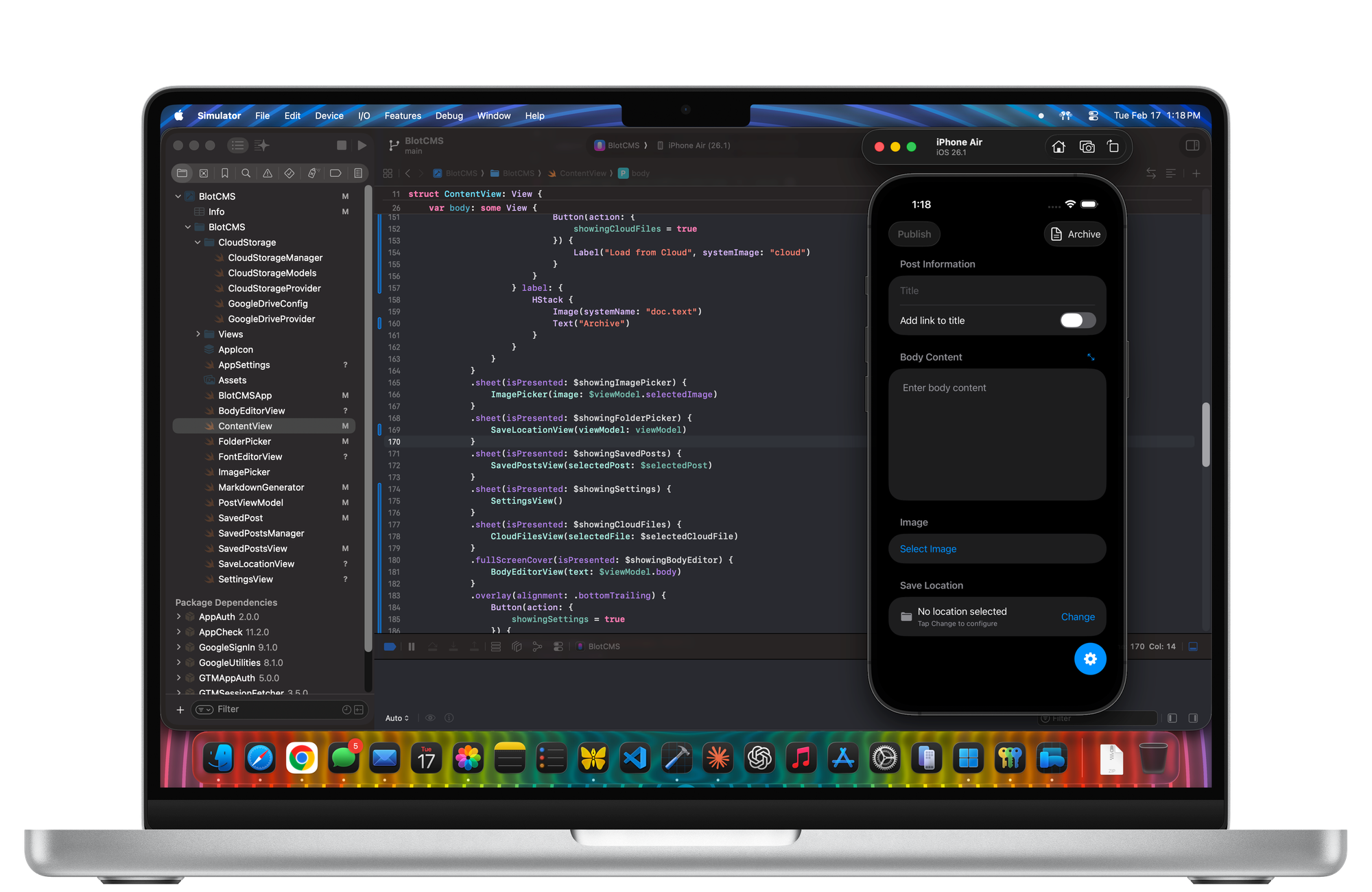
So the things that I use my MacBook for, as I said earlier, are things that I used to do on my iPad like managing my home needs like our finances, kids' activities, and other personal things that I need to keep track of. I also use it as a machine to write blog posts and most recently I have delved into a lot of vibe coding which has been a lot of fun.
I created a couple of apps recently for myself that I don't plan to release to the App Store as of right now. I created a Bill Pay app that allows me to keep track of all the payments my wife and I have that used to exist in a spreadsheet. It really isn't that different than my spreadsheet but building it with Claude Code and creating a widget for it has been a really fun experience.
The other app I created was a way to post to my personal blog, Alvalog.net, which uses Blot.im to host and essentially just takes text that I write and an image that I upload into the app, formats it into markdown with all the correct syntax, then drops them into an iCloud folder that Blot picks up and shows on my blog.
I had a shortcut that did this before from the Apple Notes app, but it was fun to create this and learn some of what it takes to build an app, even though I am mostly just vibe coding and letting the AI agent do most of the work.
Why I am keeping this MacBook.
As of right now I am really enjoying this M1 Pro MacBook Pro and see no need to upgrade. I would love a Space Black M5 MacBook Pro with a nano-texture display, but can't justify the extra cost just to have a different color and display. The M1 Pro is just so much more power than I need right now in a computer that it is hard for me to know when I may need to upgrade in the future.
Right now the MacBook goes everywhere with me. I got a new sling bag recently and it fits the MacBook perfectly, along with the MX Master 4. I don't use it every day, but it is really nice to have it before my work day starts or at lunch to be able to work on one of my apps or write up a blog post.
Though it is larger and a bit heavier than the iPad Pro, even with the Magic Keyboard, I can't tell the difference in weight when I have it in my bag. It is the perfect size for what I need as a mobile workstation.
Xcode on MacBook Pro.
What is also great is the amazing display on this MacBook Pro. I know the mini-LED has been available on MacBooks for a while but after using my work's Dell 4K displays all day, I am reminded of just how great the display is on this MacBook when I use it at lunch at work.
I have been working on some PDF templates for my reMarkable Paper Pro Move and using Canvas in the browser on this MacBook is just so great. Any creative work that I do on this MacBook just shines on this machine. Not just design, but text just looks so sharp — that is why I love using it to write blog posts too.
Which leads to another question that some may have, but something I have contemplated:
What about the iPad Pro?
This is a good question and one I have been pondering a lot. Since getting the MacBook Pro, I have no longer been carrying my iPad Pro every day as I used to. It sits at home on my bedside table either in a drawer or on top. I have used it recently to research some things using Claude and watched some shows and movies on it but have not used it for things that I currently have been doing with my MacBook.
It is funny because most would say this is as expected; the iPad has always been less capable than the Mac, so of course you stopped using it once you got a MacBook. To some this statement might be true but I see it a bit differently.
When it comes to the tool that works for us, it is dependent on the use cases we need and want it for. If you want to use Claude Code to vibe code an app that you want to put on your iPhone, then a Mac is truly the only option that you have.
iPad Pro M4
If you want something that can do everything else except write actual iOS apps and then an iPad might be perfect for you. Before I really started to get into vibe coding and wanting to customize my emulators, iPods, and e-ink devices, writing for a blog and working on personal home tasks were perfect for the iPad. My needs and tastes change, which means the hardware sometimes will too.
So as of right now I don't know what is going to happen with the iPad Pro. I still really love the device but I think it is a bit overkill for what I need now since I have this MacBook Pro. Having a 1 TB SSD and a nano-texture display is a luxury that I now have for a tablet that I rarely use.
I may sell it and get something not as premium, like a base iPad Pro 11-inch or an iPad Air (or mini) just to have. But because of the new device that I have been hinting about throughout this post, the reMarkable Paper Pro Move, I actually don't see a need for a traditional tablet since this e-ink device has really been perfect for most of my needs. I plan to talk about this topic more, including the templates I have created for the RPPM, and how I use the Move every single day.
It's going great.
So overall my experience using the MacBook Pro has been fantastic. Like I said earlier, I don't use it every day but it is so nice to have with me every day if I do need to. It is the perfect size, has so many premium features that not only benefit me every day by using it but provide longevity so I don't have to worry about upgrading for years.
Remarkable Paper Pro Move, MacBook Pro, and MX Master 4; my new favorite setup.
It has been a journey using the iPad as my main machine off and on for so many years, but it also feels good to just say that the Mac is my main machine again. Not because the iPad is bad, but because for my needs the Mac checks off all the boxes and more.
Unless this thing completely dies on me I have no plans to move away. It feels really good to have something that is reliable but that can meet any need that you may be confronted with. Its been awhile since I have used a MacBook Pro as my main machine again, but now that I am back here, I am here for the long run.
My desire for e-ink technology has grown substantially over the years.
It isn't a surprise that I have been interested in e-ink readers and tablets ever since I bought my first Kindle many years ago. But in the past this was mostly just a tool that I saw for reading, I never considered using e-ink for other uses until the last year or so.
One of the reasons I never considered an e-ink device over just reading ebooks is because I always felt a tablet computer, like an iPad, was way more useful than a larger e-ink device. What helped change my mind the most though was no longer wanting to support Amazon which includes no longer buying books from the Kindle store. So my desire to find another e-reader opened up a huge world of other e-ink devices that exist.
This has changed for me a lot for a number of additional reasons. For one, I am in need of more focus in my life. I have struggled with using my phone and iPad too much for doom scrolling and other non-healthy related activities and e-ink, usually, provides a more focused environment.
I have also never enjoyed handwriting on an iPad very much. In the past I found it useful to have a computer that I can use for computer-things but also be a journal and brainstorming tool with the use of an Apple Pencil. Since I am not using the iPad anymore, and using a Mac, my iPad isn't with me as often.
The iPad Mini is a great device for journaling but again, this is also a device I find myself doing other things than reading or writing so I have no desire to pick one up again. Instead I have been searching for that perfect e-ink tablet that fits all my needs, the unfortunate part is that like every piece of technology nothing is ever perfect for all of my individual wants and needs.
Before I go into some of the devices I have tried out, I want to talk a bit more about why e-ink is so appealing to me. Yes, the marketing push for a focused device has always been something that got my attention, but I never really considered the handwriting part of e-ink that has been growing a ton in the last few years.
E-ink provides a more limited experience than what we typically see in laptops, phones, or TVs, as the refresh rate, clarity, and performance will always feel inferior to the traditional screens we are used to. This can seem like a negative but for what e-ink offers, this is what most people appreciate about e-ink. The limitations are actually a feature.
The biggest benefit that I see with e-ink though is the lack of blue light allowing for a more comfortable experience over using other screens we look at all day. This has always been the biggest selling point for e-readers since it gives you a paper-like experience that allows you to read anywhere without the issues of glare or discomfort when using for long periods.
Even with models that have a front light, these are still usually not as harsh as a typical backlight that you see on an iPhone or iPad, but because it is shining the screen from the front, the light isn't being beamed directly at you. I actually prefer e-ink tablets with a front light because it is rare that I will only use it in a well-lit room.
Another feature that comes inherent with e-ink, but is also a choice by the manufacturer who makes and sells the device, is how focused the software can be. Because the refresh rate is so slow, instances of ghosting, and the lack of vivid colors available on e-ink, watching something or scrolling through images is not going to be ideal.
Some companies are a lot more open and flexible when it comes to their devices, like the Boox for example, since they put Google Play Store on the device allowing customers to put whatever they want on it. You can download TikTok, Instagram, and even YouTube or Netflix on a Boox device (black and white or color) and suffer through watching something on technology that isn't really made for those use cases.
Other companies like reMarkable, Kobo, and SuperNote actually restrict access to downloading apps from the Google Play Store, and some like reMarkable lock things down so much it is literally just for writing and viewing specific types of documents. By pairing e-ink's limiting yet powerful technology with software designed for focused, specific tasks, certain companies can produce a remarkably (pun intended) productive device overall.
Don't get me wrong, Boox devices are fantastic. The Boox Go 7 and the Note Air can provide an iPad-like experience in that you can download most apps like any other tablet but also have the comfort and limitations of e-ink to provide a more focused experience. My problem is that having too many options can have the opposite effect.
Which leads me to my journey through e-ink devices and what I am using today. I have tried quite a few, especially if you count Kindles, but for specific e-ink tablets I have tried over the last few years I would like to provide a brief summary of the good and bad for each device.
Kindle
Let's first start with Kindle even though I am no longer in the Amazon ecosystem. I am not a huge fan of Jeff Bezos, but I have to admit that I have always been a fan of Kindle hardware. Especially in the years of the Kindle Voyage and Kindle Oasis. Not only were those fantastic devices but the physical page turning buttons are sorely missed — the Voyage actually had capacitive buttons but still better than tapping the screen.
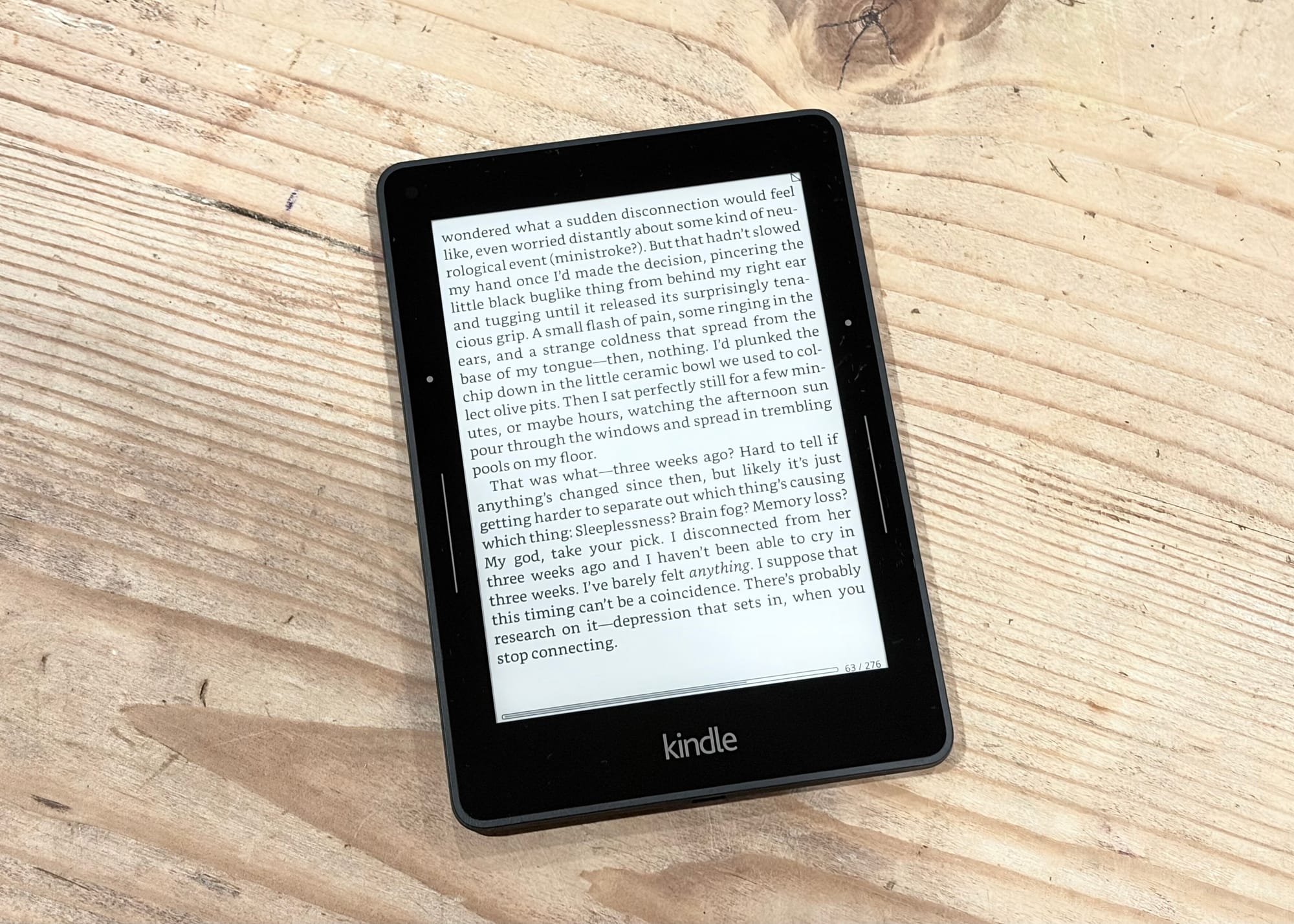
KOReader on Kindle Voyage
I still have the Kindle Voyage which I jailbroke and put KOReader on it. It is a fantastic device, though the battery I can tell is starting to degrade pretty badly on it. With it being such an old device it makes sense that the battery is getting worse, I haven't looked into replacing it but that may be an option in the future.
Like I said earlier, my favorite Kindles are ones with buttons to turn the page, the Voyage's capacitive buttons work great, and it is sad that the Oasis no longer exists anymore. Which leads me to the Kindle Scribe which I tried for a while and immediately didn't like it.
I haven't tried the new models of the Scribe and from what I have seen in reviews the note taking side of things seems to have improved a lot. The reason I chose not to keep the Scribe at the time was because I didn't feel reading on such a large device was very comfortable. The handwriting seemed fine, but at the time I didn't see the value in that either.
Text is so crisp on the Kindle.
The other models of Kindle I have also tried are: multiple generations of the Paperwhite, the newer regular Kindle with 300 PPI, and the last generation of the Oasis. All were and continue to be great devices, but because I am no longer buying Kindle ebooks it makes sense that I moved away from them.
I don't have a plan yet for my Kindle Voyage, but it is still a fantastic device for reading. I feel I have too many options for reading now, that I will go over more later, that is preventing me from using it more than I used to.
Boox
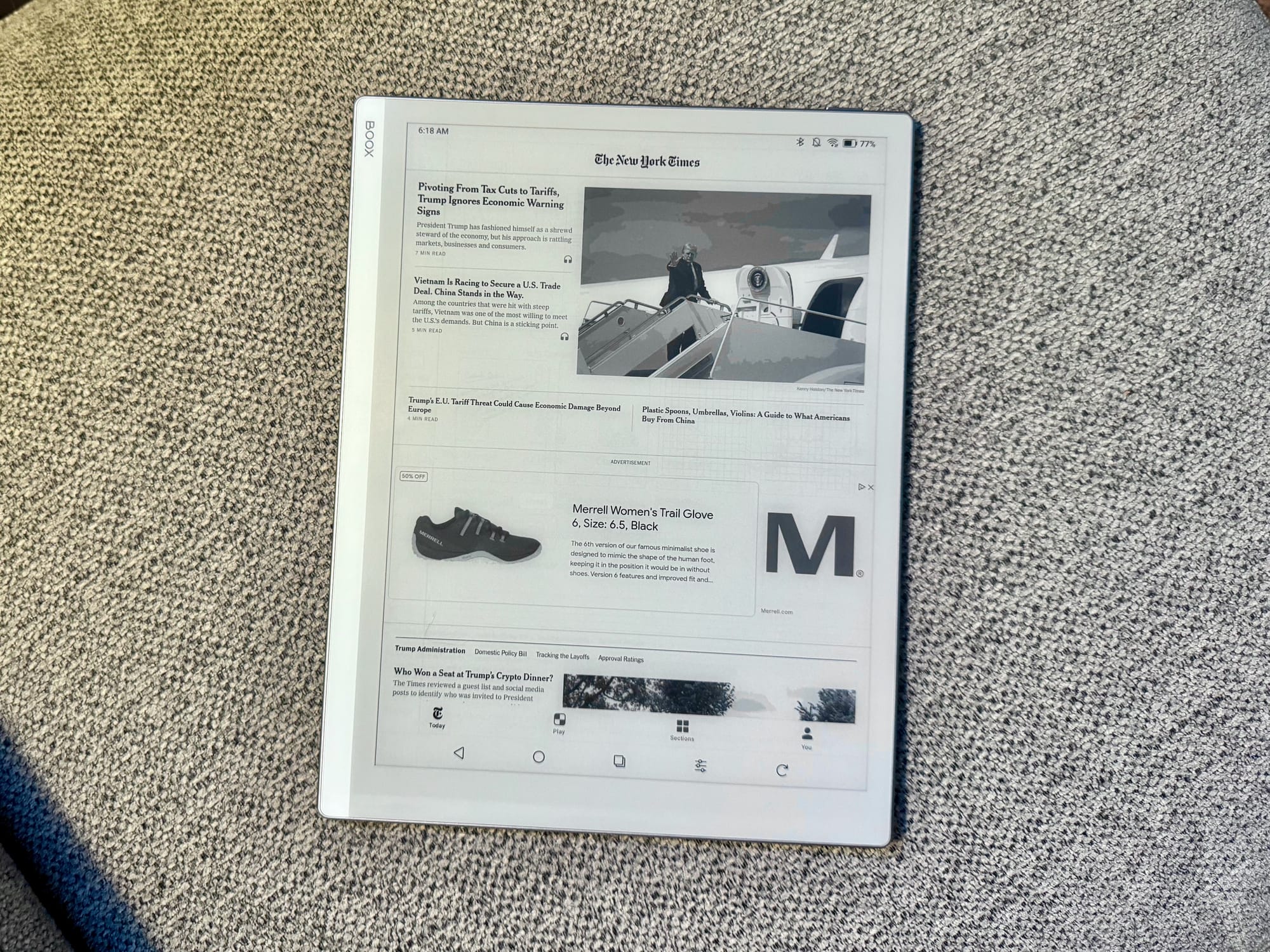
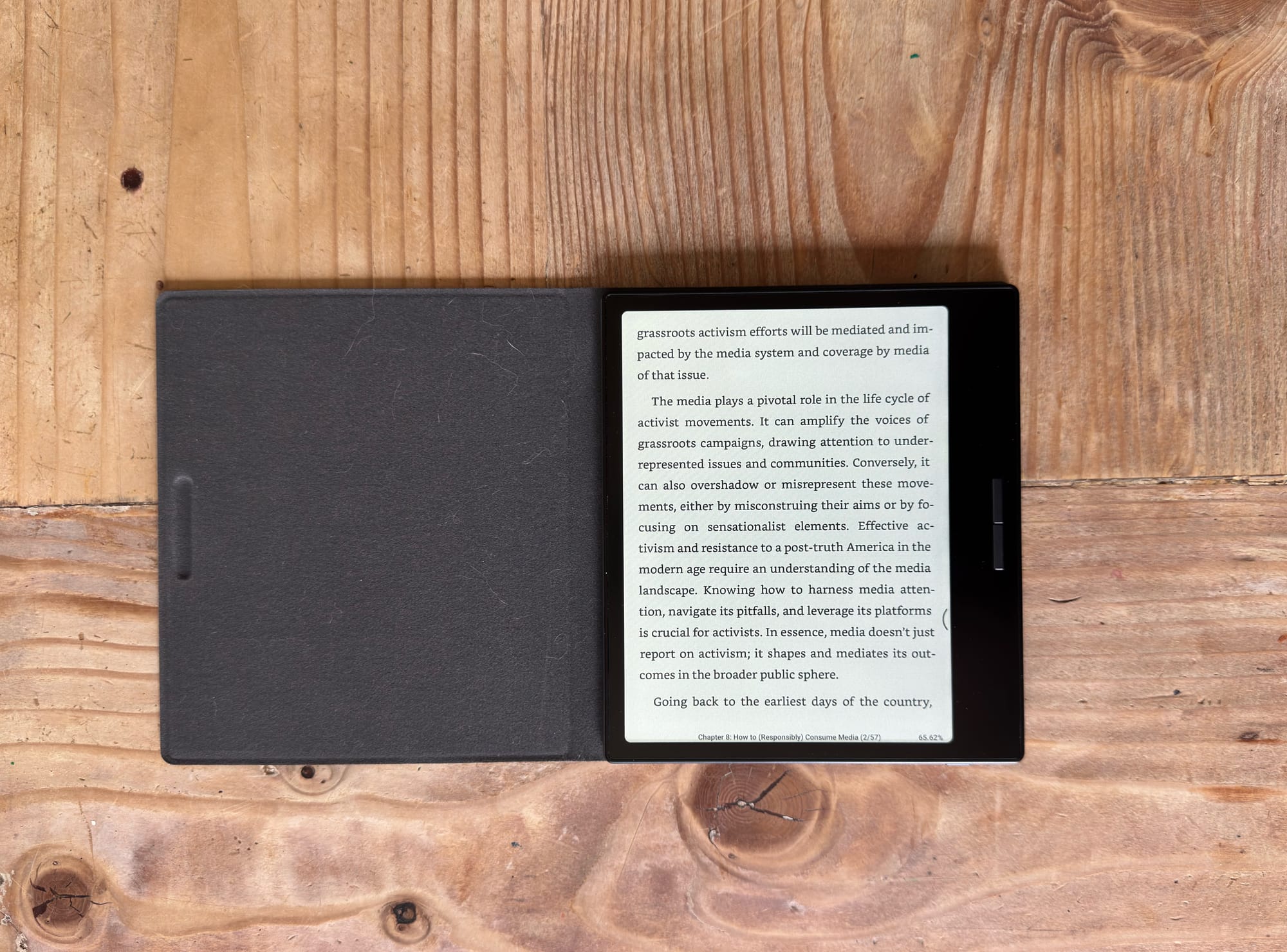
I have already touched on some of the benefits in the flexibility that the Boox devices offer but regardless of my preference I have to say that the Note Air line are really great devices in the e-ink/e-paper space. The hardware is fantastic and the software is so sophisticated.
Boox Go 10.3
I had a Note Air2 Plus for a few months in 2024 and absolutely loved it. At the time though, I just couldn't justify the price and decided to sell it. Since the Air2 Plus, all of the Note Air models now only have a color display option which is disappointing but I have heard the Note Air5 C is one of the best implementations of it out there.
I also had a Boox Go 10.3 and a Boox Go 7 Color for a brief period and again the hardware is just fantastic with these devices. The metal body and textured backs, plus the buttons feel very premium and clicky. I never felt like a Boox device was cheaply made.
The Boox Palma 2 was also something I tried for a short period of time, but again it felt redundant with my phone and Kindle. I preferred to just use my phone for something that it did better than the Palma, and my Kindle Voyage with KOReader was my reading device of choice, so the Palma 2 felt like a step down.
Boox Go Color 7
The reason I have withheld my eagerness to buy and try a Note Air5 C is because of the ability to use the Google Play Store. Even though it is appealing to have a more focused device that can do very similar things to my iPad Pro, I realized that I need something with more focus and restrictions.
Kobo
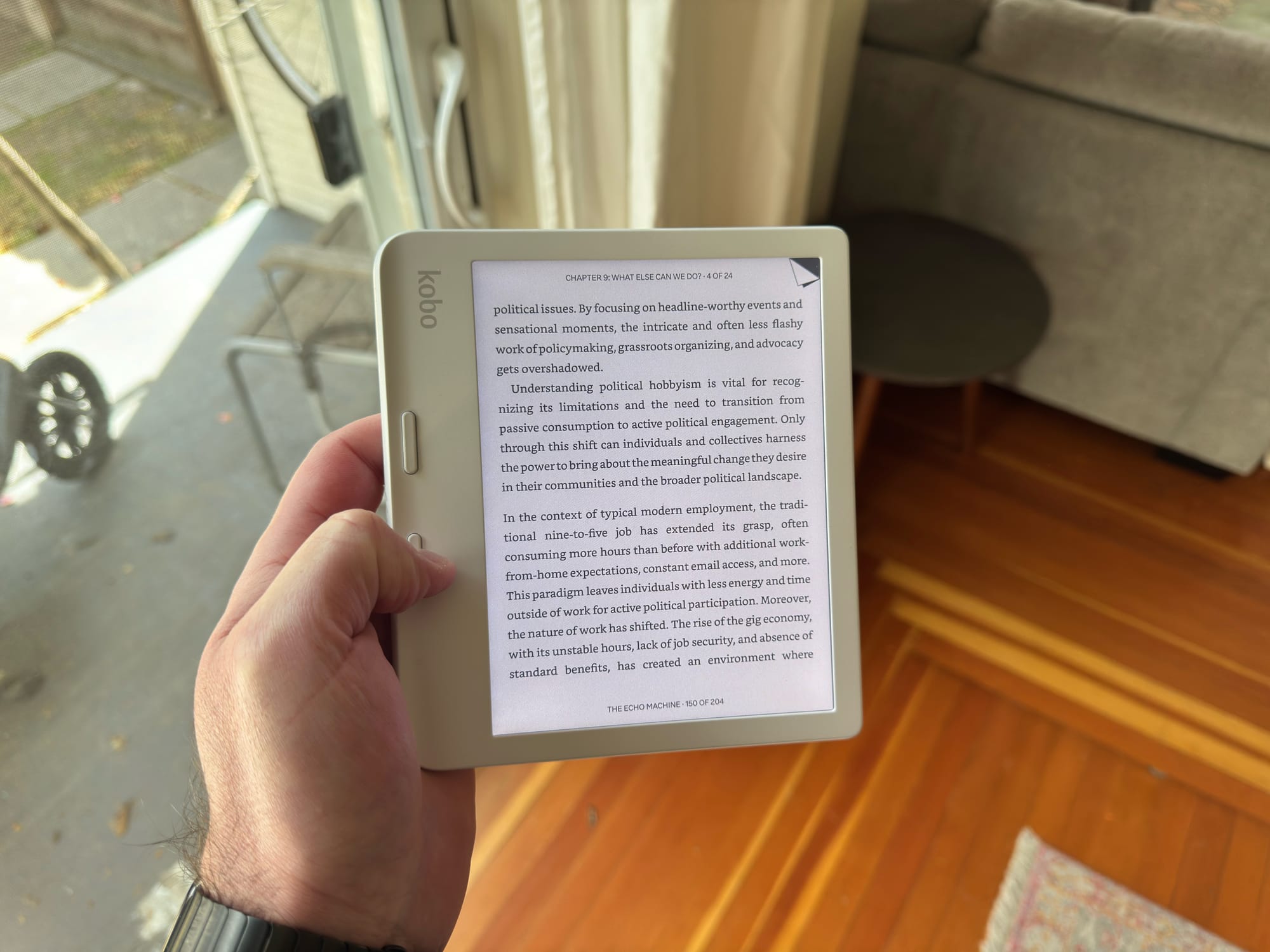
For about six months I used a Kobo Libra Color and really enjoyed that device. Though it had a pretty dim screen without the front light, the colors looked good and reading, for the most part, was pretty good. After a while though, I decided that I wanted something different.
Kobo Libra Color
The reason the Libra didn't stick was the lack of clarity when reading black and white text (books), and the size of the device. Because of the Kaleido display the text wasn't as crisp as a Carta (black and white only) e-ink display which was very annoying since I rarely read anything with color.
Having the book covers colorful was a cool feature, but other than that I never really took advantage of the color options for highlighting or reading comic books. The size of the device was also something that caused annoyances. If I brought the Libra with me, I had to have some kind of bag to put it in, since it didn't fit in any pockets.
I usually have a bag with me, either my Cotopaxi sling that could fit the Libra, my larger TomToc sling, or my Timbuk2 Backpack. But sometimes when I am running out of the house, or running out for lunch, I don't like to always take a bag or sling with me. So being able to just throw something in my back pocket is preferred.
XTEINK
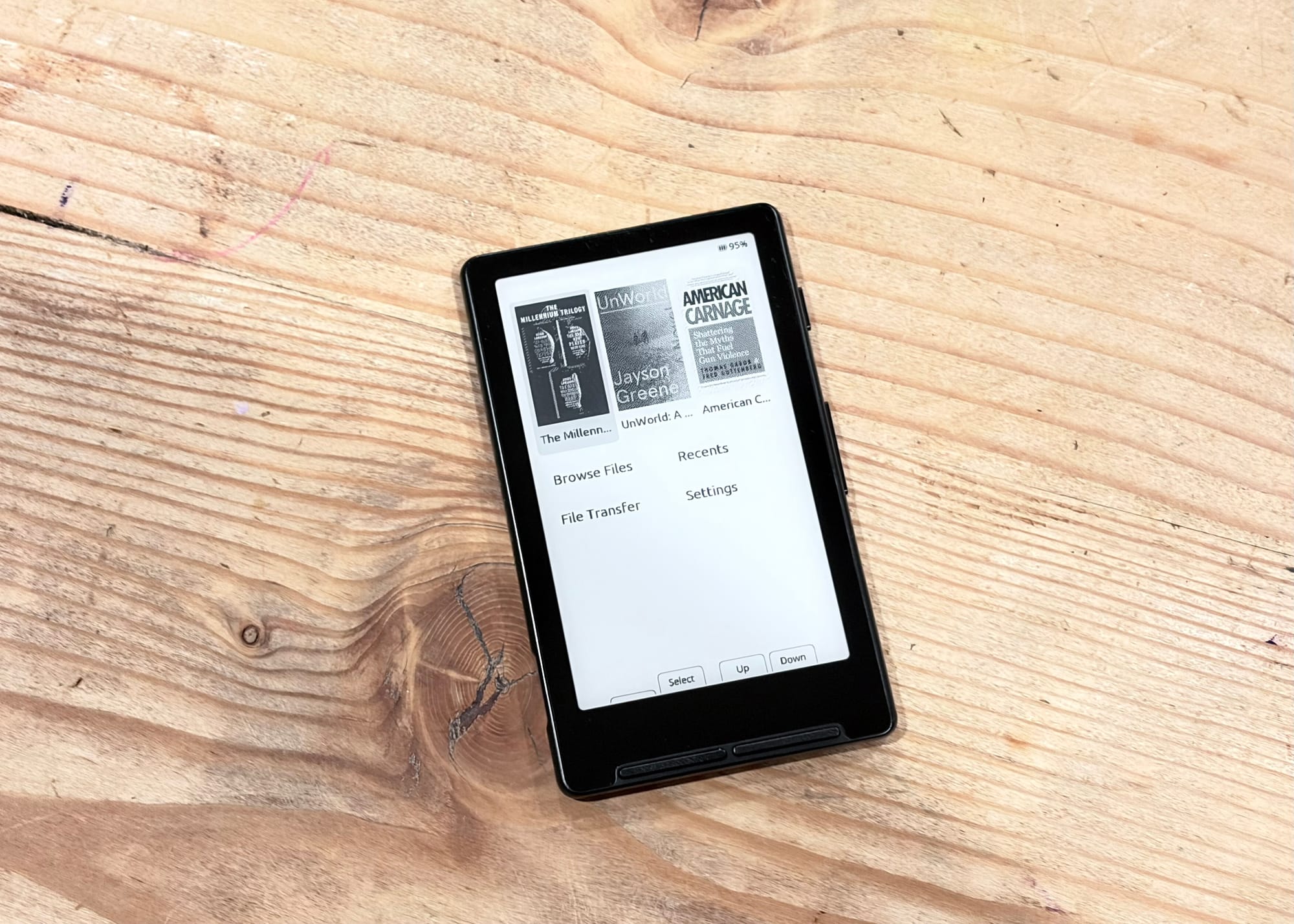
Small e-ink devices are really appealing, that is why I initially tried out the Boox Palma 2. The Palma 2 Pro looks good, but again I don't need a phone-sized e-ink screen, I would rather just keep my iPhone and have a secondary e-ink device that does more for me.
X4 with Crosspoint OS.
Except of course when it comes to the XTEINK X4. This little device I saw recommended on a few YouTube channels and immediately had to drop the $40 to pick one up for myself. It took a while for it to eventually get to me but once I got it, I was obsessed.
But then I wasn't. When I originally got the device I was using whatever Chinese software that was installed, and the formatting of my books was just awful. I love tinkering with gadgets, but after a few days of trying to reformat my books and change settings I just couldn't get it right and the device just sat in my bag unused for a long time.
It wasn't until I stumbled on the XTEINK subreddit recently that I realized that enthusiasts have created a ton of hacks and solutions to problems I was dealing with as well. One of those solutions was installing a new OS on the X4 called Crosspoint which has literally changed the usefulness of it for me.
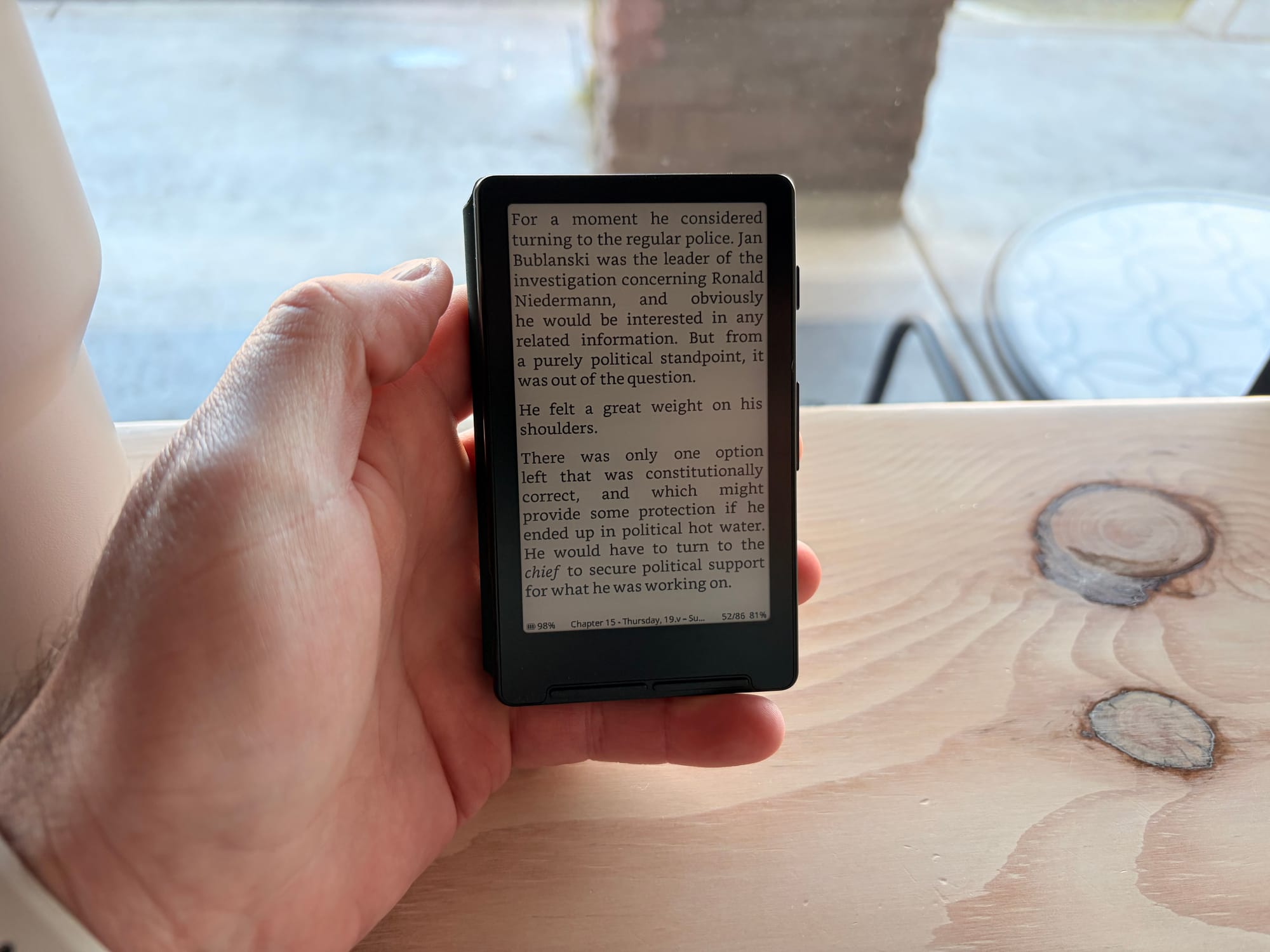
Great for small reading spurts when out and about.
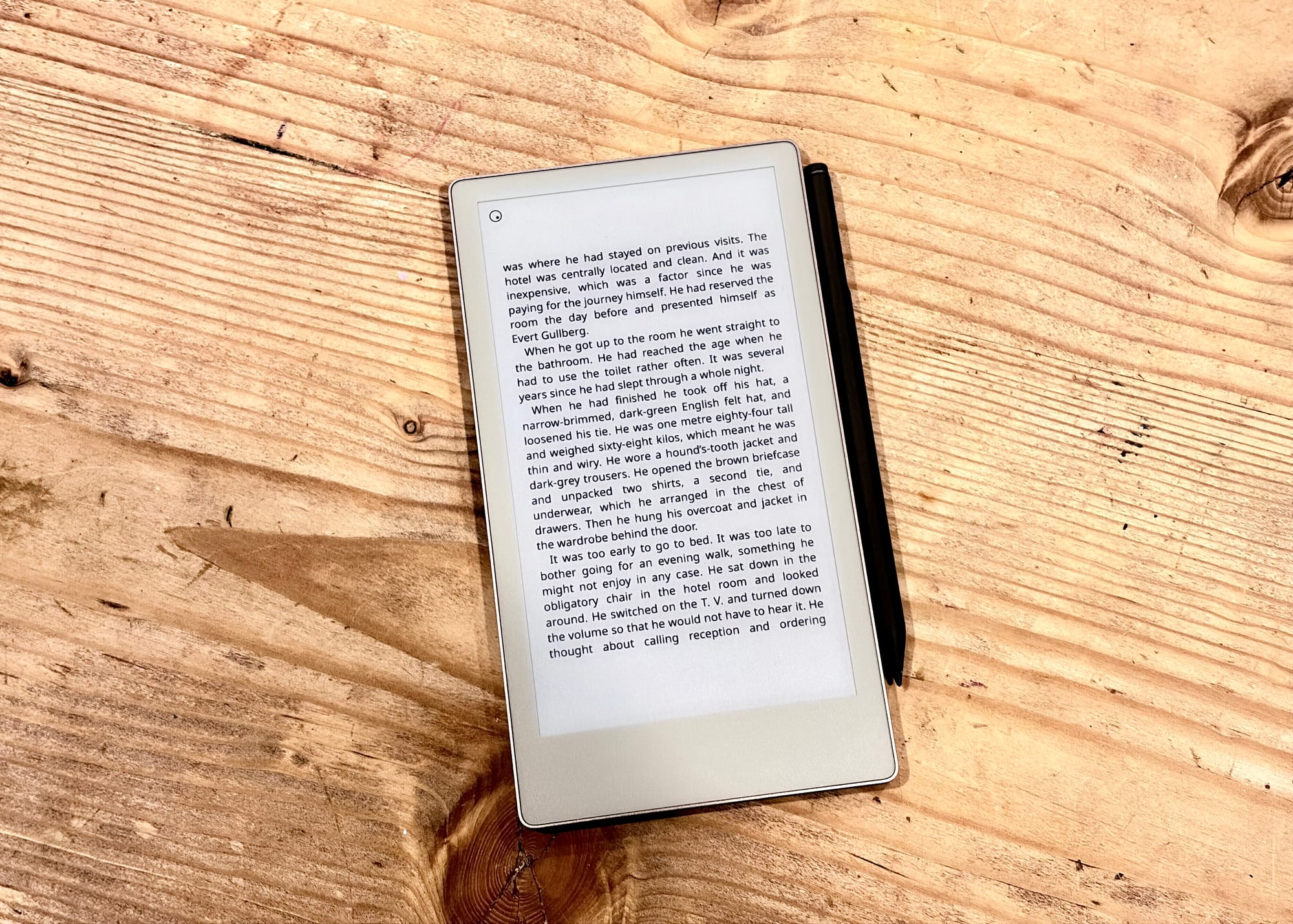
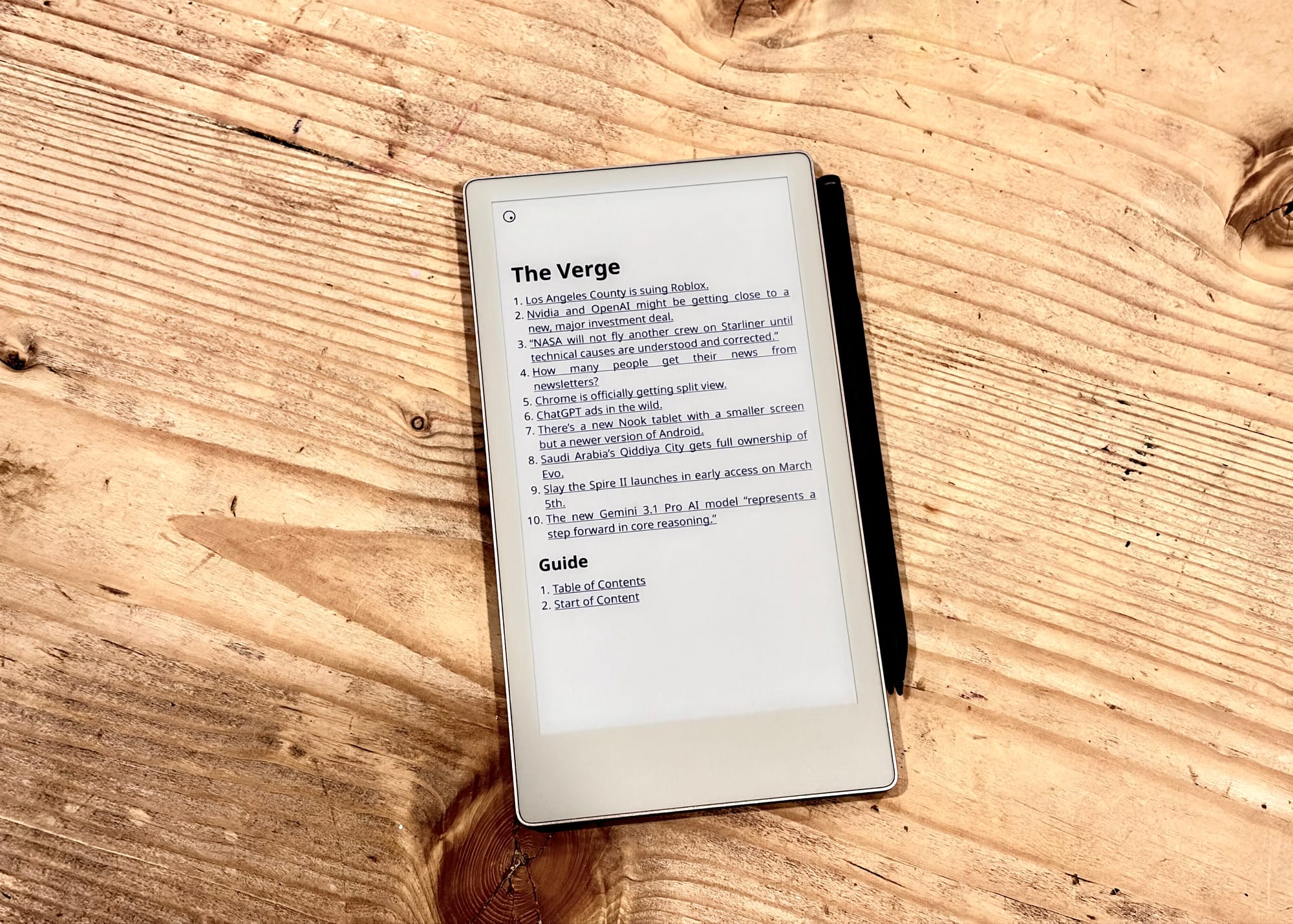
My books are now formatted correctly so the spacing of words and wrapping of sentences are way better. Plus navigating the interface is so much more intuitive. Since I have installed Crosspoint the X4 is now a mini e-reader that is always with me.
The size of it is so ideal to just throw in my front pocket and found myself reading a ton more having it with me all the time. Syncing books with other devices I haven't really setup yet, but I try to at least finish a chapter every time I pick it up so it is easy for me to pick up where I left off on another device.
Though the screen isn't super crisp at about 220 PPI, the size makes the text seem perfectly fine when out and about. I also did worry about turning pages too often with such a small device, but so far it hasn't been an issue at all. I think because I can use the volume buttons on the side to turn pages makes it so easy to keep reading and not think about it.
XTEINK markets the the ability to stick the X4 on the back of your phone with MagSafe or using a magnetic ring that comes with the device, but I found that it didn't work very well and didn't really like the added bulk on my iPhone. So instead I bought a simple case for it that magnetically connects to the device and adds some minimal protection when it is in my pocket.
I really love this little device, and even though it doesn't have my desired front light, it has been great to have during the day to read a few pages of a book instead of pulling out my phone.
reMarkable
Another very popular e-paper tablet that has had a ton of hype over the years are the reMarkable devices. I was never that interested in the original reMarkable or the reMarkable 2, but the reMarkable Paper Pro Move caught my eye right away once I started seeing people talking about it in YouTube videos.
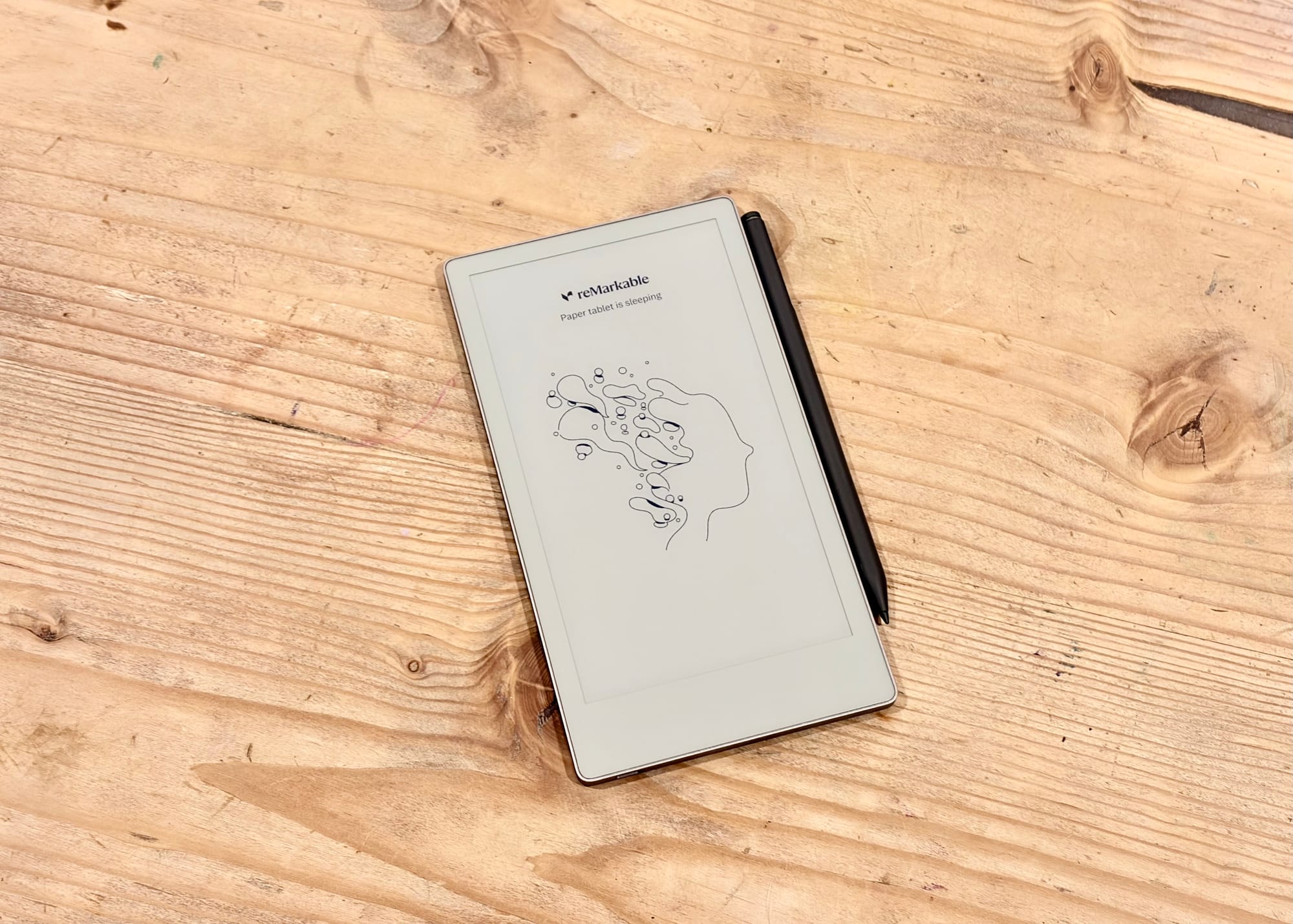
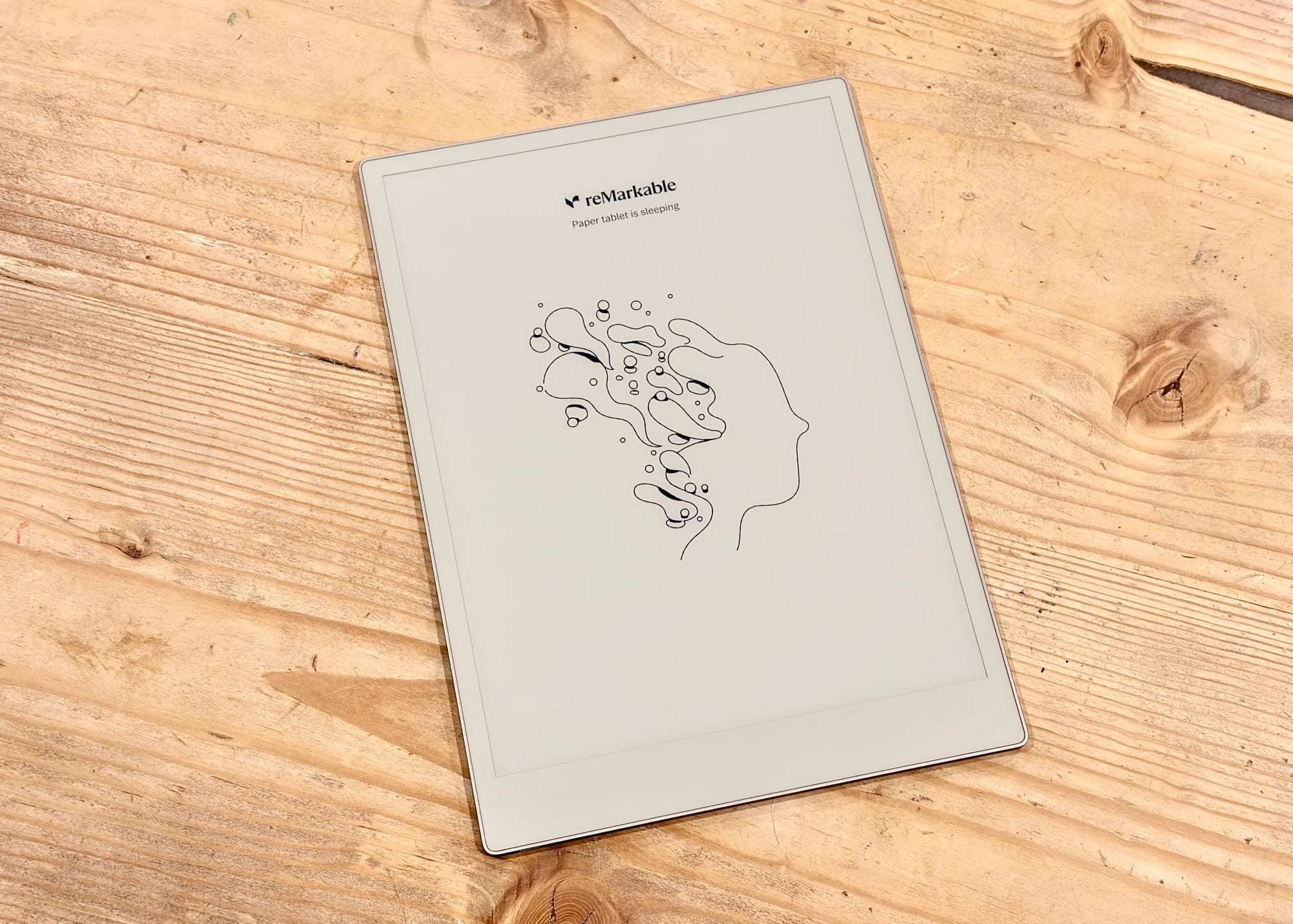
Remarkable Paper Pro Move
It wasn't until I was introduced to the Paper Pro Move that I realized reMarkable had released a third e-paper tablet, before the Move, called just the reMarkable Paper Pro. I never really felt the pricing of reMarkable hardware was worth what you got for it, until of course I tried one for myself.
Now I have gone back and forth journaling with a small paper notebook and an iPad for years. The iPad Mini was great for this, but I seem to always go back to a paper notebook at some point because I love the feel and tactile experience of pen on paper.
It wasn't until I used the reMarkable Paper Pro Move that I finally found something that fit perfectly in the middle of these two areas. I have the ability to keep my notes digitally to share or go back to easier than flipping through a paper notebook, plus the writing feel on the Move was better than any other digital e-paper device that I have used in the past.
The Paperlike screen protectors do provide a different but somewhat similar experience for iPads, also the Rock Paper Pencil screen cover, but if you are using an iPad you want the best clarity and always felt those were just not worth the sacrifice on such a beautiful display.
The Move on the other hand provides really great clarity but also the feel of writing on paper without the compromises. Another thing I realized, which came much later, was the fact that the software was so limited it forced me to use the device in specific ways.
Because journaling is so important to me, this is where I realized the reMarkable Paper Pro Move really shined. A $450 notebook is ridiculous compared to a $20-$60 paper notebook from companies like Studio Neat, Leuchtturm1917, or Baronfig so obviously justifying the price for just a journal was not ideal.
What really stood out as I started using the Move more was how much it helped me at my day job, but also as a pretty good e-reader. Not only has the Move become a great personal journaling device for me, but I have been using it as a daily to-do list for work, I read articles sent to me daily using the papeer.tech service, and books.
Reading books and new articles aren't perfect but still great.
Reading books can be limiting in that reMarkable only lets you format or use fonts that they provide, and it can be a little tedious when it comes to sharing documents either to the device or from it. But again, I don't need anything too fancy and for the most part it has become a notepad that is always with me and is always available.
I have been trying out the larger Paper Pro, after loving the Move so much, but so far I am not seeing the appeal as much on such a large device. I considered picking up a reMarkable 2 as well, but I really do like a front light as an option so I am not sure if that will work for me.
A whole review of the reMarkable Paper Pro Move is coming soon, but I had to end with my favorite since my love for e-ink has really grown substantially after picking it up. I really do find it useful in so many areas of my life and have come to the conclusion that e-ink as part of my life is here to stay.
Great device, but the size makes it hard to fit in my workflow.
My Continued Love Of E-Ink
Like I said, I think my journey with e-ink devices may have started a while ago, but the true joy of using them has just started recently. So I plan to use and explore more areas of these devices in the future.
I haven't even touched on the other e-ink opportunities out there like monitors or status board devices that are really popular right now. I also feel like e-ink phones are also going to continue to get more popular and see great improvements too.
Overall I am happy with my Kindle Voyage, X4, and Move, and even though I don't know how the Voyage fits yet with all these devices, I am happy to be using tools a bit more intentionally over using my iPhone and iPad so much. E-ink technology isn't new, but the growth in devices and the workflows they offer is really great and I am happy to be a part of it.
Apple Silicon has truly made old MacBooks a steal.
This is a bit of a surprise post, to be honest. After writing about (and defending) the iPad Pro for the past year—or longer—and arguing that you don’t truly need a Mac to get things done, I have bought a used MacBook Pro of my own.
You can call me a hypocrite if you want. I pretty much explained my argument for why I wanted to buy a laptop in my previous post about the Lenovo X1 Carbon running Linux. That post, titled My New‑Old Laptop, I said:
There are a couple of reasons why I ended up picking up a laptop. One, I’ll admit, is because my iPad couldn’t do certain things I needed. I have a jail‑broken Kindle Voyage and an iPod with Rockbox installed, and both of these need either Windows, macOS, or Linux to troubleshoot or configure. I also have a Pixel 9a that I was using for a while, and to put GrapheneOS on it and mess with settings using ADB, I needed one of those operating systems.
Then continued:
So this is a clear area where iPadOS is just not helpful. I can plug some of these devices into my iPad to move files or charge them, but actually unlocking the bootloader on the Pixel or installing Rockbox on my iPod just isn’t possible on the iPad right now. Again—I hate to repeat myself—but this isn’t a dig at the iPad, just a recognition that different tasks require different tools.
I continued to note that I do have a mini‑PC I could use for these things, but it’s nice to have a laptop that runs one the three operating systems I listed above, instead of always having to sit at my desk at home.
So why did I get a MacBook if I already had a Lenovo that worked great? Well, the problem is that it didn’t work that great. I hate to say it, but I want to add a disclaimer: some of the issues I ran into are probably more “me‑problems” than hardware problems. Bear with me as I explain.
Linux is great. I tried Omarchy (running off of Arch Linux) for a while and felt like I was living in some futuristic techno‑world, controlling my computer solely from the keyboard. Although I got the hang of the key commands, after a while even simple tasks—like mounting an external drive—took way too long.
That’s similar to arguments against the iPad: sometimes Linux requires more steps for things a novice like me doesn’t have the patience for. I’m sure that with more time and patience I could master Linux, but my preference leans toward familiarity and simplicity.
One solution was to reinstall Windows 11 on the ThinkPad, which I did for a while. Soon, however, it felt like I was working on my work computer all the time. That isn’t bad—I use Windows 11 all day—but I wanted something fresh for my personal projects, something the iPad has given me for many years.
Another thing I wanted to do more of was create iOS and iPadOS apps for myself. I’ve been brainstorming personal‑finance and blog‑posting apps and wanted to code them natively, not on Windows.
I considered building a web app and wrapping it with Electron to put it on the App Store using my wife’s old MacBook, but ultimately I preferred native iOS/iPadOS apps.
For a while I did use my wife’s 2018 MacBook Pro to prototype apps that I’m now playing with on my iPhone. Unfortunately, many steps were painfully slow and tedious. Launching the iPhone or iPad simulator alone in Xcode took 5–10 minutes before the app would even boot for testing.
Often the simulator would crash, or Xcode would lock up before I could apply any changes. With iStat Menu running in the menu bar, the CPU would spike to 100 % and the fans would roar. It was usable, but painful and far from ideal.
After a few weeks of that, I started looking at other MacBooks. I proved to myself that creating these apps was fun and something I wanted to explore further, so I began researching an affordable MacBook that would meet my needs.
My local Costco had great deals on the M4 MacBook Air: $749 for the 13‑inch and $949 for the 15‑inch. I tried the 15‑inch for a week and loved it. It’s been a long time since I used a laptop larger than 14 -inches, and even a single‑inch increase made a huge difference.
Even without Mini‑LED, the Air’s display was great, and the base model’s 16 GB of RAM made it a fantastic value—especially on sale. Still, I wanted to try the 13‑inch before deciding. Not because the 15‑inch was too big, but because I wasn’t sure the extra $200 was worth it.
I spent a week with the 13‑inch M4 Air and liked it as much as the 15‑inch, but the screen felt a bit small for coding on the go. I wanted a laptop large enough to be comfortable for development, yet portable enough not to deter me from carrying it around.
Xcode on this Mac is amazing.
That’s when I realized that, although a $749 M4 Air is a great deal, I could get an M1 Pro MacBook for even less while still delivering performance I’d never fully tap. Even though the M1 chips are four years old, they still provide ten‑times—or more—the performance of the 2018 MacBook Pro I’d been using for a few weeks while building apps.
After returning the 13‑inch Air, I hunted for a MacBook Pro with an M1 Pro chip (or better) on a budget around $700. That wasn’t easy; Apple‑Silicon Macs hold their value remarkably well.
Still, $700 for an M1 Pro MacBook Pro is a solid bargain considering they originally sold for $2,000. After a couple of days, I found a base‑model M1 Pro MacBook Pro in good condition for $710. The body, keyboard, and display are all in great shape; the only concern is the 86 % battery capacity, which I can address later if needed.
Now, after about a week of use, I have to say this four‑year‑old MacBook Pro has blown away my expectations. Performance is outstanding, and despite the 86 % battery health, the battery still lasts for days. I expect it will degrade over time, but so far it’s been a non‑issue.
When it comes to performance, this machine never slows down. I can run Cursor, VS Code, Xcode, the iOS Simulator, Icon Composer, Affinity, and several other apps simultaneously, and the MacBook just keeps humming along. The CPU may spike to 80‑100 % briefly when launching heavy apps, but it quickly settles, and I haven’t heard the fans spin at all—even when I hold the laptop close to my ear.
One of my favorite YouTube videos shows people using older laptops as daily drivers, proving you don’t need the latest hardware to get things done. This MacBook Pro feels like the epitome of that philosophy.
Though used a bit, the keyboard is fantastic.
For $700 I now own a computer more powerful than I’ll need for a while. I understand why people stick with the older M‑series Macs for so long. This experience has rekindled my love for macOS and dive deeper into app development and Swift.
Over the next few months I plan to go further into Swift and learn more about building apps for the Apple ecosystem. Maybe I’ll even attend WWDC next year. Don't get me wrong, Apple’s developer relations have been pretty bad lately, but I’m doing this for myself—not for Apple.
I don’t necessarily intend to publish an app on the App Store. My goal is to create tools that are useful to me. If something turns out worth sharing with the world, I’ll consider it then. For now, I’m happy building for myself on my old and most powerful laptop I’ve ever owned.